
On This Page: [hide]
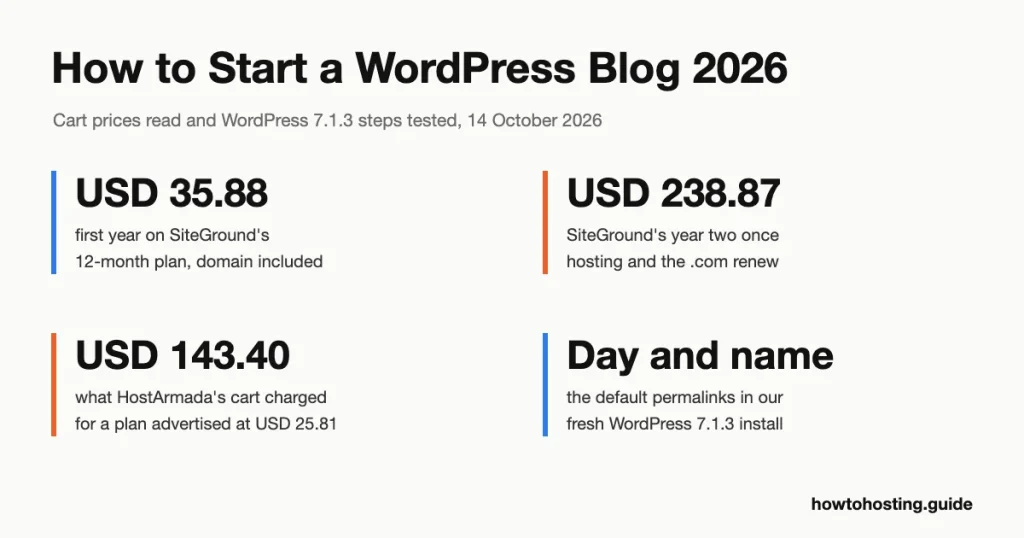
A self-hosted WordPress blog costs USD 35.88 to USD 47.88 for its first year on a 12-month hosting plan, with the domain included. Year two is where budgets break: USD 151.87 to USD 238.87, once hosting and the .com renew at full price.
Quick answer: the setup fits in one sitting. Hostinger’s documentation says its WordPress installer usually finishes in under a minute, and everything after that is a few screens in the dashboard. Here are the seven steps:
- Pick a hosting plan and read the renewal line in the cart, not on the plan card.
- Claim the free domain and untick the paid extras.
- Install WordPress with your host’s installer, then log in.
- Change four settings: title, timezone, permalinks and pingbacks.
- Keep the default theme or install a new one.
- Add an anti-spam plugin and switch on its auto-updates.
- Write, categorize and publish your first post.
Last reviewed: October 2026. Prices were checked in each host’s cart on 14 October 2026. That same day, we ran every WordPress step in WordPress Playground, on WordPress 7.1.3.
WordPress.org or WordPress.com: Decide Before You Pay
Two products share the name. WordPress.org is free software that runs on hosting you pay for. WordPress.com is Automattic’s hosted service, where you rent a finished site.
Self-hosting gives you any plugin, any theme and your own ads, and you can move to another host whenever prices change. On WordPress.com you trade that control for convenience. Either way you’re on the most-used website software there is: W3Techs counts WordPress on 40.0% of all websites (read 14 October 2026).
Here’s the honest comparison. WordPress.com Personal costs USD 4/month billed yearly, which is USD 48 a year (or USD 9 paying monthly, excluding taxes). It includes a free domain for one year and 6 GB of storage. That’s less than any year-two hosting bill in this guide. So if you only want to write, and you’ll never install a plugin, WordPress.com is the cheaper path.
Everyone else should self-host. The rest of this guide covers that route.
Step 1: Choose a Hosting Plan by Its Renewal Price
We checked the entry plan of three hosts in their carts: Hostinger Premium, SiteGround StartUp and HostArmada Start Dock. Each fits one new blog. The plan card shows the promotional price; the cart shows the term you’re committing to and what comes after it.
| Plan | Lowest price (term) | 12-month term | Renews at | Storage and sites | Money-back |
|---|---|---|---|---|---|
| Hostinger Premium | USD 2.99/mo (48 months, USD 143.52) | USD 47.88 (USD 3.99/mo) | USD 10.99/mo | 20 GB SSD, 3 sites | 30 days |
| SiteGround StartUp | USD 2.99/mo (12 months, USD 35.88) | USD 35.88 | USD 17.99/mo | 10 GB, 1 site | 30 days |
| HostArmada Start Dock | USD 2.15/mo advertised (12 months, USD 25.81) | USD 25.81 advertised; the cart charged USD 143.40 | USD 11.95/mo (USD 9.95 on 36 months) | 15 GB NVMe, 1 site | 45 days |
Prices are each host’s US-dollar storefront, excluding tax. Hostinger and SiteGround added a tax line for our location; HostArmada’s cart showed no tax line.
Hostinger Premium: the lowest cost over four years
Hostinger’s USD 2.99 isn’t a monthly bill. It’s USD 143.52 paid upfront for 48 months, which works out to USD 35.88 a year. The cart then states the renewal plainly: USD 10.99/mo for 12 months, or USD 131.88 a year.
Prefer one year to test the idea? The 12-month term costs USD 47.88 and renews at the same USD 10.99, a 2.75x jump. Year two then comes to USD 151.87 once the .com renews. That’s still USD 87.00 less than SiteGround’s year two.
For a new blog, Premium covers what you need: 3 websites, 20 GB of SSD storage and weekly backups. The domain and two mailboxes are free for the first year. Hostinger is also one of three hosts on WordPress.org’s recommended list, next to Bluehost and Pressable. Skip the 1-month term: it costs USD 11.99 and comes with no free domain.
SiteGround StartUp: the cheapest first year, the steepest renewal
SiteGround charges USD 35.88 for the first 12 months, then USD 17.99/mo. That’s a 6.02x multiplier, so hosting alone costs USD 215.88 in year two. Add the USD 22.99 domain renewal and you reach USD 238.87.
The 24-month term softens it. USD 179.76 covers two years (USD 7.49/mo), which saves USD 72.00 against paying 12 months and then renewing once. The renewal after that is still USD 17.99.
What you get is narrower than Hostinger’s plan: 1 website and 10 GB, half Hostinger’s storage. In return, SiteGround keeps daily backups for up to 30 days and includes a free .com, .org or .net for the first year. Our cart came from SiteGround’s “World” storefront in US dollars; European visitors see EUR 2.99, renewing at EUR 15.99, excluding VAT.
HostArmada Start Dock: cheap on paper, check the cart total
HostArmada advertises Start Dock at USD 2.15/mo for 12 months (USD 25.81). On 14 October 2026 we opened its own “Get Started” link three times. Each time the order summary showed the full USD 143.40. Typing the code from its pricing page returned “The promotion code entered does not exist”.

The code from HostArmada’s own pricing page fails at checkout, so the advertised USD 25.81 year becomes USD 143.40, plus pre-ticked privacy. Source: my.hostarmada.com cart, captured 14 October 2026.
The longer terms did work. The 36-month link applied its 74% discount automatically, for USD 93.13 upfront and a USD 9.95/mo renewal. The 24-month link gave USD 57.82, renewing at USD 10.95. So if you choose HostArmada, use a multi-year term and confirm the discount line before you pay.
Between 28 September and 14 October 2026, HostArmada raised its three-year Start Dock price from USD 1.99 to USD 2.59 a month. The renewal stayed at USD 9.95, so guides quoting USD 1.99 understate the first bill by USD 21.49.
Start Dock includes 15 GB of NVMe storage, 1 website, free SSL and 7 daily backups. Its 45-day money-back window is the longest of the three, with a catch covered in Step 2.
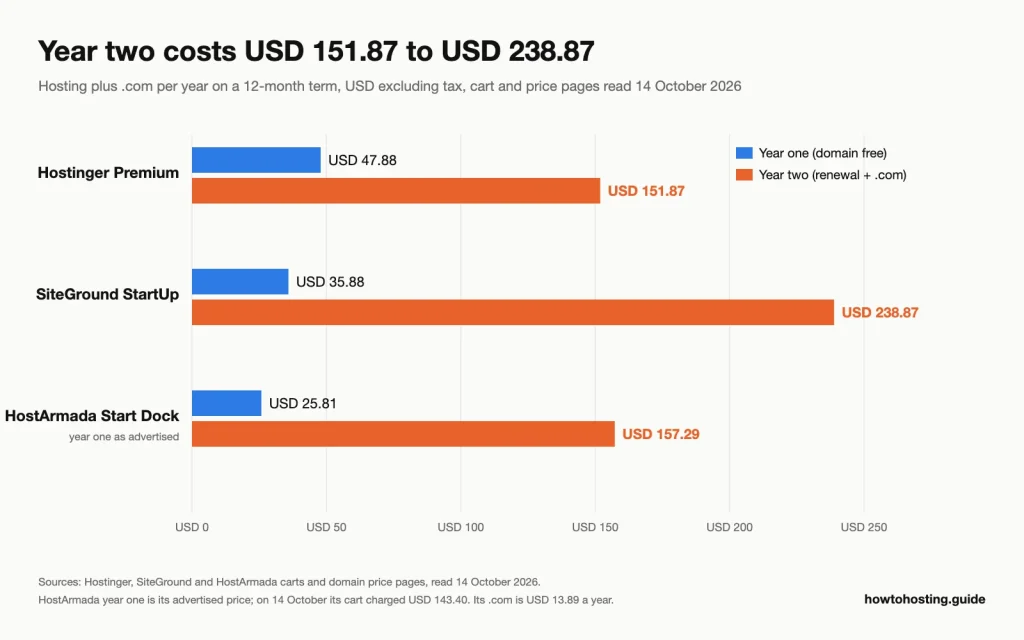
Year two includes the hosting renewal and the .com renewal. Source: each host’s cart and domain price page, read 14 October 2026.
Put the 12-month terms side by side and the gap is plain. Year one costs USD 47.88 at Hostinger, USD 35.88 at SiteGround and USD 25.81 at HostArmada as advertised. Year two, with the .com renewal added, costs USD 151.87, USD 238.87 and USD 157.29. If none of these fits, our cheap shared hosting comparison by renewal price covers more hosts.
Step 2: Register the Domain and Untick the Extras
Your domain is the address readers type, so pick it with care: changing it later means moving every link. Keep it short and easy to say aloud. Skip hyphens and numbers, and take the .com if it’s free.
All three hosts include a free .com for the first year on terms of 12 months or longer. The renewal is where they differ:
- Hostinger: its domain price table lists .com renewals at USD 19.99/yr. Its cart values the same free domain at USD 13.99, so budget for the table price.
- SiteGround: .com renews at USD 22.99/yr. Domain privacy is an optional USD 12.00 for the first year, then USD 24.00, and the box isn’t ticked for you.
- HostArmada: a .com costs USD 13.89 a year when bought on its own in the cart; no separate renewal rate is printed. Its Privacy Protection add-on (USD 4.65) arrives pre-ticked, so untick it if you don’t want it.
The free domain also changes the refund maths. Hostinger’s refund policy calls free domains non-refundable and lets it keep the domain’s price from your refund. SiteGround’s terms say it may deduct the domain’s standard fee. HostArmada withholds USD 13.95. So a “full refund” within the money-back window is really the hosting minus the domain. At Hostinger and HostArmada you keep using the domain until it expires.
Step 3: Install WordPress and Log In
Each host installs WordPress from its own panel. We couldn’t test these panels without buying, so the routes below come from each host’s documentation, read on 14 October 2026:
- Hostinger: open the website dashboard in hPanel, click Auto Installer under Website, and choose WordPress. Leave the install path blank for the main domain, then set the admin username, password and email.
- SiteGround: go to Websites > New Website, pick the domain, choose Start New Website and then WordPress, and enter your login details.
- HostArmada: open cPanel from the client area, go to Software > Softaculous Apps Installer, select WordPress and click Install Now.
Pick an admin username that isn’t “admin”, since that’s the default name login bots try first. Then open yourdomain.com/wp-login.php and sign in.
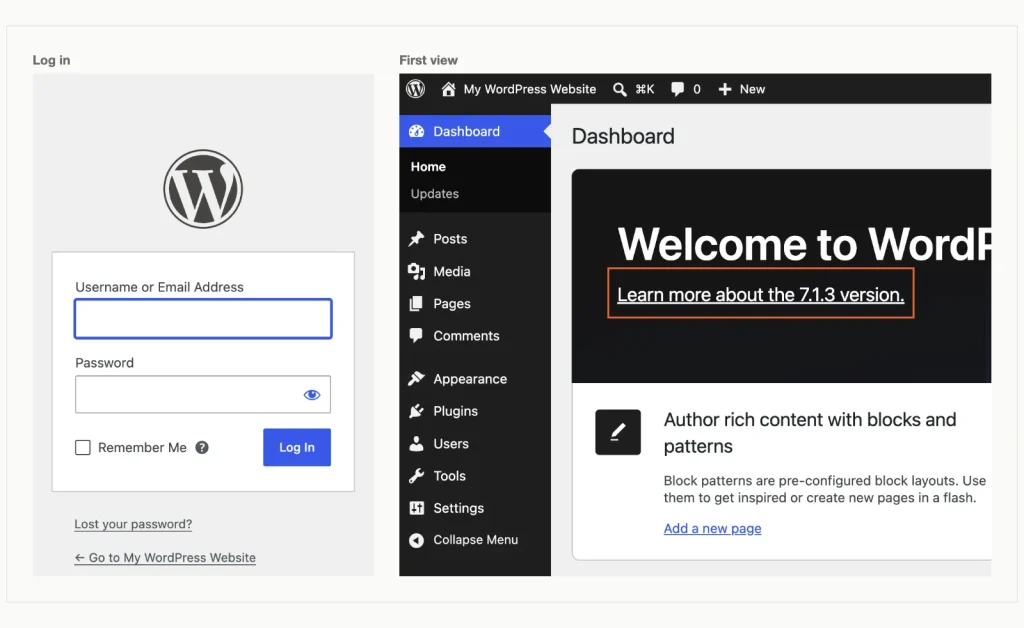
The login screen at /wp-login.php, then the first dashboard view, with the version link outlined. WordPress 7.1.3, tested in WordPress Playground (run locally with the Playground CLI), 14 October 2026.
The dashboard opens with a Welcome to WordPress! panel. In 7.1.3 the menus read Add Post, Add Plugin and Add Theme, so older guides that say “Add New” no longer match the screen.
A fresh install also ships with sample content. Ours held one published post, “Hello world!”, and one published page. Delete the post before readers find it: go to Posts > All Posts, hover over the title and click Trash.
Step 4: Change These Settings Before Your First Post
Four settings are worth changing on day one. Each takes a minute, and one of them, permalinks, is painful to change once posts exist.
Site title, tagline and timezone
Go to Settings > General. Our install arrived with the title “My WordPress Website”, an empty tagline and the timezone set to UTC+0. Type your blog’s name and a one-line tagline.
For the timezone, pick a city rather than a UTC offset. A city follows daylight saving time, so a post scheduled for 9 a.m. still goes out at 9 a.m. in summer. Click Save Changes and wait for “Settings saved.”
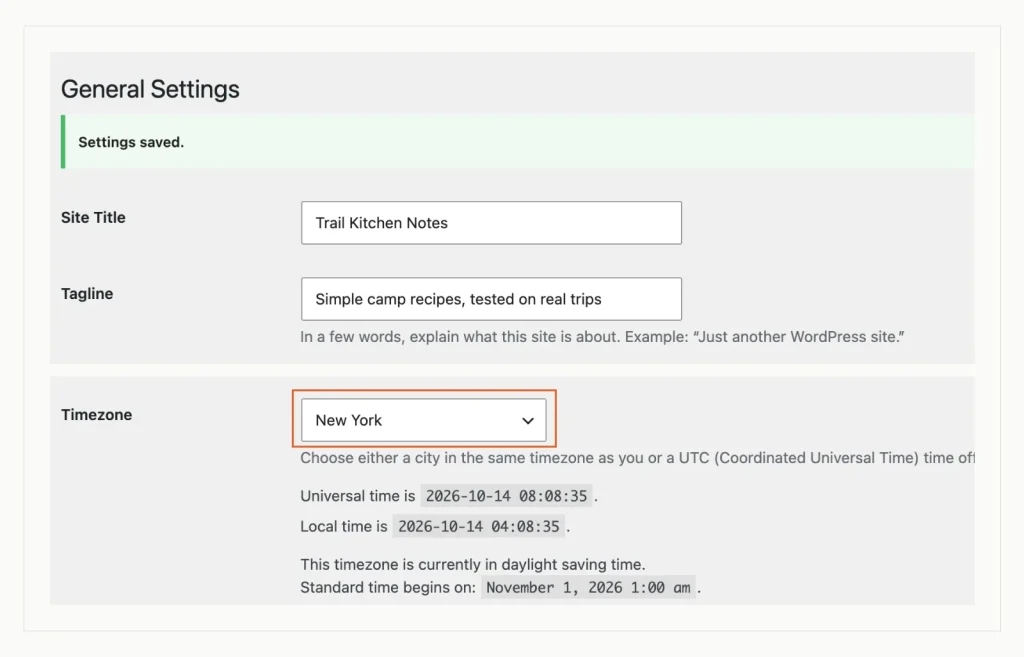
Title, tagline and a city timezone saved under Settings, General; the city setting tracks daylight saving time. WordPress 7.1.3, tested in WordPress Playground (run locally with the Playground CLI), 14 October 2026.
Permalinks: don’t assume they’re “Plain”
Most guides tell you to switch from “Plain” links to “Post name”. Our fresh 7.1.3 install wasn’t on Plain at all. It used Day and name, which puts the date in every address, like /2026/10/14/sample-post/.
That’s WordPress’s own installer at work. It tries the date-based structure first and falls back to Plain only when the server can’t rewrite web addresses. Your host’s installer may choose differently, so open Settings > Permalinks and look.
Select Post name and click Save Changes. The confirmation reads “Permalink structure updated.” Do this before you publish anything, because changing it later changes every post’s address.
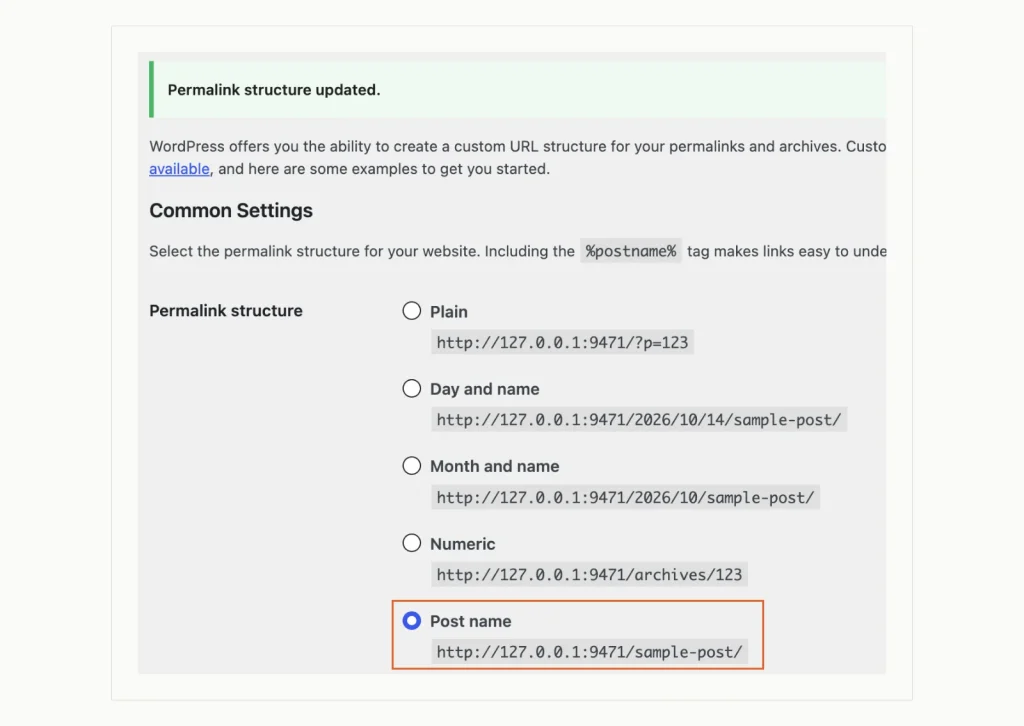
Post name selected after the install defaulted to Day and name. WordPress 7.1.3, tested in WordPress Playground (run locally with the Playground CLI), 14 October 2026.
Pingbacks off, search engines on
Pingbacks (automatic notices sent between blogs when one links to another) were switched on in our install. Today they mostly bring spam. Go to Settings > Discussion and untick the first two boxes. They read Attempt to notify any blogs linked to from the post and Allow link notifications from other blogs (pingbacks and trackbacks) on new posts. Then save.
Next, open Settings > Reading. Under Search engine visibility, make sure Discourage search engines from indexing this site is unticked. It was unticked in our test, but a ticked box asks search engines not to index the site, so check rather than assume.
You’ll also see a Connectors screen under Settings. It stores API keys for AI services and Akismet. A new blog can ignore it.
Step 5: Keep the Default Theme or Install One
WordPress 7.1.3 activates Twenty Twenty-Five, a block theme with more than 1,000,000 active installs on WordPress.org. Keeping it is a fine choice for a first blog. You can change colors and fonts in Appearance > Editor.
Want a different look? Go to Appearance > Themes > Add Theme and search the free directory. We tested with Ollie, a block theme last updated on 8 October 2026. It has 6,000+ active installs and a 5 out of 5 average from 36 ratings.
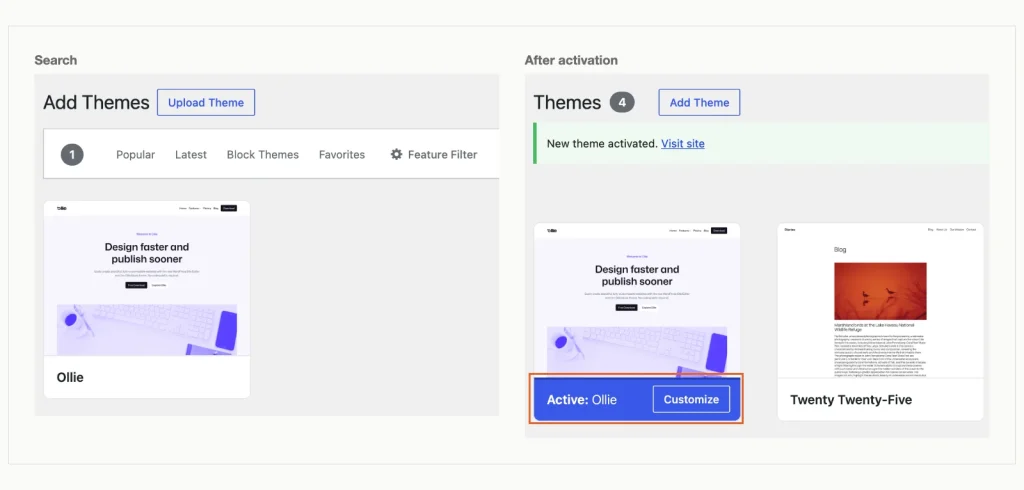
Searching the free theme directory, then the theme active after installation. WordPress 7.1.3, tested in WordPress Playground (run locally with the Playground CLI), 14 October 2026.
Click Install, then Activate. The screen confirms “New theme activated.” and the theme moves to the front of your Themes list.
Before choosing, check two things on the theme’s directory page: the last update date and the WordPress version it’s tested with. A free theme that’s still maintained beats a paid one you don’t need yet.
Step 6: Install One Plugin First: Spam Protection
Every plugin is code you’ll need to keep updated, so start with the one problem every blog with comments has: spam. WordPress already includes Akismet, inactive. Its own description says API keys are free for personal blogs, but businesses and commercial sites need a paid subscription.
We installed Antispam Bee instead. It’s free, and its description says it doesn’t send commenters’ personal information to third-party services. It has 700,000+ active installs and is tested up to WordPress 7.1.3.
Go to Plugins > Add Plugin, search for the name, click Install Now and then Activate.
One detail surprised us. After activation, the plugin’s row still showed Enable auto-updates, which means auto-updates were off. Click it so security fixes install without you; after a reload the link read Disable auto-updates, which confirms they’re on.
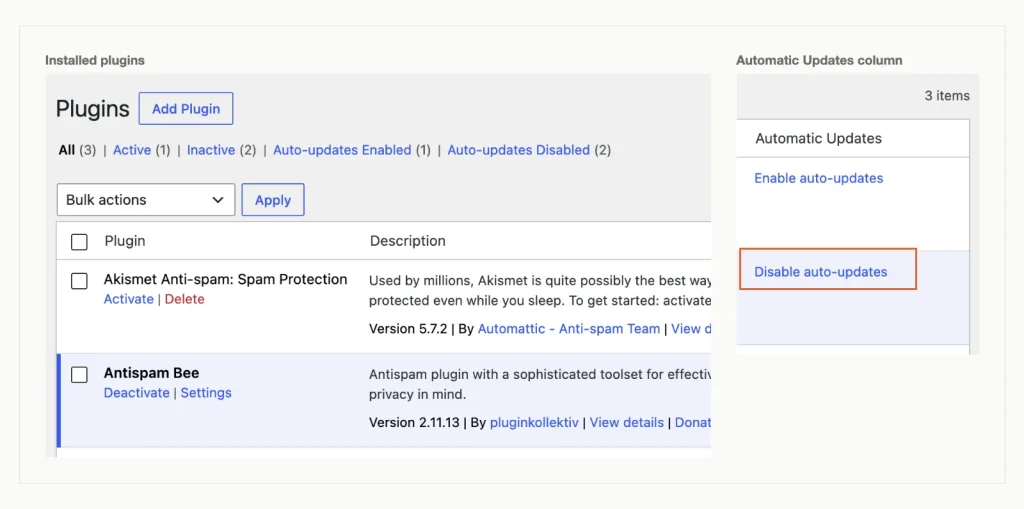
Antispam Bee active with auto-updates switched on; Akismet ships with WordPress but stays inactive. WordPress 7.1.3, tested in WordPress Playground (run locally with the Playground CLI), 14 October 2026.
Add more plugins only when a real need appears. Our list of must-have WordPress plugins with their renewal prices helps you tell which paid tiers are worth it.
Step 7: Write and Publish Your First Post
Go to Posts > Add Post. The first visit opens a “Welcome to the editor” guide; read it or close it.
- Click Add title and type the headline.
- Press Enter to start a paragraph and write.
- For a subheading, type
/headingon a new line and press Enter. The slash command works for any block, such as/imageor/list. - Switch to the Post tab on the right. WordPress fills in the Slug from your title; shorten it if it’s long.
- Under Categories, click Add Category, type a name and confirm. The new category is ticked for you.
Our test post got a “Recipes” category, and “Uncategorized” was unticked automatically. That matters, because posts left in Uncategorized pile up in a category nobody chose.
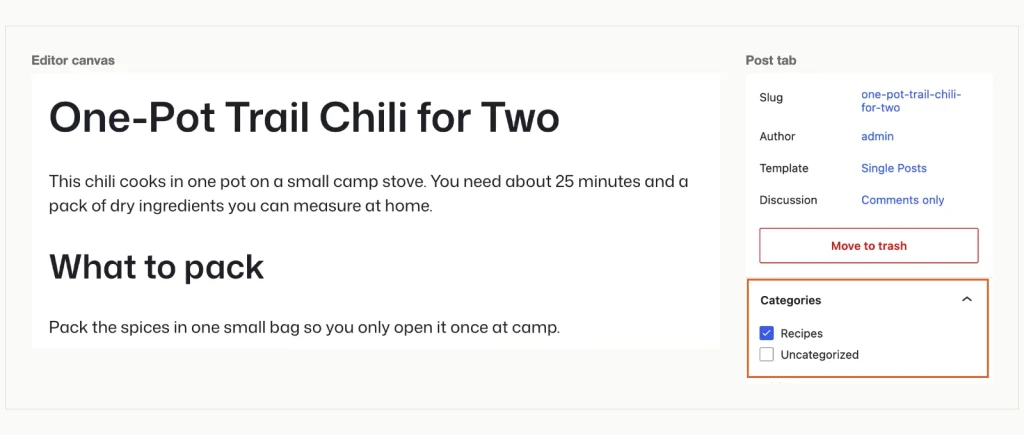
A first post with a heading added through the /heading slash command, and its new category ticked. WordPress 7.1.3, tested in WordPress Playground (run locally with the Playground CLI), 14 October 2026.
Click Publish. WordPress shows a check first: Visibility: Public and Publish: Immediately. Click Publish again and the panel confirms the post is live, with its address ready to copy.
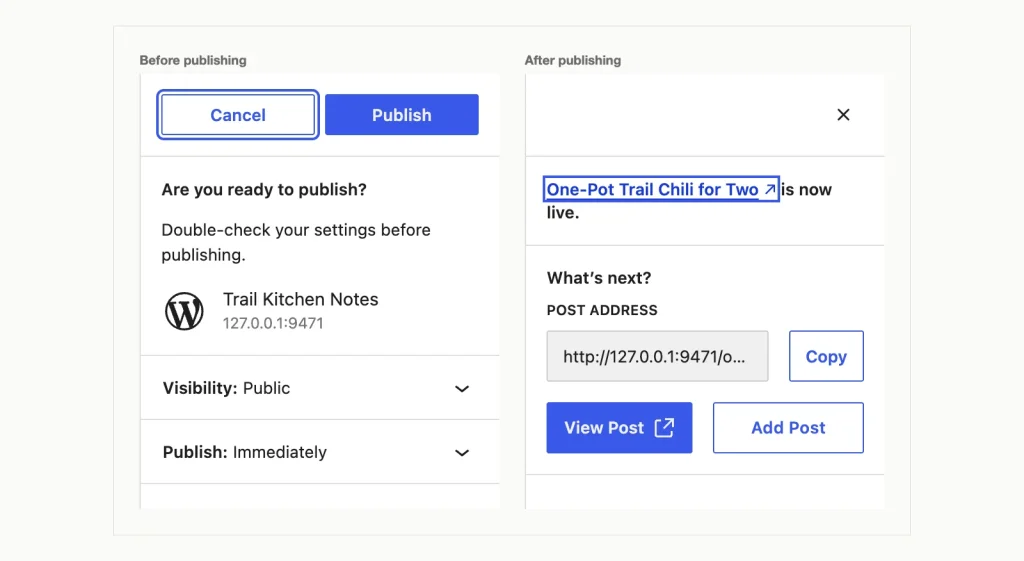
The check before publishing and the confirmation after. WordPress 7.1.3, tested in WordPress Playground (run locally with the Playground CLI), 14 October 2026.
Open that address in a new tab. Ours loaded at /one-pot-trail-chili-for-two/, which confirms the Post name setting from Step 4 worked.
Next, build your About and Contact pages. Those belong on pages rather than posts, and our guide to WordPress posts vs pages shows which content goes where.
Frequently Asked Questions
How much does it cost to start a WordPress blog?
On a 12-month plan with the free domain, the first year costs USD 35.88 at SiteGround or USD 47.88 at Hostinger, before tax. The free theme and plugin used here cost nothing. Plan for year two, though: USD 151.87 at Hostinger and USD 238.87 at SiteGround.
Is Hostinger or SiteGround better for a new WordPress blog?
Hostinger, for most new bloggers. SiteGround’s first year is USD 12.00 cheaper, but its year two costs USD 87.00 more. Hostinger’s Premium plan also gives twice the storage and three sites instead of one.
Should I pay for one year or several years upfront?
Pay for one year if you’re unsure you’ll keep blogging. Once you’re committed, longer terms cost less. Hostinger’s 24-month term is USD 83.76, while 12 months plus one renewal costs USD 179.76. SiteGround’s 24-month term saves USD 72.00 the same way.
How long does it take to set up a WordPress blog?
Most of the time goes on choosing a host and a name. Hostinger says its WordPress installer usually finishes in under a minute. After that, the settings, theme, plugin and first post in this guide are a handful of screens.
Bottom Line
For a blog you plan to keep, Hostinger Premium is the pick. Its 48-month prepay costs USD 35.88 a year, and on 12-month terms its year-two bill of USD 151.87 is the lowest of the three.
Want the cheapest single test year? SiteGround StartUp costs USD 35.88. Plan to move before the USD 17.99 renewal, or year two costs USD 238.87.
Choose HostArmada Start Dock only on its 24- or 36-month terms, and only after the cart shows the discount line. Whichever host you choose, set Post name permalinks and switch off pingbacks before your first post.
Once a few posts are up, give them a home of their own. Our guide on adding a post to a page in WordPress shows how to set up a Blog page and add it to your menu.
Thank you so much for this tutorial! I’m a newbie, and here I found all the essential details that will help me to start creating my personal blog the right way.
Good job guys, like it because it shows pure advice and suggestions without pushing products and services. I am using local hosting provider in Greece and found you trough your wordpress install review for Papaki.
Is there any way to create meeting on the home page on wordpress blog. I am using free theme. Please advice?
Hi there! Thanks so much for the tutorial. Can I ask you something in addition? Is there a way to create an email address that is linked to a blog? I don’t want my blog to be linked to a personal gmail account. So I need to create an email address dedicated to the blog. Thanks :)
Hi Howtohosting Team,
you have written so much content! So thank you, for starters.
I didn’t know where to begin from, but then I kept reading more and more and got the gist of it, i think. Good thing you have pictures and tutorial parts and that sort of stuff. I especially liked the DO NOT CLICK tip on the “Discourage search engines from indexing” part – I was laughing at how it was phrased, but wondered what exactly it would do – you made me check up on it.
You have made this like a type of encyclopedia of sorts, which I like, but to be honest, I haven’t followed everything… too long, lol, but can you give more examples on what quality content is, aside from how-to guides and news? Now, I have an almost fully working site, so that is my question – the bit about good content. What makes it good? Are backlinks that important and if I pay for such is a bad strategy?
Waiting for a response,
Your brand new fan,
Robert
Hey, Robert!
Glad we have been helpful!
To your points:
Quality content should be written with meaningful sentences, that best help your audience. For example, you are selling cars – do not write just the specs of the cars, but more detailed history about each vehicle.
What makes the content good is when you make it engaging. Make it, so that your users would definitely want and need to see that content on your site and that it helps them. So, it applies to any type of site, those above were just a few examples.
Backlinks, internal links and other useful information links are important, but do not pay for them. As a beginner, you have a lot to build and with a fast site and good content (see what I did there, haha), the links will come eventually.
Paying for links can be good and bad. If you pay someone to be on their page, that can be beneficial and ethical. But like paying for thousands of links to go to your website as a fake boost in a short period of time is bad and you should definitely not do it.
Best Regards from the HowToHosting.guide Team!
Yes, BenEC, you should create another email account for the blog.
You can always change the emails, so no worries there.
Is it really mandatory to use Email Outreach, will it help with regularly returning users?
There is something I’m wondering about.. is it possible to use wordpress just for a blog creation and then transfer the blog to my wix site? I’m just trying to find best option to combine wordpress and wix… thanks in advance!!
Thank you! Such an awesome article!
It is great that guides like these exist to help users to reach their goals and WordPress is definitely the platform I would use
I have just set a WP Website for my business. The next step is to add a SEO plugin. At first, I thought that Yoast will be the best choice but then the Rank Math tool which I saw in an article you linked – the best SEO tools, grabbed my attention. Now I try to identify which one will work better.
Danke! Great article which has helped me make my first blog site so easy!