
On This Page: [hide]
Half the Cloudflare-for-WordPress tutorials online still tell you to flip on Auto Minify. That switch no longer exists. Cloudflare retired it on August 5, 2024, and the right way to connect the two has shifted with it: you now link the plugin with an API token, not the old email-and-API-key combo. This walkthrough uses the current dashboard, the current plugin (version 4.14.3), and the settings that still matter in 2026.
Quick answer: Create a free Cloudflare account, add your domain, and switch your nameservers at your registrar to the two Cloudflare gives you. Set SSL/TLS to Full (strict), turn on Always Use HTTPS, then install the official Cloudflare plugin in WordPress and connect it with a WordPress-template API token. Apply the recommended settings, flip on APO if you want HTML cached at the edge, and you’re done. Most sites finish in under 30 minutes, minus DNS propagation.
Last reviewed: June 2026. Steps verified against the current Cloudflare dashboard and the Cloudflare WordPress plugin v4.14.3 (tested up to WordPress 6.9).
What sets this guide apart from the stale ones: it skips the deprecated Auto Minify advice, uses the token-based login (the email-plus-API-key method is the old path), and tells you which plan you actually need instead of pushing you toward Pro. You can run a fast, protected WordPress site on the free tier alone.
What Cloudflare Actually Does for a WordPress Site
Two jobs, really. First, it’s a content delivery network. Cloudflare copies your static files (images, CSS, JavaScript) to data centers around the world, so a visitor in Sydney pulls them from a nearby server instead of your origin host in, say, Dallas. That cuts latency. If you want the longer explainer on how a CDN improves load times, we cover the mechanics there.
Second, it sits in front of your site as a reverse proxy. Traffic hits Cloudflare before it reaches your server, which means Cloudflare can filter bad requests, absorb DDoS floods, and hand out a free SSL certificate. Your origin IP stays hidden. Attackers see Cloudflare, not your host.
The key idea to hold onto: once your DNS records are “orange-clouded” (proxied), traffic routes through Cloudflare. Grey-clouded records resolve straight to your server with no protection or caching. The orange cloud is the whole point.
Before You Start: Is Your Site Cloudflare-Ready?
First, a reality check: this guide is for self-hosted WordPress (a WordPress.org site where you control your own domain and DNS). If you’re on WordPress.com’s free or lower-tier plans, you can’t change nameservers or install the plugin, so none of this applies until you move to self-hosting. Assuming you’re self-hosted, you need three things. Miss one and the setup stalls halfway.
- Access to your domain registrar. You’ll change nameservers wherever you bought the domain (GoDaddy, Namecheap, your host’s panel). If someone else manages your domain, loop them in now.
- A valid SSL certificate on your origin server. Almost every host hands out free Let’s Encrypt certificates these days. You need one for the Full (strict) mode we’ll set later. No origin cert means redirect loops.
- Admin access to WordPress. Installing the plugin needs a real admin login, not an editor account.
One more thing worth checking: a fast origin still matters. Cloudflare caches and protects, but it can’t fix a slow, overloaded server on the dynamic requests it doesn’t cache. If your host is the bottleneck, a CDN only masks part of the problem. Pairing Cloudflare with SSD-based WordPress hosting gives the edge network something quick to fall back on.
Free vs. Paid: Which Cloudflare Plan Do You Need?
Honest take: most WordPress sites never need to pay Cloudflare a cent. The free plan covers the basics that matter.
- Free (USD 0/month). Global CDN, unmetered DDoS protection, a Universal SSL certificate, fast DNS, and a free managed firewall ruleset. Unlimited bandwidth. This is enough for blogs, brochure sites, and small business pages.
- Pro (USD 20/month annual, or USD 25/month monthly). Adds lossless image optimization, the full Web Application Firewall, and better analytics. Reach for it when security or image-heavy pages justify the cost.
- Business (USD 200/month annual, or USD 250/month monthly). PCI DSS 4.0 compliance, custom WAF rules, and a 100% uptime SLA. This is ecommerce and regulated-data territory.
- Enterprise. Custom pricing, billed annually, with dedicated support and network prioritization.
The one paid extra that’s actually tempting for a busy blog is APO at USD 5/month on the free plan. APO (Automatic Platform Optimization) caches your full HTML pages at Cloudflare’s edge, not just static files, so even logged-out dynamic pages load from the nearest data center. Kinsta’s testing reported page-load gains of up to 300% with it enabled. APO is bundled free on Pro and above. One billing quirk to remember: Cloudflare charges per domain (zone), so a paid plan covers one site, not your whole account.
Step 1: Create a Cloudflare Account and Add Your Site
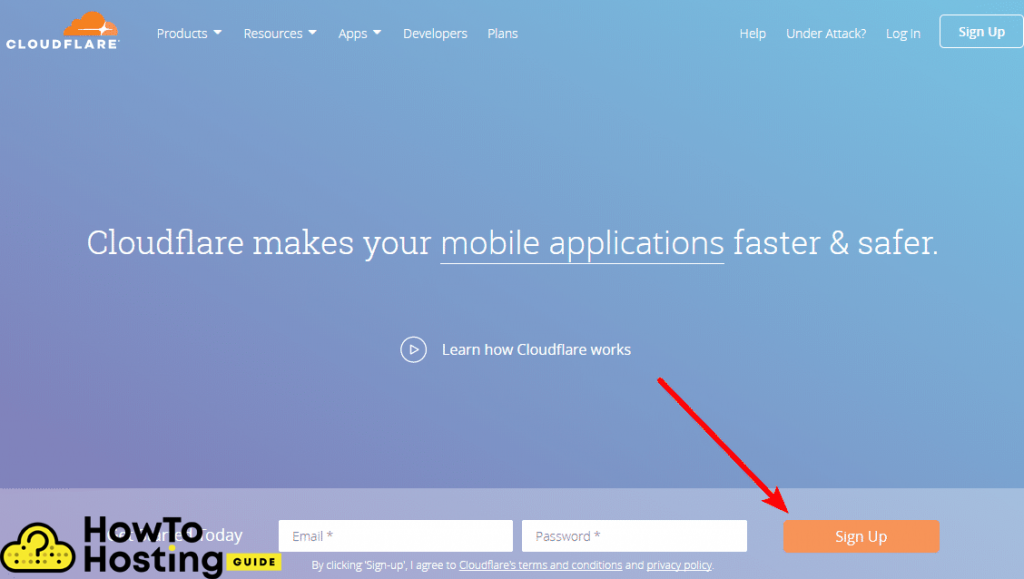
Start at the Cloudflare signup page. Once you’re in:
- Sign up and add a site. Enter your bare domain (example.com, no https, no www).
- Pick the Free plan when prompted, unless you already know you need Pro.
- Let Cloudflare scan your DNS. It pulls in your existing records automatically. This takes a few seconds.
- Review the records. Confirm your A record (and any mail or subdomain records) came across. Your web records should show an orange cloud (proxied). Leave mail records grey-clouded, or email can break.
Take 30 seconds here to compare the imported list against your old DNS. If a record is missing, add it manually before you move on. A skipped MX record is the classic reason email dies after a Cloudflare switch.
Step 2: Point Your Domain to Cloudflare
This is the step that activates everything. Cloudflare shows you two nameservers, something like dana.ns.cloudflare.com and rob.ns.cloudflare.com. They’re unique to your account.
- Copy both nameservers from the Cloudflare overview screen.
- Log in to your registrar (where you bought the domain).
- Find the nameserver setting, usually under “DNS” or “Domain Management.”
- Replace the existing nameservers with Cloudflare’s two. Delete the old ones; don’t add Cloudflare’s alongside them.
- Save.
Now you wait. Nameserver changes propagate across the internet, and that can take anywhere from a few minutes to 24 hours, though it’s usually quick in 2026. Cloudflare emails you when your site is active. Your site stays online the whole time, so there’s no downtime to worry about.
Step 3: Set the SSL/TLS Mode to Full (strict)
Get this wrong and you’ll spend an afternoon chasing redirect loops. In the Cloudflare dashboard, open SSL/TLS → Overview and choose your mode.
- Full (strict) is the right answer. It encrypts traffic both ways and checks that your origin certificate is valid. Use this whenever your host gives you a real SSL cert, which is almost always.
- Flexible is the trap. It encrypts only between the visitor and Cloudflare, leaving the origin leg unencrypted. On WordPress it causes infinite redirect loops and mixed-content warnings. Skip it.
While you’re in the SSL/TLS area, switch on Always Use HTTPS so every visitor lands on the secure version no matter what they typed, and enable Automatic HTTPS Rewrites to clean up stray HTTP links inside your pages. If you’re on managed infrastructure, your provider almost certainly issues a valid origin certificate already; our roundup of managed WordPress hosts notes which ones bundle free SSL by default.
Step 4: Install the Cloudflare WordPress Plugin
You don’t strictly need the plugin for Cloudflare to work. The nameserver switch alone gets you the CDN, SSL, and DDoS protection. But the plugin is what makes day-to-day life easier, and it’s required if you want APO.
- Open your WordPress dashboard and go to Plugins → Add New.
- Search for “Cloudflare.” Look for the official one by Cloudflare, Inc. It shows 200,000+ active installs and was last updated within the past month.
- Click Install Now, then Activate.
What the plugin buys you: one-click cache purging when you publish edits, a one-click “apply recommended settings” button, and the toggle for APO. Without it, you’d be clearing the cache manually from the Cloudflare dashboard every time you tweak a page.
Step 5: Connect the Plugin With an API Token
Here’s where old guides will lead you astray. They tell you to paste your account email and Global API Key. Don’t. The token method is safer because it grants only the permissions the plugin needs, and you can revoke it without resetting your whole account.
- In the Cloudflare dashboard, open your profile, then API Tokens, and click Create Token.
- Choose the “WordPress” template. Cloudflare pre-fills exactly the permissions the plugin requires. No guesswork.
- Continue to summary, then Create Token. Copy the token now; you can’t view it again later.
- Back in WordPress, open the Cloudflare plugin settings, choose to sign in with an existing account, enter your account email, and paste the token.
- Save your credentials. The plugin connects and shows your domain.
If the connection fails, the usual cause is a token created from the wrong template or a stray space copied with the token. Regenerate from the WordPress template and try again rather than fiddling with custom permissions.
Step 6: Apply Recommended Settings and Turn On APO
With the plugin connected, two quick moves finish the job.
- Click “Apply” on recommended settings. The plugin configures a sensible WordPress-friendly baseline in one go.
- Toggle APO to On if you bought it or you’re on a paid plan. This is what caches full HTML pages at the edge.
Important caveat before you enable APO: turn off any page-caching plugin you already run. Cloudflare specifically names WP Rocket and W3 Total Cache as plugins to disable first, because two caching layers fighting each other produce stale pages and odd behavior. Set up APO, confirm it works, then decide whether you even still need the other plugin (often you won’t for page caching, though you might keep it for file optimization).
The Settings That Actually Matter in 2026 (and the One That’s Gone)
This is where 2026 differs from the guides written three years ago. A few specifics:
- Auto Minify is gone. Cloudflare removed it on August 5, 2024. If a tutorial tells you to enable it, that tutorial is out of date. Handle CSS and JavaScript minification inside WordPress instead, through a performance plugin.
- Compression runs automatically. There’s no Brotli toggle to flip anymore. Cloudflare compresses your text files on its own, using Zstandard on the free plan (it switched over from Brotli back in 2024) and Brotli on Pro and Business. Any guide telling you to “turn on Brotli” is describing a setting that’s gone.
- Rocket Loader: test before you trust it. It defers JavaScript to speed up first paint, but it breaks some themes and sliders. Turn it on, click through your site, and roll it back if anything misbehaves.
- Browser Cache TTL. Leave it at “Respect Existing Headers” if your host already sets sane cache headers, or pick a few days for static assets.
- Don’t cache the admin area. With APO active, Cloudflare already skips wp-admin and logged-in sessions automatically. If you’re caching without APO via a page rule, add a bypass rule for /wp-admin* and /wp-login.php so the dashboard doesn’t serve stale screens.
The DDoS protection runs in the background on every plan, no configuration needed. If you ever come under an active flood, flip on “I’m Under Attack Mode” from the dashboard for an extra check on every visitor, then switch it off once the attack passes. If stopping attacks is your main reason for being here, our guide to DDoS protection in hosting explains what the free tier stops and where you’d want more.
How to Confirm Cloudflare Is Actually Working
Don’t assume it’s live just because you finished the steps. Verify it.
- Check the activation email, or look at the Cloudflare overview. An “Active” status means the nameservers switched.
- Inspect the response headers. Open your browser’s developer tools, reload your homepage, and look at the Network tab. A header reading server: cloudflare and a cf-cache-status value confirm traffic is routing through Cloudflare.
- Watch cf-cache-status. A “HIT” means the page was served from cache; “DYNAMIC” or “MISS” means it came from your origin. With APO on, your HTML pages should start showing HIT after the first few loads.
- Load a page twice. The second visit should feel faster as cached assets kick in.
Troubleshooting Common Cloudflare Problems
The site shows “too many redirects”
Classic SSL mismatch. Your mode is set to Flexible while WordPress forces HTTPS, so the two bounce requests back and forth. Switch SSL/TLS to Full (strict) and the loop clears.
My changes don’t show up
Cloudflare is serving a cached copy. Purge it from the plugin (or the dashboard’s “Purge Everything”), then hard-refresh your browser. The plugin auto-purges on most edits, but big theme or CSS changes sometimes need a manual clear. Doing heavy design work? Switch on Development Mode in the Cloudflare dashboard. It pauses caching temporarily so you see every change live, then turns itself back off.
Email stopped working after the switch
Your MX records didn’t transfer, or they got orange-clouded by mistake. Mail records must stay grey-clouded (DNS only). Recheck the DNS tab and fix any proxied mail entries.
Real visitors are getting a CAPTCHA or getting blocked
A firewall rule or Bot Fight Mode is being too aggressive. Open the Security events log, find the rule that triggered, and loosen it. On Pro and above, turn on the “Optimize for WordPress” option inside Super Bot Fight Mode so Cloudflare stops blocking WordPress’s own loopback requests (the calls the dashboard and cron jobs make back to your site).
Frequently Asked Questions
Is Cloudflare free for WordPress?
Yes. The free plan gives you the global CDN, unmetered DDoS protection, a free SSL certificate, and unlimited bandwidth, which covers most blogs and small business sites. You’d only pay for Pro (USD 20/month annual) if you need the full firewall or image optimization, or USD 5/month for APO edge HTML caching.
Does Cloudflare actually speed up WordPress?
For visitors far from your server, clearly yes, because static files load from a nearby data center instead of crossing oceans. The bigger jump comes from APO, which caches full HTML pages at the edge; Kinsta measured load-time gains of up to 300% with it on. If all your traffic is local to your host, the gain is smaller.
Do I need the Cloudflare plugin, or just the nameservers?
The nameserver switch alone gets you the CDN, SSL, and DDoS protection. The plugin adds one-click cache purging, easy recommended settings, and the APO toggle. If you want APO, the plugin is required. For a basic free setup, it’s optional but handy.
Should I use Full or Full (strict) SSL with WordPress?
Use Full (strict) whenever your host provides a valid SSL certificate, which is nearly always true today. It encrypts both legs of the connection and validates the origin cert. Avoid Flexible: on WordPress it triggers redirect loops and mixed-content errors.
Is Cloudflare APO worth USD 5 a month?
For a content-heavy blog with a global audience and no existing page-cache plugin, yes, the edge HTML caching is a real speed win for the price. If you already run a strong caching plugin on a fast host, or your readers are all near your server, the free CDN alone may be enough. It’s bundled free on Pro anyway.
Can Cloudflare break my WordPress site?
It can if it’s misconfigured. The two usual culprits are Flexible SSL (redirect loops) and stacking APO on top of another caching plugin (stale pages). Set SSL to Full (strict), disable competing cache plugins before enabling APO, and most problems never appear.
Next Steps After Cloudflare Is Live
You’ve got a faster, hidden, and protected origin. The natural follow-ups are tuning the parts Cloudflare can’t fix for you: your origin server speed and your on-page performance. A CDN trims delivery time, but a sluggish host still drags your dynamic pages, so it’s worth reading our hosting speed formula to see where your real bottleneck sits. That pairs with the CDN comparison and SSD WordPress hosting roundup linked above, which cover the edge and origin sides respectively. Cloudflare handles the edge; a quick host and clean code handle the rest.
Danke für diesen Artikel! Es hat mir sehr bei der Konfigurierung geholfen.