
このページで: [隠れる]
オンラインの Cloudflare-for-WordPress チュートリアルの半分は依然として Auto Minify をオンにするよう指示しています. そのスイッチはもう存在しません. Cloudflareはこれを廃止しました 8月 5, 2024, そしてその2つを結び付ける正しい方法もそれに伴って変化しました: ここでプラグインを API トークンにリンクします, 古い電子メールと API キーの組み合わせではありません. このチュートリアルでは現在のダッシュボードを使用します, 現在のプラグイン (バージョン 4.14.3), そして依然として重要な設定 2026.
簡単な回答: 無料のCloudflareアカウントを作成する, ドメインを追加する, そしてレジストラのネームサーバーをCloudflareが提供する2つのネームサーバーに切り替えます。. セット SSL/TLS から完全へ (厳しい), 常にHTTPSを使用するをオンにする, 次に、公式の Cloudflare プラグインを WordPress にインストールし、 WordPress テンプレート API トークン. 推奨設定を適用する, HTML をエッジでキャッシュしたい場合は、APO をオンにします, これで完了です. ほとんどのサイトは以下で終了します 30 分, DNS 伝播を除く.
最終レビュー済み: 六月 2026. 現在の Cloudflare ダッシュボードと Cloudflare WordPress プラグイン v4.14.3 に対して手順が検証されました。 (WordPressまでテスト済み 6.9).
このガイドと古いガイドの違いは何ですか: 非推奨の Auto Minify アドバイスをスキップします。, トークンベースのログインを使用します (email-plus-API-key メソッドは古いパスです), プロに誘導するのではなく、実際に必要なプランを教えてくれます。. 速く走れるよ, 無料枠のみで保護された WordPress サイト.
CloudflareがWordPressサイトに対して実際に行うこと
2つの仕事, 本当に. 初め, それはコンテンツ配信ネットワークです. Cloudflareは静的ファイルをコピーします (画像, CSS, JavaScript) 世界中のデータセンターへ, そのため、シドニーの訪問者は、元のホストではなく近くのサーバーからそれらをプルします。, いう, ダラス. それによりレイテンシーが短縮されます. 詳しい説明が必要な場合は、 CDN によりロード時間が短縮されます, そこでメカニックについて説明します.
2番, リバースプロキシとしてサイトの前に配置されます. トラフィックはサーバーに到達する前にCloudflareに到達します, つまり、Cloudflareは不正なリクエストをフィルタリングできるということです, DDoS フラッドを吸収, 無料のSSL証明書を配布します. 発信元 IP は隠されたままになります. 攻撃者はCloudflareを参照, あなたのホストではありません.
堅持すべき重要なアイデア: DNS レコードが作成されたら、 “オレンジ色に曇った” (プロキシされた), Cloudflareを経由するトラフィックルート. 灰色で曇ったレコードは、保護やキャッシュなしでサーバーに直接解決されます。. オレンジ色の雲がポイントです.
始める前に: あなたのサイトはCloudflareに対応していますか?
初め, 現実の確認: このガイドは自己ホスト型 WordPress 用です (独自のドメインと DNS を管理する WordPress.org サイト). WordPress.com の無料プランまたは下位プランを利用している場合, ネームサーバーを変更したり、プラグインをインストールしたりすることはできません, したがって、セルフホスティングに移行するまでは、これは何も当てはまりません. 自己ホスト型であると仮定すると, 3つのことが必要です. 1 つミスするとセットアップが途中で止まってしまう.
- ドメインレジストラへのアクセス. ドメインを購入した場所でネームサーバーを変更します (GoDaddy, Namecheap, ホストのパネル). 他の人がドメインを管理している場合, 今すぐループしてください.
- オリジンサーバー上の有効な SSL 証明書. 最近ではほぼすべてのホストが無料の Let’s Encrypt 証明書を配布しています. フルには 1 つ必要です (厳しい) 後で設定するモード. 発信元証明書がない場合はリダイレクト ループが発生する.
- WordPress への管理者アクセス. プラグインのインストールには実際の管理者ログインが必要です, 編集者のアカウントではありません.
もう 1 つ確認する価値があること: 高速オリジンは依然として重要. Cloudflareはキャッシュして保護します, でも遅さは直せない, 動的リクエストでサーバーが過負荷になり、キャッシュされない. ホストがボトルネックになっている場合, CDN は問題の一部をマスクするだけです. Cloudflareとのペアリング SSDベースのWordPressホスティング エッジネットワークにすぐに頼れるものを提供します.
フリー vs. 有料: どのCloudflareプランが必要ですか?
正直な意見: ほとんどの WordPress サイトは Cloudflare に 1 セントも支払う必要はありません. 無料プランでは重要な基本がカバーされます.
- 無料 (0ドル/月). グローバルCDN, 従量制の DDoS 保護, ユニバーサルSSL証明書, 高速DNS, 無料のマネージド ファイアウォール ルールセット. 無制限の帯域幅. ブログならこれで十分, パンフレットサイト, および小規模ビジネスのページ.
- プロ (USD 20/月、年間, または USD 25/月/月). ロスレス画像の最適化を追加, 完全な Web アプリケーション ファイアウォール, より優れた分析. セキュリティや画像の多いページがコストに見合った場合に利用してください。.
- 仕事 (年間 200 ドル/月, または USD 250/月/月). PCI DSS 4.0 コンプライアンス, カスタム WAF ルール, と 100% 稼働時間SLA. これは e コマースと規制されたデータの領域です.
- 企業. カスタム価格設定, 年払い, 専用のサポートとネットワークの優先順位付け.
多忙なブログにとって実際に魅力的な追加料金の 1 つは、 APO(月額5ドル) 無料プランでは. アポ (自動プラットフォーム最適化) Cloudflareのエッジで完全なHTMLページをキャッシュします, 静的ファイルだけではなく, そのため、ログアウトした動的ページでも最寄りのデータセンターからロードされます。. Kinstaのテストでは、ページ読み込みの増加が最大で報告されました 300% それを有効にした状態で. APO は Pro 以降に無料でバンドルされています. 覚えておくべき請求に関する 1 つの癖: Cloudflareのドメインごとの料金 (ゾーン), したがって、有料プランは 1 つのサイトをカバーします, あなたのアカウント全体ではありません.
ステップ 1: Cloudflareアカウントを作成してサイトを追加する
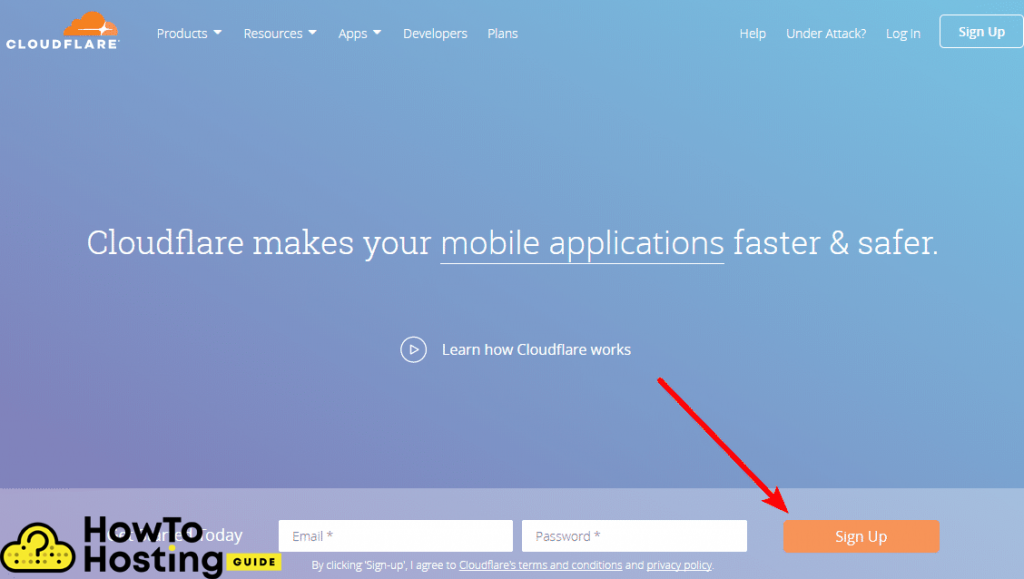
Cloudflareのサインアップページから開始します. 入ったら:
- サインアップしてサイトを追加する. ベアドメインを入力してください (example.com, httpsはありません, いやwww).
- 無料プランを選択してください プロンプトが表示されたら, Pro が必要であることがすでにわかっている場合を除き、.
- CloudflareにDNSをスキャンさせます. 既存のレコードを自動的に取り込みます. これには数秒かかります.
- 記録を確認する. Aレコードを確認する (およびメールまたはサブドメインの記録) 出会った. ウェブ記録にはオレンジ色の雲が表示されるはずです (プロキシされた). メール記録を灰色で曇らせたままにする, または電子メールが壊れる可能性があります.
取る 30 インポートされたリストを古い DNS と比較するために数秒かかります. レコードが欠落している場合, 次に進む前に手動で追加してください. Cloudflareの切り替え後に電子メールが停止する典型的な理由は、スキップされたMXレコードです.
ステップ 2: ドメインをCloudflareに向ける
これはすべてを活性化するステップです. Cloudflareは2つのネームサーバーを表示します, のようなもの dana.ns.cloudflare.com と rob.ns.cloudflare.com. あなたのアカウントに固有のものです.
- 両方のネームサーバーをコピーします Cloudflareの概要画面から.
- レジストラにログインします (ドメインを購入した場所).
- ネームサーバー設定を見つける, 通常は下にあります “DNS” また “ドメイン管理。”
- 既存のネームサーバーを置き換える Cloudflare の 2 つと. 古いものは削除してください; Cloudflare を一緒に追加しないでください.
- 保存.
さあ、待ってください. ネームサーバーの変更はインターネット全体に伝播します, それが完了するまでに数分からかかる場合があります 24 時間, 通常は早いですが 2026. サイトがアクティブになるとCloudflareからメールが送信されます. サイトは常にオンラインのままです, ダウンタイムの心配はありません.
ステップ 3: SSL/TLS モードをフルに設定します (厳しい)
これを間違えると、リダイレクト ループを追いかけて午後を過ごすことになります. Cloudflareダッシュボード内, 開ける SSL / TLS → 概要 そしてモードを選択してください.
- 満杯 (厳しい) 正しい答えです. 双方向のトラフィックを暗号化し、発信元の証明書が有効であることを確認します。. ホストが実際の SSL 証明書を提供する場合は常にこれを使用します, それはほとんどいつも.
- 柔軟性が罠だ. 訪問者とCloudflareの間でのみ暗号化します。, オリジンレッグを暗号化しないままにする. WordPress では、無限リダイレクト ループと混合コンテンツ警告が発生します。. スキップしてください.
SSL/TLSエリアにいる間, スイッチを入れる 常にHTTPSを使用する したがって、すべての訪問者は、何を入力しても安全なバージョンにアクセスします。, 自動 HTTPS リライトを有効にして、ページ内の迷走する HTTP リンクをクリーンアップします。. 管理されたインフラストラクチャを使用している場合, プロバイダーはほぼ確実に有効な発信元証明書をすでに発行しています; 私たちのまとめ 管理対象の WordPress ホスト デフォルトで無料のSSLがバンドルされているものに注意してください.
ステップ 4: Cloudflare WordPress プラグインをインストールする
Cloudflareが動作するために厳密にはプラグインは必要ありません. ネームサーバー スイッチだけで CDN を取得できます, SSL, DDoS防御. しかし、プラグインのおかげで日常生活が楽になります, APO を希望する場合は必須です.
- WordPress ダッシュボードを開きます そしてに行きます プラグイン → 新しく追加する.
- 検索する “クラウドフレア。” Cloudflare による公式のものを探してください, 株式会社. それは示します 200,000+ アクティブインストール 最後に更新されたのは先月以内です.
- 「今すぐインストール」をクリックします, それから 活性化.
プラグインによって得られるもの: 編集内容を公開するときにワンクリックでキャッシュを削除, ワンクリック “推奨設定を適用する” ボタン, そしてAPOのトグル. それなしで, ページを微調整するたびに、Cloudflare ダッシュボードからキャッシュを手動でクリアすることになります。.
ステップ 5: API トークンを使用してプラグインを接続する
ここは古いガイドがあなたを迷わせる場所です. アカウントのメールアドレスとグローバル API キーを貼り付けるように指示されます。. しないでください. トークン方式は、プラグインに必要な権限のみを付与するため、より安全です。, アカウント全体をリセットせずに取り消すことができます.
- Cloudflareダッシュボード内, プロフィールを開きます, それから APIトークン, をクリックします トークンの作成.
- を選択してください “WordPress” テンプレート. Cloudflareはプラグインに必要な権限を正確に事前入力します。. 推測は不要です.
- 概要に進む, それから トークンの作成. 今すぐトークンをコピーしてください; 後でもう一度見ることはできません.
- WordPress に戻る, Cloudflareプラグイン設定を開きます, 既存のアカウントでサインインすることを選択します, アカウントのメールアドレスを入力してください, そしてトークンを貼り付けます.
- 資格情報を保存する. プラグインが接続してドメインを表示します.
接続に失敗した場合, 通常の原因は、間違ったテンプレートから作成されたトークン、またはトークンとともにコピーされた空きスペースです。. カスタム権限をいじるのではなく、WordPress テンプレートから再生成して再試行してください.
ステップ 6: 推奨設定を適用して APO をオンにする
プラグインを接続した状態, 2 つの素早い動きで仕事が完了する.
- クリック “申し込み” 推奨設定について. このプラグインは、賢明な WordPress フレンドリーなベースラインを一度に構成します.
- APOをオンに切り替えます 購入した場合、または有料プランを使用している場合. これは、完全な HTML ページをエッジにキャッシュするものです.
APO を有効にする前の重要な注意事項: すでに実行しているページ キャッシュ プラグインをオフにする. Cloudflareは具体的に名前を付けます WP Rocket と W3 Total Cache 最初に無効にするプラグインとして, 2 つのキャッシュ層が互いに競合するため、ページが古くなり、奇妙な動作が発生します。. APO をセットアップする, 動作することを確認する, 次に、他のプラグインがまだ必要かどうかを判断します (多くの場合、ページのキャッシュには使用しません, ただし、ファイルの最適化のために保持することもできます).
実際に重要な設定 2026 (そして消えたもの)
ここが 2026 3年前に書かれたガイドとは異なります. いくつかの詳細:
- 自動縮小はなくなった. Cloudflareは8月に削除した 5, 2024. チュートリアルでそれを有効にするように指示された場合, そのチュートリアルは古いです. 代わりに WordPress 内で CSS と JavaScript の縮小化を処理します, パフォーマンスプラグイン経由.
- 圧縮は自動的に実行されます. Brotli を切り替える必要はもうありません. Cloudflareはテキストファイルを独自に圧縮します, 無料プランでZstandardを使用する (Brotliから元に戻りました 2024) プロとビジネスに関する Brotli と. ガイドが次のように指示する場合は、 “ブロトリをオンにする” なくなった設定について説明しています.
- ロケットローダー: 信じる前にテストしてください. 最初のペイントを高速化するために JavaScript を延期します, ただし、いくつかのテーマとスライダーが壊れます. オンにしてください, サイトをクリックしてスルーする, 何か不正な動作があった場合はロールバックします.
- ブラウザキャッシュTTL. そのままにしておきます “既存のヘッダーを尊重する” ホストがすでに適切なキャッシュ ヘッダーを設定している場合, または、静的アセットの場合は数日を選択します.
- 管理領域をキャッシュしない. APO がアクティブな場合, Cloudflareはすでにwp-adminセッションとログインセッションを自動的にスキップします. ページ ルールを介して APO を使用せずにキャッシュしている場合, /wp-admin* と /wp-login.php のバイパス ルールを追加して、ダッシュボードに古い画面が表示されないようにする.
DDoS 保護はすべてのプランでバックグラウンドで実行されます, 設定は必要ありません. 活発な洪水に遭遇した場合, オンにする “攻撃モード中です” ダッシュボードからすべての訪問者を追加チェックする, 攻撃が終わったらスイッチを切ります. 攻撃を止めることがここにいる主な理由なら, 私たちのガイド ホスティングにおける DDoS 保護 無料利用枠がどこで停止するのか、さらにどこが必要なのかを説明します.
Cloudflareが実際に動作していることを確認する方法
手順を完了したからといって、ライブであるとは考えないでください. 確認してください.
- アクティベーションメールを確認する, または、Cloudflare の概要をご覧ください。. アン “アクティブ” ステータスはネームサーバーが切り替わったことを意味します.
- 応答ヘッダーを検査する. ブラウザの開発者ツールを開きます, ホームページをリロードする, そして「ネットワーク」タブを見てください. ヘッダーの読み取り サーバ: クラウドフレア と cf-キャッシュステータス 値は、トラフィックがCloudflareを介してルーティングされていることを確認します.
- cf-cache-status を監視する. A “打つ” ページがキャッシュから提供されたことを意味します; “動的” また “逃す” それはあなたの起源から来たことを意味します. APO がオンの場合, 最初の数回の読み込み後に HTML ページに HIT と表示され始めるはずです.
- ページを 2 回ロードする. 2 回目の訪問は、キャッシュされたアセットが開始されるため、より速く感じられるはずです。.
Cloudflareの一般的な問題のトラブルシューティング
サイトが示しているのは、 “リダイレクトが多すぎる”
従来の SSL の不一致. モードはフレキシブルに設定されていますが、WordPress は HTTPS を強制します, したがって、2 つのリクエストは往復して返送されます. SSL/TLSを次のように切り替えます 満杯 (厳しい) そしてループはクリアされる.
変更が反映されない
Cloudflareはキャッシュされたコピーを提供しています. プラグインから削除する (またはダッシュボードの “すべてを消去する”), 次にブラウザをハードリフレッシュします. プラグインはほとんどの編集を自動パージします, ただし、大きなテーマや CSS の変更は手動でクリアする必要がある場合があります. 重いデザイン作業を行う? Cloudflareダッシュボードで開発モードをオンにします. キャッシュを一時的に停止するので、すべての変更をライブで確認できます, その後自動的にオフになります.
切り替え後にメールが機能しなくなった
MX レコードは転送されませんでした, それとも間違えてオレンジ色に曇ってしまったのか. メール記録は灰色で曇ったままでなければなりません (DNSのみ). [DNS] タブを再確認し、プロキシされたメール エントリを修正します。.
実際の訪問者は CAPTCHA を取得するかブロックされる
ファイアウォール ルールまたはボット ファイト モードが攻撃的すぎる. セキュリティ イベント ログを開く, トリガーとなったルールを見つける, そしてそれを緩めます. Pro以上の場合, をオンにする “WordPress 用に最適化する” スーパー ボット ファイト モード内のオプションにより、Cloudflare が WordPress 自身のループバック リクエストのブロックを停止します (ダッシュボードと cron ジョブがサイトに返す呼び出し).
よくある質問
CloudflareはWordPressでは無料ですか?
はい. 無料プランではグローバル CDN が利用できます, 従量制の DDoS 保護, 無料のSSL証明書, 無制限の帯域幅, ほとんどのブログと小規模ビジネスのサイトをカバーします. Pro の料金のみをお支払いいただきます (USD 20/月、年間) 完全なファイアウォールまたはイメージの最適化が必要な場合, または APO エッジ HTML キャッシュの場合は 5 米ドル/月.
Cloudflareは実際にWordPressを高速化しますか?
サーバーから遠く離れた訪問者の場合, 明らかにそうです, 静的ファイルは海を越えるのではなく、近くのデータセンターから読み込まれるため. より大きな飛躍はAPOから来る, 完全な HTML ページをエッジでキャッシュします。; Kinstaはロード時間の最大の増加を測定しました 300% それを付けたまま. すべてのトラフィックがホストに対してローカルである場合, ゲインは小さくなります.
Cloudflareプラグインが必要ですか?, またはネームサーバーだけ?
ネームサーバー スイッチだけで CDN を取得できます, SSL, DDoS防御. プラグインはワンクリックでキャッシュを削除する機能を追加します, 簡単おすすめ設定, そしてAPOトグル. APOをご希望の場合, プラグインが必要です. 基本無料セットアップの場合, オプションですが便利です.
フルとフルを使用するべきか (厳しい) WordPress での SSL?
フル使用 (厳しい) ホストが有効な SSL 証明書を提供するたびに, それは今日でもほぼ常に真実です. 接続の両方の区間を暗号化し、発信元の証明書を検証します。. フレキシブルを避ける: WordPress ではリダイレクト ループと混合コンテンツ エラーが発生します.
Cloudflare APOには米ドルの価値がありますか 5 月?
世界中の読者を対象とし、既存のページ キャッシュ プラグインを持たないコンテンツの多いブログの場合, はい, エッジ HTML キャッシュは、価格に見合った速度を実現します。. 高速ホスト上で強力なキャッシュ プラグインをすでに実行している場合, または、読者はすべてサーバーの近くにいます, 無料の CDN だけで十分かもしれません. とにかくProには無料でバンドルされています.
Cloudflare が WordPress サイトを破壊することはありますか?
設定が間違っている場合は可能です. 通常の 2 つの原因はフレキシブル SSL です (リダイレクトループ) 別のキャッシュ プラグインの上に APO をスタックする (古いページ). SSLを完全に設定する (厳しい), APO を有効にする前に、競合するキャッシュ プラグインを無効にしてください, そしてほとんどの問題は決して現れません.
Cloudflareの公開後の次のステップ
あなたはもっと速いです, 隠れた, そして保護された起源. 自然なフォローアップは、Cloudflare が修正できない部分を調整します。: オリジンサーバーの速度とページ上のパフォーマンス. CDN により納期が短縮されます, しかし、遅いホストは依然として動的ページを引きずります, したがって、私たちの記事を読む価値があります ホスティング速度の計算式 本当のボトルネックがどこにあるのかを確認するには. これは、上にリンクされている CDN の比較と SSD WordPress ホスティングのまとめと組み合わせています。, それぞれエッジ側と原点側をカバーします. Cloudflare がエッジを処理します; 素早いホストとクリーンなコードが残りを処理します.
Danke für diesen アーティケル! Es hat mir sehr bei der Konfigurierung geholfen.