
On This Page: [hide]
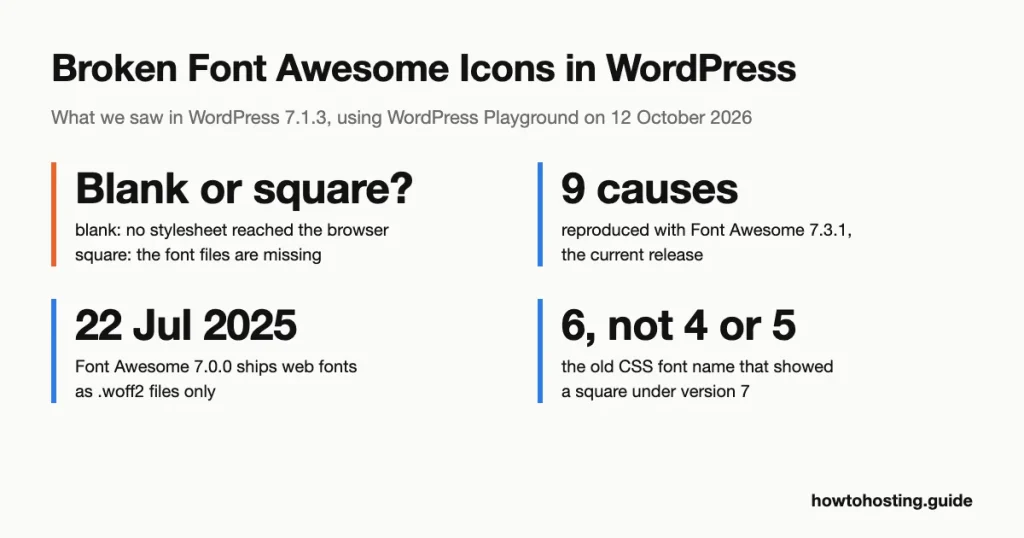
A broken Font Awesome icon shows up in WordPress as one of two things: a blank gap or an empty square. Which one you see tells you which fix to use. We reproduced nine causes in WordPress 7.1.3 with Font Awesome 7.3.1, the current release, and tested the fixes.
Quick answer: the usual culprits are two copies of Font Awesome loading together, or version 4 class names under a newer version. This clears both:
- Install the official Font Awesome plugin, then open Settings > Font Awesome.
- Leave Older Version Compatibility set to On, so version 4 names keep working.
- Open the Troubleshoot tab and click Enable scanner for 10 minutes.
- Visit each page where icons are broken, then go back to Troubleshoot.
- Tick Block beside every extra copy the scanner listed and click Save Changes.
- Clear your cache plugin and reload the page.
Last reviewed: October 2026. The steps were tested in WordPress 7.1.3 using WordPress Playground on 12 October 2026. Not that cause? The next section sorts the others by what you see on the page.
Blank Gap or Empty Square? Read the Symptom First
The two symptoms have different causes, and mixing them up wastes an hour. In our test, a page with no working Font Awesome stylesheet showed nothing where the icons belonged. A page with the stylesheet but without the font files showed a square for every icon.
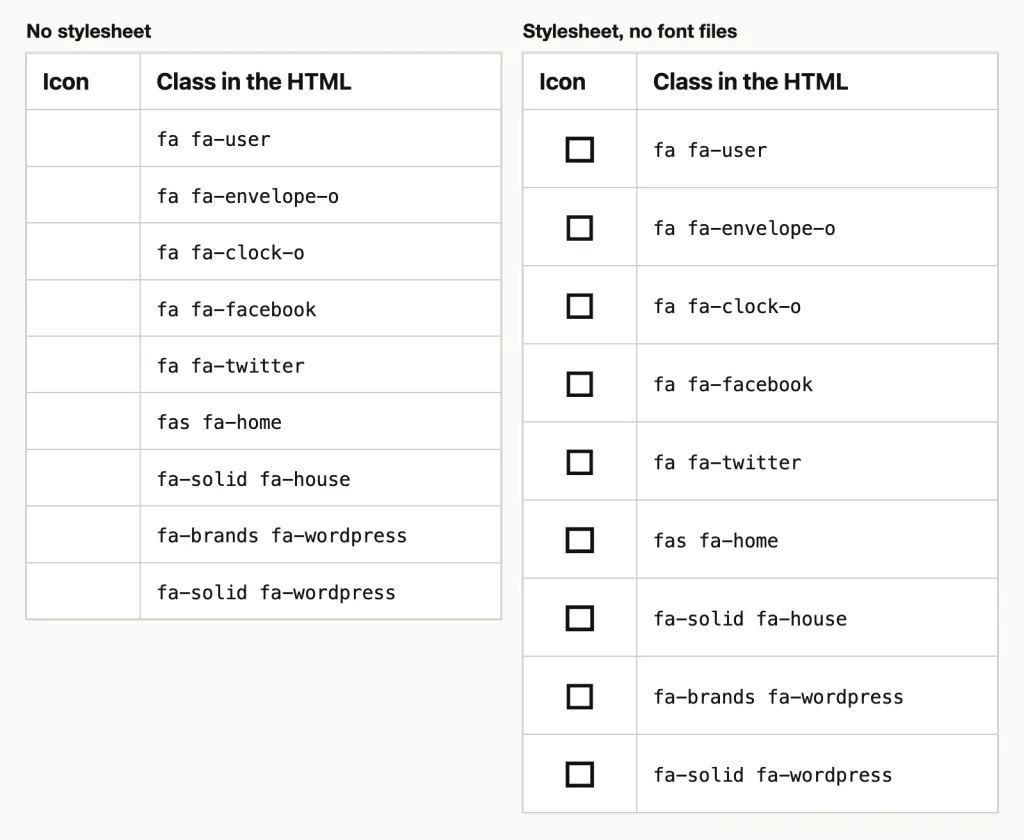
With no Font Awesome stylesheet the icon column is empty. With the 7.3.1 stylesheet but no font files, each icon is a square. WordPress 7.1.3, tested in WordPress Playground, 12 October 2026.
| What you see | What it means | Go to |
|---|---|---|
| Every icon is blank | No Font Awesome stylesheet reached the browser | The stylesheet never loads |
| Every icon is a square | The stylesheet loaded, the font files didn’t | Missing font files |
| Some icons blank, some fine | The class name has no match in the loaded version | Old class names, or an icon your version lacks |
| Some icons are squares, some fine | Wrong style for that icon, or old CSS font names | Brand prefixes and CSS-added icons |
| Icons show, but look mismatched or wrong | Two versions are loading together | Two copies of Font Awesome |
Check the browser too. Right-click the page, choose Inspect and open the Console tab. A missing font file logged this in our test:
Failed to load resource: the server responded with a status of 404 ()To count the copies of Font Awesome on a page, open the page source and search for awesome. One stylesheet (plus an optional shim file) is healthy. Two different version numbers is your answer.
How These Fixes Were Tested
Every test ran on 12 October 2026 in WordPress Playground, a real WordPress that runs inside the browser. The site used WordPress 7.1.3, PHP 8.3 and the Twenty Twenty-Five theme, viewed in Chrome. Font Awesome was the Free 7.3.1 package, which the project published on GitHub on 15 July 2026.
We built a test page of icons written in version 4, 5 and 7 syntax. Then we loaded Font Awesome 4.7.0, 5.15.4 and 7.3.1 in different combinations and screenshotted the result. Each code block in the tested sections ran on that site first.
Tested: old class names, a missing stylesheet, an insecure stylesheet address and two versions together. Also missing font files, a blocked CDN, icons added in CSS, Pro-only icons and Elementor’s Font Awesome 4 setting. (A CDN is a content delivery network, the outside server that hosts the files.)
Not tested: Font Awesome Kits, because a Kit needs an account, and wrong font headers on a server, which Playground can’t reproduce. Those two sections say so and name the documentation they rely on. We also didn’t test paid themes or page builders other than Elementor’s free plugin.
Old Class Names Under a Newer Version
Font Awesome 4 wrote every icon as fa fa-name. Version 5 split icons into styles, and versions 6 and 7 changed the syntax again. Font Awesome’s upgrade guide shows the three generations side by side:
<!-- version 4 -->
<i class="fa fa-user"></i>

<!-- version 5 -->
<i class="fas fa-user"></i>

<!-- versions 6 and 7 -->
<i class="fa-solid fa-user"></i>
Does old markup still work under 7.3.1? Partly. With only the main 7.3.1 stylesheet loaded, 3 of our 7 version 4 icons rendered and 4 failed.
| Class in the HTML | 7.3.1 alone | 7.3.1 plus the v4 shim file |
|---|---|---|
fa fa-user |
Icon | Icon |
fa fa-home |
Icon | Icon |
fa fa-cog |
Icon | Icon |
fa fa-envelope-o |
Blank | Icon |
fa fa-clock-o |
Blank | Icon |
fa fa-facebook |
Square | Icon |
fa fa-twitter |
Square | Icon |
The pattern is easy to spot. Plain solid icons survive. Outline icons ending in -o go blank, because those names no longer exist. Brand logos written with fa turn into squares, because version 7 keeps brands in a separate font. Version 5 names such as fas fa-home and fab fa-facebook all rendered without any help.
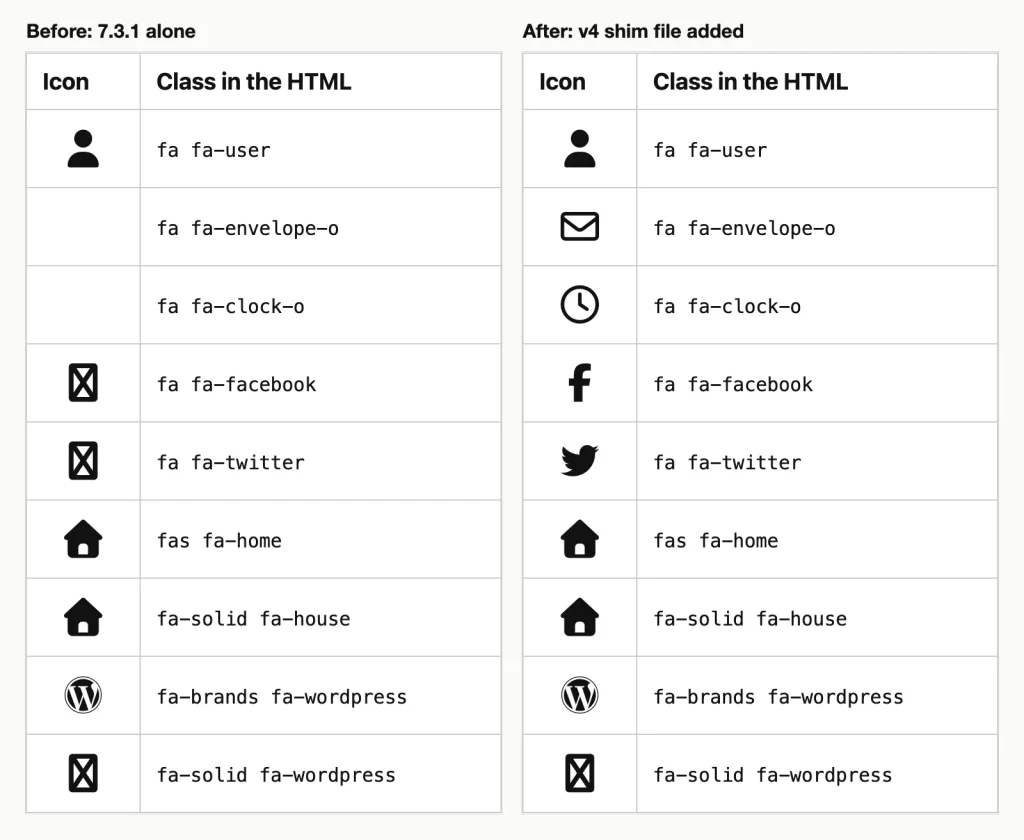
Before the shim, the two -o names are blank and the two brand names are squares. After adding v4-shims.min.css, all four render. WordPress 7.1.3, tested in WordPress Playground, 12 October 2026.
Fix A: load the v4 shim file
Font Awesome ships a compatibility stylesheet called v4-shims.min.css. Load it after the main file and every version 4 name in our test rendered. This went into the theme’s functions.php (use a child theme, so a theme update doesn’t erase it):
add_action( 'wp_enqueue_scripts', function () {
    $base = 'https://cdn.jsdelivr.net/npm/@fortawesome/[email protected]/css/';
    wp_enqueue_style( 'site-font-awesome', $base . 'all.min.css', array(), null );
    wp_enqueue_style( 'site-font-awesome-v4-shims', $base . 'v4-shims.min.css', array( 'site-font-awesome' ), null );
} );
Keep the unusual name site-font-awesome. WordPress loads only the first file registered under a name, and Elementor registers its own 4.7.0 copy as font-awesome. When we used that plain name on an Elementor page, WordPress loaded Elementor’s 4.7.0 file and ignored ours.
Prefer no code? The official plugin does the same job. On a fresh install its Older Version Compatibility switch was already On, and the page loaded a v4 shim file beside the main stylesheet.
A typo in functions.php can take the whole site down. If that happens, our guide to recovering from a 500 internal server error walks through undoing the edit.
Fix B: update the class names
Shims are a patch. If you control the HTML, rewrite the markup once and drop the extra file:
<i class="fa-regular fa-envelope"></i>
<i class="fa-regular fa-clock"></i>
<i class="fa-brands fa-facebook-f"></i>
<i class="fa-brands fa-twitter"></i>
Outline icons lose the -o and take fa-regular. Brand logos take fa-brands. The same rule explains one more square in our test: fa-solid fa-wordpress failed, while fa-brands fa-wordpress worked.
Elementor: Icons in Your Own HTML Stay Blank
Most guides on this problem point at Elementor, so we installed its free plugin, version 4.3.4, on a fresh copy of the test site. Out of the box it loaded no Font Awesome stylesheet at all. Its own Icon widget drew a star as inline SVG, a drawing written straight into the page. So every <i> tag we typed into an HTML widget came out blank.
The old setting for this is still there, and it’s off on a new install:
- Go to Elementor > Editor > Settings.
- Open the Advanced tab.
- Set Load Font Awesome 4 Support to Yes.
- Click Save Changes and reload the page.
After that, the Elementor page loaded three more files. One was a Font Awesome Free 5.15.3 stylesheet bundled with Elementor; the others were a v4 shim stylesheet and a v4 shim script. Version 4 and version 5 names rendered.
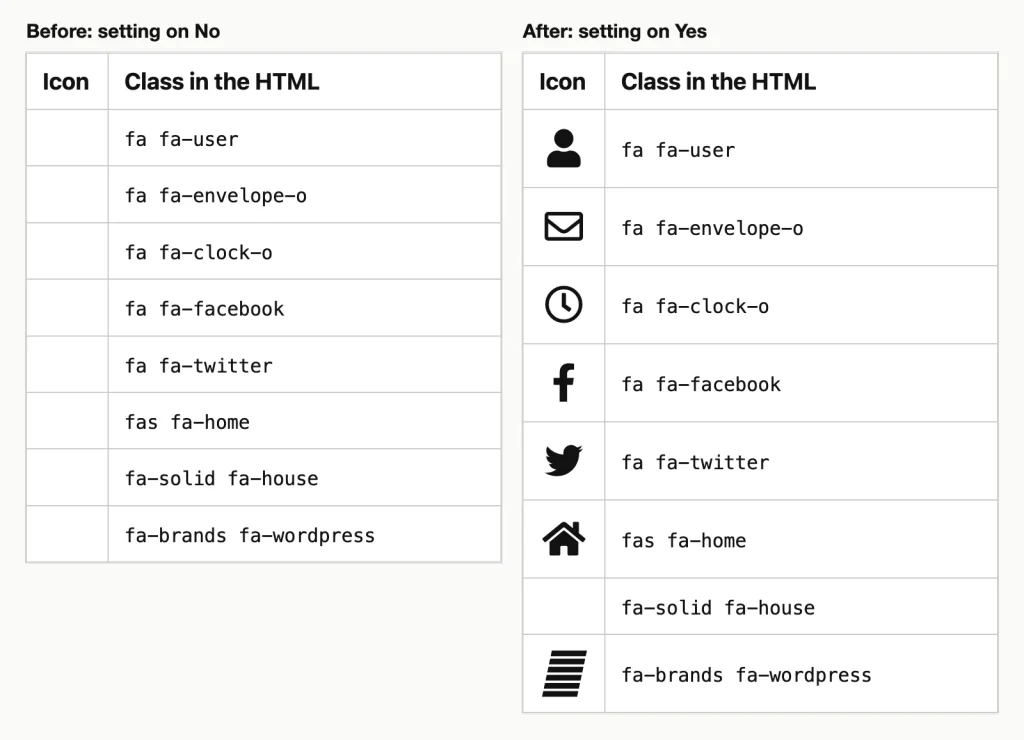
Elementor 4.3.4 (free). The last two rows use version 7 names, which the bundled 5.15.3 files do not know. WordPress 7.1.3, tested in WordPress Playground, 12 October 2026.
Two limits showed up in the same test. The bundled copy is version 5, so current names still failed: fa-solid fa-house stayed blank and fa-brands fa-wordpress drew a missing-character mark. And the setting only reached pages built with Elementor. A normal WordPress page on the same site still loaded no Font Awesome file.
Need version 7 names, or icons outside Elementor pages? Leave the setting on No and load 7.3.1 yourself with the snippet above. That combination rendered every row of our test table, on the Elementor page and on a normal page.
Two Copies of Font Awesome Loading Together
Font Awesome’s documentation calls this the most common problem it sees on WordPress. A theme bundles one version, a plugin bundles another, and both land on the same page. Can you run version 4 and version 7 side by side? Font Awesome’s answer is a flat no, because class names and icon codes overlap.
Our test showed why it’s hard to spot. Nothing vanished. With the plugin loading 7.3.1 and a simulated theme loading 4.7.0 after it, every version 4 icon still appeared. But the page mixed two generations of artwork, and fa fa-facebook drew a different Facebook logo from the one the theme intended. Load order decided the result: the stylesheet loaded last drew the version 4 names.
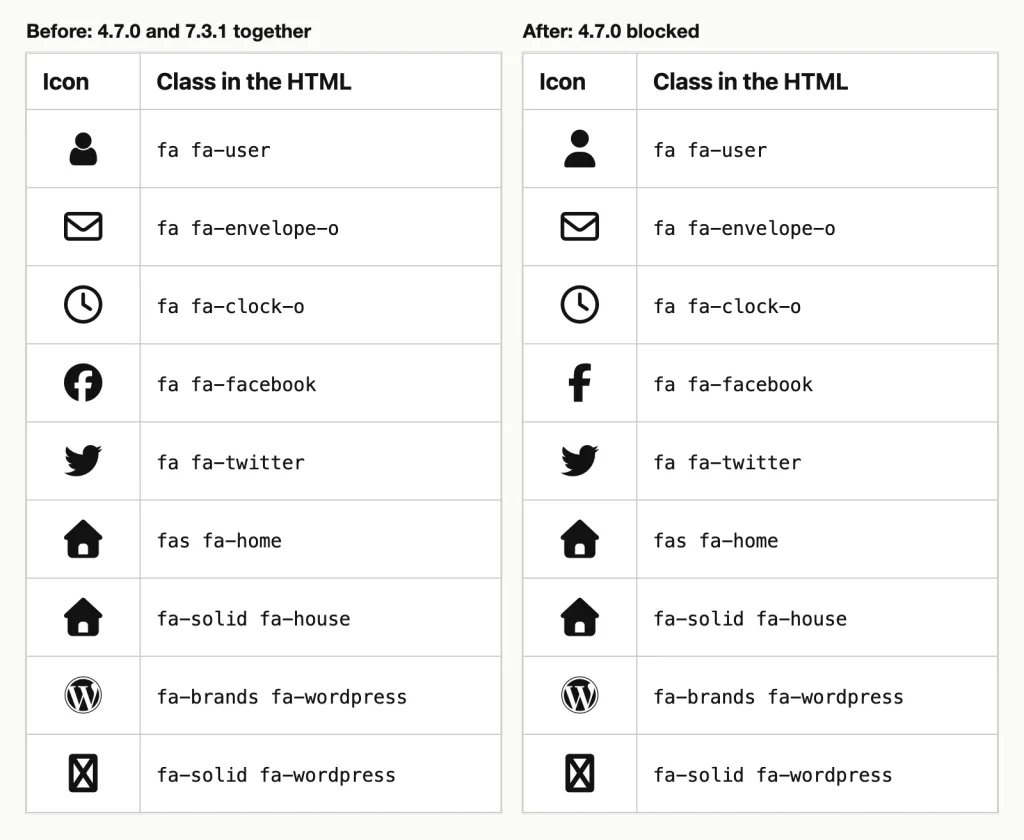
Compare the user and Facebook rows: they change once the 4.7.0 file is blocked. WordPress 7.1.3, tested in WordPress Playground, 12 October 2026.
Fix A: block the extra copy with the plugin
This is the route from the quick answer, and it needs no code. After the scan, the Troubleshoot tab listed the 4.7.0 stylesheet under Other themes or plugins. We ticked Block and clicked Save Changes. The 4.7.0 file was gone from the page source on the next load.
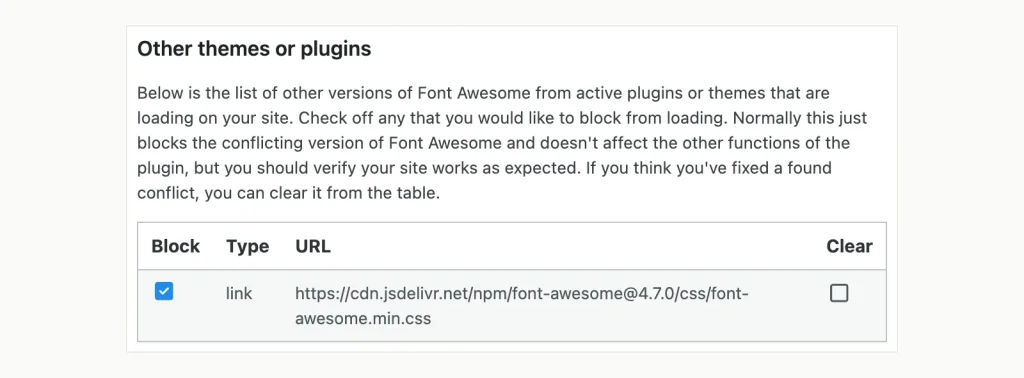
The conflict scanner found the second copy; tick Block, then Save Changes. Font Awesome plugin 5.2.1 in WordPress 7.1.3, tested in WordPress Playground, 12 October 2026.
The scanner box is visible to admins only, and the list stays until you clear it.
Fix B: remove it in code
Without the plugin, you need the handle, which is the name WordPress registered the stylesheet under. Paste this in functions.php, then view the page source while logged in as an admin:
add_action( 'wp_print_styles', function () {
    if ( ! current_user_can( 'manage_options' ) ) {
        return;
    }
    foreach ( wp_styles()->queue as $handle ) {
        $src = wp_styles()->registered[ $handle ]->src;
        if ( false !== stripos( $handle . $src, 'awesome' ) ) {
            echo "<!-- Font Awesome handle: $handle | $src -->\n";
        }
    }
}, 999 );
In our test it printed one line for each copy, such as this one:
<!-- Font Awesome handle: theme-font-awesome | https://cdn.jsdelivr.net/npm/[email protected]/css/font-awesome.min.css -->Swap the handle you found into the next snippet, then delete the first one. The priority of 100 makes it run after the theme has queued its file.
add_action( 'wp_enqueue_scripts', function () {
    wp_dequeue_style( 'theme-font-awesome' );
    wp_deregister_style( 'theme-font-awesome' );
}, 100 );
That left one copy on our page. The snippet only finds files whose name or address contains “awesome”. A theme that merges Font Awesome into its own stylesheet won’t show up, and Font Awesome’s advice there is to ask the theme’s developer.
One trap in the official snippet: Font Awesome’s manual install page offers a longer conflict remover that blocks files by an MD5 hash of their address. Its sample list covers font-awesome.css on jsDelivr. Our theme loaded font-awesome.min.css, which has a different hash, and the sample list alone left it on the page. The function worked once we added the hash for our own address.
If icons broke right after you switched themes, the new theme probably ships its own copy. Not sure which plugin adds the second one? The switch-off-one-by-one method in our list of common WordPress errors and fixes finds it.
The Stylesheet Never Loads
Blank icons everywhere mean the browser has no Font Awesome rules at all. We found three ways to get there.
Nothing loads it. You pasted <i> tags from a tutorial, but no theme or plugin on the site includes Font Awesome. (A fresh Elementor install counts, as shown above.) Add it with the enqueue snippet, or install the plugin.
The address starts with http. We queued the stylesheet from an http:// address on an HTTPS page. Chrome refused it, every icon went blank, and the console logged a message that began like this:
Mixed Content: The page at '...' was loaded over HTTPS, but requested an insecure stylesheetChange the address to https://. If the padlock is missing across your whole site, start with our guide to the “site is not secure” warning instead.
Something blocks the CDN. Ad blockers, privacy extensions and office firewalls can refuse requests to outside servers. We simulated that by blocking the CDN’s address in the browser. Both stylesheet requests failed, the console reported the block, and every icon went blank.
The fix that survived the same block was hosting the files on the site itself. We copied the css and webfonts folders from the Font Awesome Free package into wp-content/uploads/fontawesome/ and loaded them from there:
add_action( 'wp_enqueue_scripts', function () {
    $base = content_url( '/uploads/fontawesome/css/' );
    wp_enqueue_style( 'site-font-awesome', $base . 'all.min.css', array(), '7.3.1' );
    wp_enqueue_style( 'site-font-awesome-v4-shims', $base . 'v4-shims.min.css', array( 'site-font-awesome' ), '7.3.1' );
} );
With the CDN still blocked, the icons came back. If only some visitors report missing icons, this is the fix to try first, since you can’t reach into their browsers.
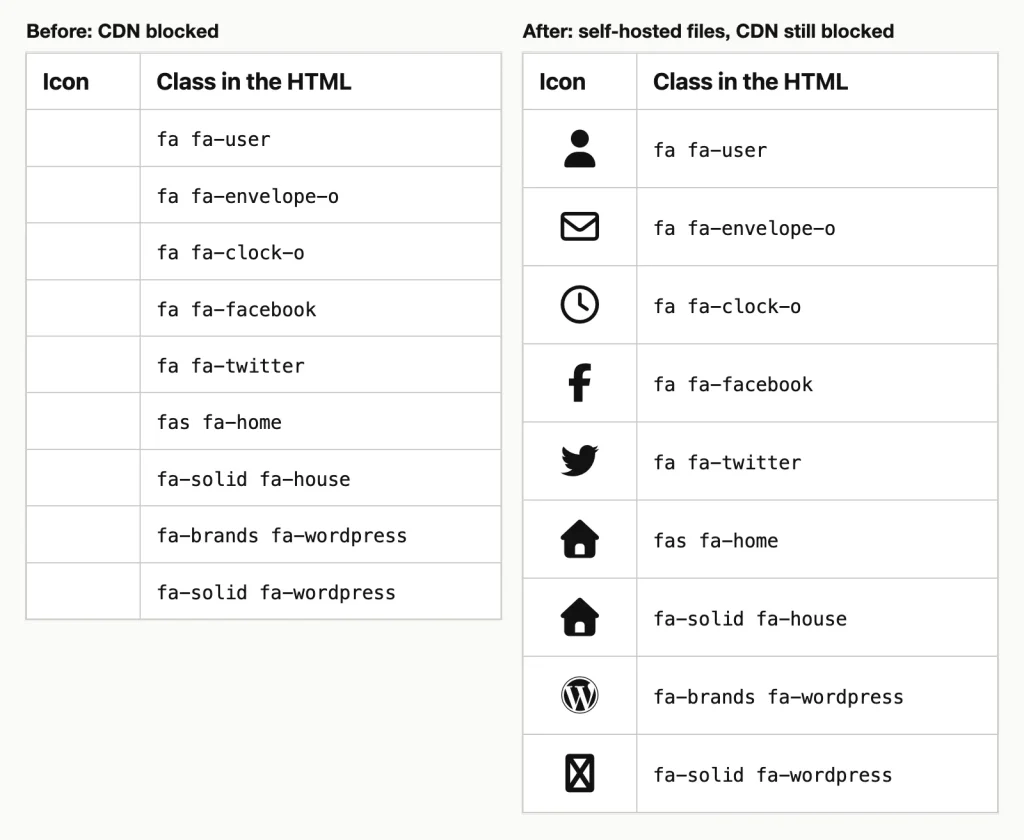
The same browser block applies to both panels; only the second serves the files from wp-content/uploads/fontawesome/. WordPress 7.1.3, tested in WordPress Playground, 12 October 2026.
Missing Font Files: The Classic Squares
The stylesheet only holds the rules. The drawings live in font files that the stylesheet looks for one folder up, in ../webfonts/. We uploaded the css folder without webfonts, and every icon on the page became a square. The console listed a 404 for each font file.
Keep the two folders side by side, exactly as the download arranges them:
wp-content/uploads/fontawesome/
    css/all.min.css
    css/v4-shims.min.css
    webfonts/fa-solid-900.woff2
    webfonts/fa-regular-400.woff2
    webfonts/fa-brands-400.woff2
    webfonts/fa-v4compatibility.woff2
Putting the webfonts folder back brought the icons back at once. Expect the same squares when a migration or a cleanup plugin drops the font files. A child theme path that points at the wrong folder does it too.
One change catches upgraders. Font Awesome 7.0.0, released on 22 July 2025, ships its web fonts only as .woff2 files. The 6.7.2 package still carried a .ttf copy of each font. So custom CSS that still asks for .ttf or .woff files finds nothing after the upgrade.
Icons Added in CSS Break on Old Font Names
Themes often add icons with CSS instead of <i> tags: a caret beside a menu item, a quote mark before a testimonial. That CSS names the font directly, so it breaks when the font’s name changes. We set the same house icon six ways under 7.3.1.
| Font rule in the CSS | Result under 7.3.1 |
|---|---|
font-family: "FontAwesome" (version 4) |
Solid icon |
font-family: "Font Awesome 5 Free"; font-weight: 900 |
Solid icon |
font-family: "Font Awesome 5 Free", no weight |
Outline icon |
font-family: "Font Awesome 6 Free"; font-weight: 900 |
Square |
font-family: "Font Awesome 7 Free", no weight |
Outline icon |
font: var(--fa-font-solid) |
Solid icon |
Here’s the surprise: version 4 and 5 font names still work, but the version 6 name doesn’t. The 7.3.1 stylesheet defines the old 4 and 5 names and skips 6. So a site that moves from 6 to 7 can lose its CSS icons while much older code keeps working.
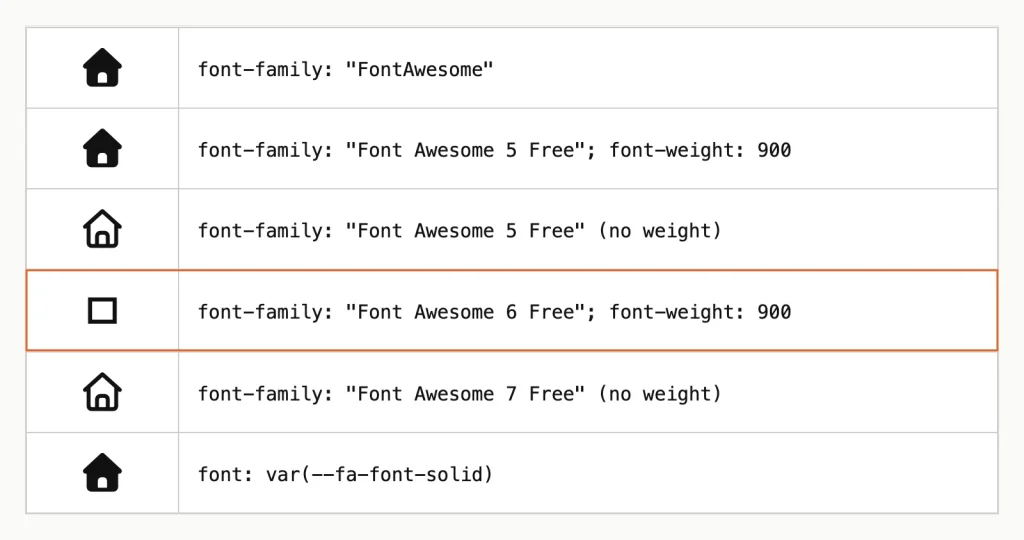
The outlined row is the version 6 font name, the only one of the six that failed under 7.3.1. WordPress 7.1.3, tested in WordPress Playground, 12 October 2026.
The fix is the one Font Awesome’s upgrade guide gives. Replace the font name and weight with one variable:
.menu-home::before {
    font: var(--fa-font-solid);
    content: "\f015";
}
Leaving out the weight is the quieter bug. It doesn’t break the icon; it swaps solid for outline. A Free icon with no outline version fared worse: the gear icon showed a square.
The Icon Isn’t in Your Version or Plan
Some icons are blank on their own while the rest of the page is fine. Then the name is the problem, not the setup.
Your loaded version is too old. Current tutorials use version 7 names. Under 5.15.4, fa-solid fa-house and fa-brands fa-x-twitter were both blank in our test, and fa-brands fa-wordpress drew a missing-character mark. All three rendered under 7.3.1. Update the copy you load, or use the name your version knows (fas fa-home).
The icon or style is Pro only. Font Awesome’s API lists 2,163 Free icons for 7.3.1, counting each style separately, and 63,765 in Pro. With the Free files, fa-light fa-user and fa-solid fa-acorn were blank. Search the icon on fontawesome.com and check that it’s marked Free.
A typo in the name. Font Awesome’s own troubleshooting page admits this one catches its team too. A class with no matching rule shows nothing, and logs no error.
Two Causes We Couldn’t Test: Kits and Font Headers
These fixes come from documentation read on 12 October 2026. We didn’t run them.
A Kit that won’t load
A Kit is Font Awesome’s hosted setup: one script tag tied to your account. Its documentation points to three things that stop one loading. The embed code was copied wrongly. The site uses Subresource Integrity or a Content Security Policy, two browser security features that Kits don’t support. Or the Kit is limited to a list of domains that doesn’t include yours, which you change with the globe icon under the Kit’s name.
The embed code should match this pattern exactly, with your own Kit code in place:
<script src="https://kit.fontawesome.com/YOUR_KIT_CODE.js" crossorigin="anonymous"></script>Fonts served from another domain
Font Awesome’s documentation doesn’t cover this cause, so we took it from Mozilla’s. Browsers apply cross-origin rules to web fonts. Say the font comes from a different domain, such as your own CDN or a static subdomain. It must then arrive with a header that allows your site, as MDN’s CORS guide explains. Without it the browser blocks the font file.
On Apache, the header goes in the .htaccess file of the server that hosts the fonts. The directive is Apache’s own; the rule is untested here:
<FilesMatch "\.(woff2|woff|ttf)$">
    Header set Access-Control-Allow-Origin "https://www.example.com"
</FilesMatch>
On nginx, the same header belongs in the server block:
location ~* \.(woff2|woff|ttf)$ {
    add_header Access-Control-Allow-Origin "https://www.example.com";
}
Use your real site address, and ask your host if you can’t edit either file. Hosting the fonts on the site’s own domain avoids the problem entirely.
Where the documentation is behind the plugin
Font Awesome’s WordPress pages say its CDN stops at version 5 and that the plugin starts on version 5. Our fresh install of plugin 5.2.1 said otherwise. It defaulted to Use CDN, Free, Web Font and version 7.3.1, and it loaded 7.3.1 from Font Awesome’s CDN. Trust the settings screen over the older help text.
Keeping the Icons From Breaking Again
- Run one copy. After adding a plugin or changing theme, search the page source for
awesomeagain. - Pin a version. A fixed number such as 7.3.1 in the address means an upstream release can’t change your icons overnight.
- Host the files yourself if visitors sit behind strict firewalls. It was the only setup in our test that a blocked CDN couldn’t touch.
- Keep the shim file until every old class name is rewritten, then remove it.
- Load less. Font Awesome says
all.cssis too big for production sites and recommends loading only the styles you use.
That last point matters for speed as well. Icon fonts are a frequent entry in the list of render-blocking resources in WordPress, and trimming them helps both problems.
Frequently Asked Questions
Why are my Font Awesome icons showing as squares?
The stylesheet loaded, but the browser couldn’t draw the character. In our test that happened in three cases. The font files were missing, a brand icon used fa or fa-solid, or CSS named the “Font Awesome 6 Free” font under version 7. Check the console for 404 errors first.
Why did my icons disappear after a theme or plugin update?
The update most likely changed which Font Awesome version loads. Old class names such as fa fa-envelope-o go blank under versions 5 to 7 unless a shim file is loaded. Turn on Older Version Compatibility in the official plugin, or add v4-shims.min.css.
Can I use Font Awesome 4 and 7 on the same site?
No. Font Awesome advises against it because class names and icon codes collide. In our test both versions together produced mixed artwork and a wrong Facebook logo. Block the older copy and load the v4 shim file, which keeps the old names working.
Do I need the Font Awesome plugin, or can I add the code myself?
Either works. The plugin (version 5.2.1, 400,000+ active installs on WordPress.org) loaded 7.3.1 with the shim file by default in our test. It also adds the conflict scanner. The code route is one short snippet in functions.php and suits a site that hosts its own files.
The Order to Try Things In
Start with what you can see. Blank everywhere: get one stylesheet loading over HTTPS. Squares everywhere: put the webfonts folder back. A few broken icons: load the v4 shim file, then fix brand prefixes. Mismatched icons: scan for a second copy and block it. Self-host the files if a network keeps blocking the CDN.
Related guides: if more than icons broke, work through the 500 error and common-errors guides linked above. For slow pages, the render-blocking guide is the next stop.