
On This Page: [hide]
WP-CLI is the official command-line tool for WordPress: you type a short command in a terminal, and WordPress does the job without a browser. One line updates every plugin. Another exports the database or creates a user.
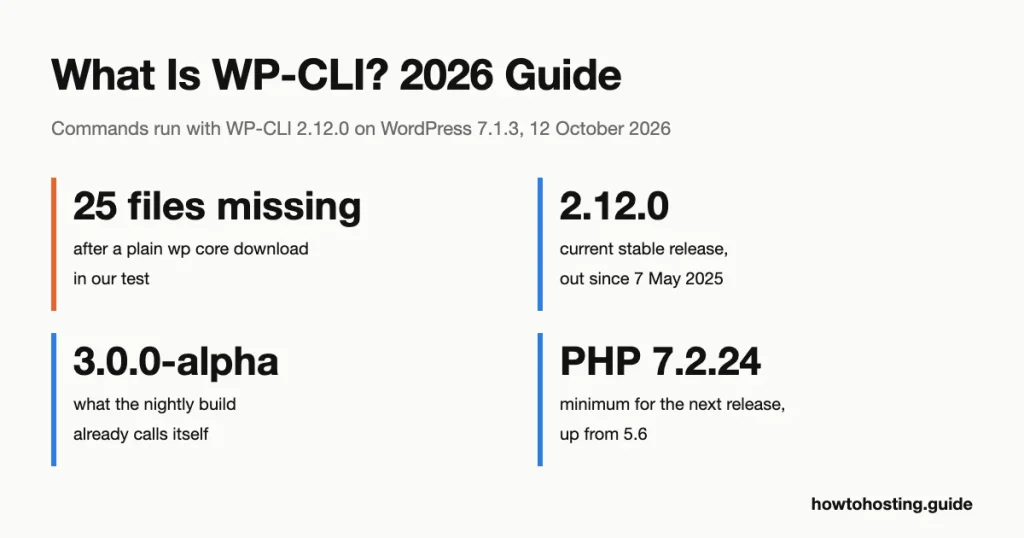
Most tutorials for it are out of date, and one gap is serious. In our test, the standard wp core download left 25 WordPress core files missing.
There’s more. The current stable release, 2.12.0, came out on 7 May 2025. The nightly builds (automatic daily builds of unfinished code) already call themselves 3.0.0-alpha. One official add-on we tried now refuses to install on the stable release, and a few commands that older guides print simply fail.
So we ran everything. The commands in this guide were run with WP-CLI 2.12.0 on WordPress 7.1.3 in a local Docker test site on 12 October 2026. Where a section wasn’t run, it says so. The output you see is copied from that test.
In a hurry? These five steps take you from nothing to a first working command on Linux or macOS:
- Download the tool:
curl -O https://raw.githubusercontent.com/wp-cli/builds/gh-pages/phar/wp-cli.phar - Check that it runs:
php wp-cli.phar --info - Make it executable:
chmod +x wp-cli.phar - Move it into your PATH:
sudo mv wp-cli.phar /usr/local/bin/wp - Go to your WordPress folder and run
wp plugin list
What WP-CLI Does, and What It Doesn’t
WP-CLI loads WordPress from the terminal and calls the same functions the dashboard calls. That’s why a plugin you install with it shows up on the Plugins screen a second later. The project’s own page says it has shipped since 2011 and is maintained by volunteers.
Version 2.12.0 has 40 top-level commands. We counted them with wp cli cmd-dump. The ones you’ll use most are core, plugin, theme, user, post, db, search-replace, option, config, cron and cache.
Why bother when the dashboard works? Three reasons. Commands don’t time out the way a browser request does. You can chain them into a script. And you can run them when the dashboard itself is broken, which is when you need them most.
It has limits, and older guides blur them:
- You need shell access. That means SSH (a secure way to log in to your server and type commands) or a terminal in your hosting panel. Plain FTP isn’t enough.
- It has no broken-link scanner. None of the 40 commands checks links. You can only find and replace a URL you already know is wrong.
- It doesn’t control page-cache plugins.
wp cache flushempties the WordPress object cache, nothing more. A cache plugin needs its own command, if it ships one. - There’s no undo. A deleted user or a reset database is gone unless you exported a backup first.
Requirements in 2026: Stable 2.12.0 and the Coming 3.0
Here’s where the confusion starts. The official installation guide now says WP-CLI needs PHP 7.2.24 or later. But the stable release you download today still runs on PHP 5.6. The guide describes the next version.
WP-CLI 2.12.0, released on 7 May 2025, still supports PHP 5.6, and its release notes say the next release will need PHP 7.2.24 or newer. The development branch already carries that change. Its README also lifts the oldest supported WordPress from 3.7 to 4.9.
| Requirement | Stable 2.12.0 (7 May 2025) | Development branch (3.0.0-alpha nightly) |
|---|---|---|
| PHP | 5.6 or later | 7.2.24 or later |
| WordPress | 3.7 or later | 4.9 or later |
| System | UNIX-like (Linux, macOS, FreeBSD, Cygwin), limited Windows support | Same |
Both columns come from the README files in the WP-CLI repository, read on 12 October 2026. Both READMEs add that WordPress versions older than the latest release “may have degraded functionality”.
Does the gap matter on a modern server? Not for the core tool. Our test ran 2.12.0 on PHP 8.3.35, and the only PHP error from WP-CLI itself was a memory limit, covered below. The gap matters for add-on packages, which we cover in the debugging section.
One more thing changed. The old address wp-cli.org now redirects to a page on WordPress.org, so links in older tutorials land somewhere new. The handbook and the full command reference are both on WordPress.org.
How to Install WP-CLI
We ran these steps in a clean PHP 8.3 container (a disposable, isolated Linux system). They’re the same steps the official guide gives for macOS. The Windows and Homebrew methods further down come from the documentation and were not run.
Step 1: Check PHP and download the file
WP-CLI ships as a Phar file (a whole PHP program packed into one file). Check that PHP works, then download it:
php --version
curl -O https://raw.githubusercontent.com/wp-cli/builds/gh-pages/phar/wp-cli.phar
The file we got was 7,142,777 bytes. Want proof that it’s the real thing? Each release publishes a SHA-512 checksum (a long fingerprint of the file). Download it and compare:
curl -sLO https://github.com/wp-cli/wp-cli/releases/download/v2.12.0/wp-cli-2.12.0.phar.sha512
cat wp-cli-2.12.0.phar.sha512
sha512sum wp-cli.phar
Both commands printed the same value in our test, starting with be928f6b8ca1. If yours differ, delete the file and download it again.
Step 2: Test it, then install it
php wp-cli.phar --infoA working download prints a block like this (shortened):
PHP binary:	/usr/local/bin/php
PHP version:	8.3.35
WP-CLI root dir:	phar://wp-cli.phar/vendor/wp-cli/wp-cli
WP_CLI phar path:	phar:///root/wp-cli.phar
WP-CLI cache dir:	/root/.wp-cli/cache
WP-CLI version:	2.12.0
Now make the file executable and move it into your PATH (the list of folders your shell searches for programs). After that you can type wp from any folder:
chmod +x wp-cli.phar
sudo mv wp-cli.phar /usr/local/bin/wp
wp --info
Our container was already running as root, so we ran the move without sudo. On a normal server you’ll need it. Skip the alias wp='php /usr/local/bin/wp' line some guides add. The file runs fine without it.
Step 3: Don’t run it as root
Because our install container ran as root, the first real command stopped with this:
Error: YIKES! It looks like you're running this as root. You probably meant to run this as the user that your WordPress installation exists under.

If you REALLY mean to run this as root, we won't stop you, but just bear in mind that any code on this site will then have full control of your server, making it quite DANGEROUS.

If you'd like to continue as root, please run this again, adding this flag:  --allow-root
Take the hint. WP-CLI runs your plugin and theme code, so running it as root hands that code the whole server. Log in as the user that owns the site files, or use the form the message itself suggests (we didn’t run this one):
sudo -u USER -i -- wp plugin listStep 4: Keep it updated
wp cli version
wp cli check-update
wp cli update
On 12 October 2026 the second command answered Success: WP-CLI is at the latest version. for 2.12.0. If the file belongs to root, the update stops with Error: /usr/local/bin/wp is not writable by current user. We got that as a normal user. The handbook’s answer is sudo wp cli update.
Curious about what’s next? The nightly build is one flag away, and one more flag takes you back. We added --yes to both, which skips the confirmation question:
wp cli update --nightly
wp cli update --stable
In our test the nightly reported itself as WP-CLI 3.0.0-alpha-3225c03. It also printed a new warning that PHP’s 128M memory limit “may be too low for some WP-CLI operations”. We switched back to stable before running anything else. Keep nightlies off live sites.
Optional: tab completion
Tab completion fills in command names when you press Tab. Older guides link the script on a master branch. The handbook now points to main:
curl -O https://raw.githubusercontent.com/wp-cli/wp-cli/main/utils/wp-completion.bashThen add one line to ~/.bash_profile (or ~/.zshrc) and reload it:
source /FULL/PATH/TO/wp-completion.bashWe downloaded the script (495 bytes) but didn’t test completion itself, since our test shell wasn’t interactive.
Homebrew and Windows (from the documentation, not run)
On macOS with Homebrew, the handbook gives one command:
brew install wp-cliOn Windows, the handbook says to save wp-cli.phar in a folder such as c:\wp-cli. Then create a file named wp.bat beside it with these two lines:
@ECHO OFF
php "c:/wp-cli/wp-cli.phar" %*
Finally, add the folder to your PATH:
setx path "%path%;c:\wp-cli"Many hosts install WP-CLI for you. Before doing any of this on a hosting account, type wp --info and see if it answers.
First Commands: Help, Paths and Output Formats
Every command follows one pattern: wp, then a command, a subcommand, and flags. Help is built in, so you rarely need a browser:
wp help
wp help plugin install
The second line prints the full manual for one subcommand, with every flag explained.
Tell WP-CLI where WordPress is
Run a command outside a WordPress folder and you’ll get the error beginners see most:
Error: This does not seem to be a WordPress installation.
The used path is: /root/
Pass --path=`path/to/wordpress` or run `wp core download`.
Either cd into the folder that holds wp-config.php, or pass the path:
wp --path=/var/www/html plugin list --fields=name,statusPick the output you need
Lists print as tables by default. The --format flag switches to CSV, JSON, YAML, a plain count or a list of IDs. --fields picks columns, and --field prints one column with no header:
wp plugin list --fields=name,status,version --format=csv
wp post list --format=json --fields=ID,post_title
wp post list --format=ids
wp plugin list --format=count
wp post list --post_type=page --field=post_title
The CSV line printed this on our fresh site:
name,status,version
akismet,inactive,5.7.2
hello,inactive,1.7.2
These formats are what make scripting possible. The ids format, for example, feeds straight into another command. You’ll see that trick in the revisions cleanup below.
Flags you’ll use everywhere
--quiethides normal messages. Errors still show.--debugprints every step WP-CLI takes while it loads. It’s long, and it’s the first thing to try when a command hangs.--skip-pluginsand--skip-themesload WordPress without your plugins or theme. Use them when one of those is crashing the site.--url=picks one site in a multisite network.--yesanswers “yes” in advance, on commands that ask for confirmation. Treat it with respect.
Scripts also rely on exit codes (the number a command leaves behind: 0 for success, anything else for failure). A few commands exist only for that:
wp core is-installed; echo "exit code: $?"
wp plugin is-active contact-form-7; echo "exit code: $?"
wp cli has-command "db export"; echo "exit code: $?"
All three print nothing themselves. On our installed site with the plugin active, each left exit code 0.
Install and Update WordPress Core
Download WordPress: two problems we hit
We built a second WordPress install from an empty folder to test this section. The very first command failed:
wp core download --version=7.0.7Downloading WordPress 7.0.7 (en_US)...
md5 hash verified: 42c6063addbbfcaff739619a0034d675
PHP Fatal error: Allowed memory size of 134217728 bytes exhausted (tried to allocate 36864 bytes) in phar:///usr/local/bin/wp/vendor/wp-cli/wp-cli/php/WP_CLI/Extractor.php on line 100The official Docker image gives PHP 128M of memory, and unpacking the download needed more. Raising the limit for one run got past it:
php -d memory_limit=512M "$(which wp)" core downloadThat ended with Success: WordPress downloaded. But is the download complete? We checked the files against WordPress.org’s official list, and the answer was no:
wp core verify-checksumsWarning: File doesn't exist: wp-includes/php-ai-client/src/Providers/ApiBasedImplementation/AbstractApiBasedModelMetadataDirectory.php
Warning: File should not exist: wp-includes/php-ai-client/third-party/Http/Discovery/Exception/ClassInstantiationFailedExc
Error: WordPress installation doesn't verify against checksums.With WP-CLI 2.12.0 and WordPress 7.1.3, a plain wp core download left 25 core files missing in our test. In their place sat 21 files with names cut short, like the second line above. Every cut-off name was exactly 100 characters long, counting the wordpress/ folder inside the archive. Our earlier 7.0.7 download left the same 21 short-named files.
The package itself is fine. The system’s own tar tool listed every name in full, so the names get cut when 2.12.0 unpacks the .tar.gz file. Two things avoided it for us. The first is to download the ZIP package, which the --skip-content flag selects:
php -d memory_limit=512M "$(which wp)" core download --skip-contentIn an empty folder, that copy passed the checksum test with no warnings. The flag leaves the themes and plugins folders empty, so install a theme afterwards.
The second is to repair a download you already have. We ran the same command with --force over the damaged copy. The 25 missing files came back, the bundled themes stayed, and the check ended in Success. The 21 short-named files remained and still showed as warnings.
The 3.0.0-alpha nightly didn’t have the problem. It fetched the ZIP package by itself and passed the check.
Configure and install
Next, create the config file and the database, then install:
wp config create --dbname=site2 --dbuser=root --dbhost=db --prompt=dbpass
wp db create
wp core install --url=http://site2.test --title="Site Two" --admin_user=admin [email protected] --skip-email
The --prompt=dbpass flag makes WP-CLI ask for the database password. That keeps it out of your shell history. (In our main run we passed --dbpass directly, and we tested the prompt form on a separate config file.)
We left out --admin_password, so WP-CLI made one up and printed it:
Admin password: GsFz1N5DDRgH
Success: WordPress installed successfully.
Copy that password before you clear the screen. It isn’t shown again.
Check for updates and apply them
wp core version
wp core check-update
We had installed 7.0.7 on purpose, to have something to update. The check returned one row:
+---------+-------------+-------------------------------------------------------------+
| version | update_type | package_url                                                 |
+---------+-------------+-------------------------------------------------------------+
| 7.1.3   | major       | https://downloads.wordpress.org/release/wordpress-7.1.3.zip |
+---------+-------------+-------------------------------------------------------------+
Back up first, then update the files and the database:
wp db export /tmp/before-update.sql
wp core update
wp core update-db
Updating to version 7.1.3 (en_US)...
Downloading update from https://downloads.wordpress.org/release/wordpress-7.1.3-no-content.zip...
Unpacking the update...
Success: WordPress updated successfully.Want security fixes only? wp core update --minor stays inside your current branch. On our 7.0.7 site it answered Success: WordPress is at the latest minor release. and changed nothing.
Verify core files, and reinstall them if they fail
This pair answers a question we saw asked on Reddit in July 2026: can WP-CLI reinstall WordPress core? Yes. First compare your files with the official checksums:
wp core verify-checksumsYou’ve seen it catch an incomplete download. It catches changed files too. We added one line to wp-includes/version.php to fake a tampered file:
Warning: File doesn't verify against checksum: wp-includes/version.php
Error: WordPress installation doesn't verify against checksums.
This command downloads a clean copy of core and overwrites the core files. It leaves wp-content and wp-config.php alone:
wp core download --force --skip-contentThe check passed again afterwards. On a server with 128M of PHP memory, put php -d memory_limit=512M "$(which wp)" in front, as we did.
Manage Plugins and Themes
List, search and install
wp plugin list
wp plugin search "contact form" --per-page=3 --fields=name,slug,rating,active_installs
wp plugin install contact-form-7 --activate
The search matters because WP-CLI wants the slug (the plugin’s short name in its WordPress.org address), not its display name. The install then printed:
Installing Contact Form 7 (6.2.2)
Downloading installation package from https://downloads.wordpress.org/plugin/contact-form-7.6.2.2.zip...
Unpacking the package...
Installing the plugin...
Plugin installed successfully.
Activating 'contact-form-7'...
Plugin 'contact-form-7' activated.
Success: Installed 1 of 1 plugins.
You can install several plugins in one line, pin a version, or install from a ZIP file or URL:
wp plugin install wordpress-seo --version=27.0
wp plugin activate hello akismet
wp plugin get contact-form-7
Update safely
Our pinned Yoast SEO 27.0 gave us a real update to test. This is the list after installing it:
+----------------+----------+-----------+---------+----------------+-------------+
| name           | status   | update    | version | update_version | auto_update |
+----------------+----------+-----------+---------+----------------+-------------+
| akismet        | inactive | none      | 5.7.2   |                | off         |
| contact-form-7 | active   | none      | 6.2.2   |                | off         |
| hello          | inactive | none      | 1.7.2   |                | off         |
| wordpress-seo  | inactive | available | 27.0    | 28.6           | off         |
+----------------+----------+-----------+---------+----------------+-------------+
Preview first with --dry-run, then update one plugin, all of them, or all but one:
wp plugin list --update=available
wp plugin update --all --dry-run
wp plugin update wordpress-seo
wp plugin update --all
wp plugin update --all --exclude=hello-dolly
Downloading update from https://downloads.wordpress.org/plugin/wordpress-seo.28.6.zip...
Unpacking the update...
Installing the latest version...
Removing the old version of the plugin...
Plugin updated successfully.
+---------------+-------------+-------------+---------+
| name | old_version | new_version | status |
+---------------+-------------+-------------+---------+
| wordpress-seo | 27.0 | 28.6 | Updated |
+---------------+-------------+-------------+---------+
Success: Updated 1 of 1 plugins.Two more commands are worth knowing. The first turns on automatic updates for one plugin. The second compares every plugin’s files with WordPress.org, a quick check after a suspected hack:
wp plugin auto-updates enable contact-form-7
wp plugin verify-checksums --all
The Plugins screen in the dashboard shows the same state. For the screenshot we put Yoast SEO back on 27.0, so the pending update is visible there too.
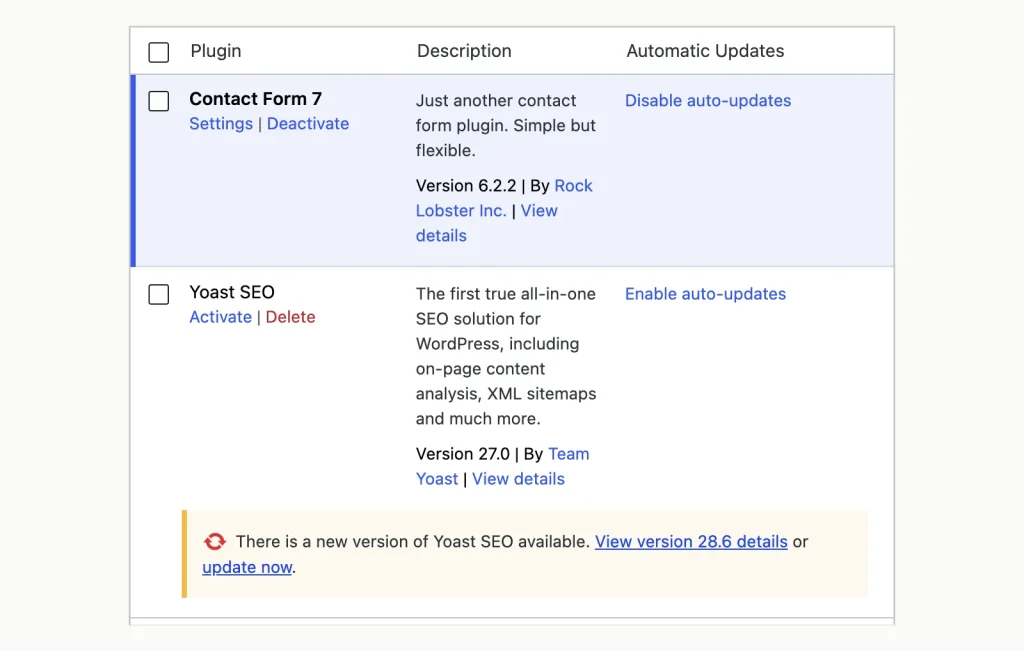
The Plugins screen after the install and auto-update commands above, with Yoast SEO on 27.0. WordPress 7.1.3 with WP-CLI 2.12.0, local Docker test site, 12 October 2026.
Deactivate, delete, uninstall
wp plugin deactivate contact-form-7
wp plugin deactivate --all --exclude=contact-form-7
The second line is the classic test for a broken site. Switch everything off except one plugin, then turn the rest back on one at a time.
Warning: the two commands below remove plugin files, and neither asks for confirmation.
wp plugin delete hello
wp plugin uninstall akismet --deactivate
They aren’t the same thing. delete removes the files only. In our test it deleted Hello Dolly while it was still active, although older guides say a plugin must be deactivated first. uninstall also runs the plugin’s own clean-up routine, and it refused an active plugin until we added --deactivate:
Warning: The 'contact-form-7' plugin is active.
Error: No plugins uninstalled.
Themes work the same way
wp theme list
wp theme install astra
wp theme activate astra
wp theme update --all
wp theme delete astra
Activating printed Success: Switched to 'Astra' theme. WP-CLI won’t delete the theme in use. Trying it on our active theme returned Warning: Can't delete the currently active theme: twentytwentyfive. Switch to another theme first.
Manage Users, Roles and Passwords
Create and list users
wp user create anna [email protected] --role=editor
wp user create ben [email protected] --role=author --porcelain
wp user list
The first command prints the new user’s ID and a generated password. The --porcelain flag on the second prints only the ID, which is what a script wants. The list then showed:
+----+------------+--------------+-------------------+---------------------+---------------+
| ID | user_login | display_name | user_email        | user_registered     | roles         |
+----+------------+--------------+-------------------+---------------------+---------------+
| 1  | admin      | admin        | [email protected] | 2026-10-12 12:25:18 | administrator |
| 2  | anna       | anna         | [email protected]  | 2026-10-12 12:31:07 | editor        |
| 3  | ben        | ben          | [email protected]   | 2026-10-12 12:31:08 | author        |
+----+------------+--------------+-------------------+---------------------+---------------+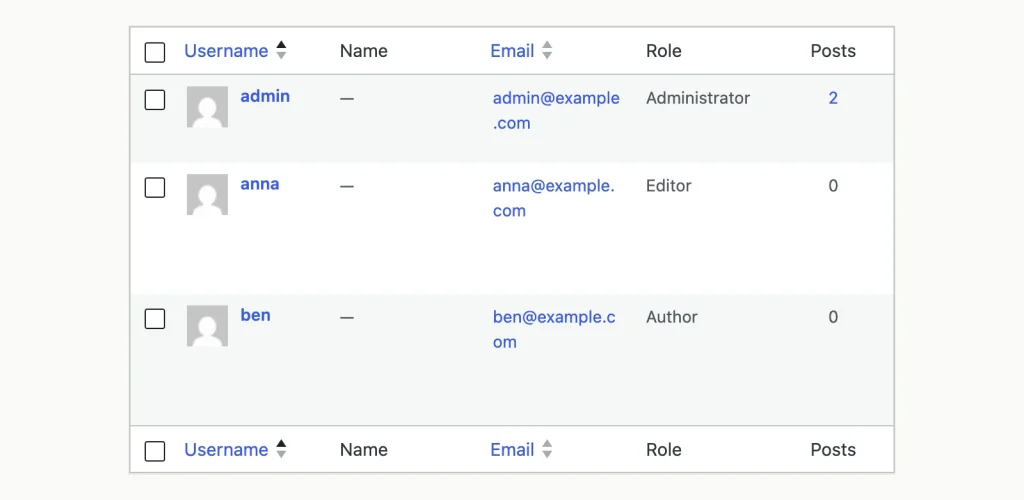
The Users screen lists the two accounts created from the terminal, with the roles the commands set. WordPress 7.1.3 with WP-CLI 2.12.0, local Docker test site, 12 October 2026.
Change roles and reset passwords
wp user set-role anna author
wp user add-role anna editor
wp user update anna --display_name="Anna Petrova"
wp user reset-password anna --skip-email --show-password
wp user session destroy admin --all
Locked out of your own dashboard? The reset command is the quickest way back in. It printed a new 24-character password in our test. The last line logs a user out everywhere, which is the right move after a password leak.
To see what a role or a person is allowed to do:
wp role list
wp cap list editor
wp user list-caps anna
On WordPress 7.1.3, wp cap list editor printed 34 capabilities, one per line, starting with moderate_comments.
Delete a user
Warning: deleting a user also removes that user’s posts unless you hand them to someone else. Run it bare and WP-CLI stops to ask:
wp user delete anna--reassign parameter not passed. All associated posts will be deleted. Proceed? [y/n]Answer n, then run it again with --reassign and the ID of the user who should inherit the content:
wp user delete anna --reassign=1That printed Success: Removed user 2 from http://localhost:8089., and Anna’s post now listed author 1. We also tried the dangerous form, wp user delete ben --yes. Ben’s one post left the site and landed in the Trash. Don’t count on that safety net: the prompt promises deletion.
Posts, Pages, Comments and Media
wp post create --post_type=page --post_title="About" --post_status=publish
wp post update 1 --post_title="Hello from WP-CLI"
wp post list --post_type=post --fields=ID,post_title,post_status
wp post generate --count=5
The last command creates dummy posts, handy for testing a theme. Deleting has two levels. Without a flag a post goes to the Trash. With --force it’s gone for good:
wp post delete 2
wp post delete 2 --force
Success: Trashed post 2.
Success: Deleted post 2.Clean out old revisions
WordPress keeps a copy of a post each time you save it. This well-known one-liner deletes every stored revision, and it worked in our test, removing four of them:
wp post list --post_type=revision --format=count
wp post delete $(wp post list --post_type=revision --format=ids) --force
Warning: --force skips the Trash, so export the database first. There’s also a catch for scripts. When no revisions exist, the inner command returns nothing, and the outer one fails with a usage message and exit code 1. This form does nothing when the list is empty, and exits cleanly:
wp post list --post_type=revision --format=ids | xargs -r wp post delete --forceComments, media and content export
wp comment list --fields=comment_ID,comment_author,comment_approved
wp comment delete 1 --force
wp media import https://s.w.org/style/images/about/WordPress-logotype-standard.png --title="WordPress logo"
wp media regenerate --yes
wp export --dir=/tmp
The import downloaded the image and reported Imported file ... as attachment ID 18. wp media regenerate rebuilds thumbnail sizes, which you need after switching to a theme with different image dimensions. wp export writes your content to a WXR file (the XML format of the dashboard’s own export tool).
Database: Export, Import, Query and Repair
Back up the database
wp db exportSuccess: Exported to 'site2-2026-10-12-61ce170.sql'.Look at where that file went: the current folder, which is your WordPress root. A database dump there can be downloaded by anyone who guesses the name. Give a path outside the web root instead, and compress it if you like:
wp db export /tmp/backup.sql --add-drop-table
wp db export - | gzip > /tmp/backup.sql.gz
wp db export /tmp/posts-only.sql --tables=wp_posts,wp_postmeta
Our small test database came to 95.7 KB as plain SQL and 18.1 KB compressed. Remember that this covers the database only. Uploads, themes and plugins are files, and they need a file backup too.
Restore a backup
Warning: an import overwrites the tables it contains, and it runs without asking. In our test it started at once, with no prompt. Export the current state first if there’s any chance you’ll want it back.
wp db import /tmp/backup.sqlSuccess: Imported from '/tmp/backup.sql'.Inspect, check and repair
wp db size --human-readable
wp db size --tables --human-readable
wp db tables
wp db prefix
wp db check
wp db optimize
wp db repair
All three maintenance commands printed one line per table and ended with a success line. On our MariaDB tables, optimize added the note Table does not support optimize, doing recreate + analyze instead. That’s normal for InnoDB (the default storage engine in MySQL and MariaDB).
Run SQL and search the data
wp db query "SELECT ID, user_login FROM wp_users;"
wp db search "Hello world"
wp_posts:post_title
1:Hello world!The search shows the table, the column and the row ID for each match. It’s the closest thing WP-CLI has to a broken-link finder: search for the dead URL, then fix it with search-replace. Check your table prefix with wp db prefix before you copy a query. Not every site uses wp_.
Reset or drop the database
Warning: the next two commands destroy data. wp db reset empties the database, so every post, page, user and setting is lost. wp db drop deletes the database itself. Neither can be undone without a backup file.
wp db resetAre you sure you want to reset the 'site2' database? [y/n]wp db dropAre you sure you want to drop the 'site2' database? [y/n]Both wait for an answer. Add --yes and they don’t. We ran both with --yes on the second site. After the reset, wp db tables answered Error: The site you have requested is not installed. After the drop, every command failed with Error: Error establishing a database connection.
We got the site back each time with two commands and the backup from earlier:
wp db create
wp db import /tmp/backup.sql
Search-Replace: Change URLs Without Breaking Serialized Data
This is the command that makes WP-CLI worth installing for a single job: changing a domain, or moving from http to https. A plain SQL find-and-replace corrupts some WordPress settings. Here’s why, and the proof.
Always start with a dry run
wp search-replace 'http://site2.test' 'https://site2.example' --dry-run --report-changed-only+------------+--------------+--------------+------+
| Table | Column | Replacements | Type |
+------------+--------------+--------------+------+
| wp_options | option_value | 2 | PHP |
| wp_posts | post_content | 2 | SQL |
| wp_posts | guid | 3 | SQL |
| wp_users | user_url | 1 | SQL |
+------------+--------------+--------------+------+
Success: 8 replacements to be made.--dry-run counts the changes and writes nothing. Without --report-changed-only, the same run printed 52 rows, most of them zeros.
Run it for real
Warning: without --dry-run, this command rewrites the database at once. It didn’t ask for confirmation in our test. Export first.
wp db export /tmp/before-replace.sql
wp search-replace 'http://site2.test' 'https://site2.example' --skip-columns=guid --report-changed-only
The --skip-columns=guid flag leaves the guid column alone. WordPress uses that column as a permanent ID for feed readers, so the usual advice is not to rewrite it on a live site.
The serialized data proof
WordPress stores many settings as serialized data (a text format that records the length of every string). We saved a test option with a URL in it and looked at the raw row:
a:2:{s:4:"logo";s:26:"http://site2.test/logo.png";s:4:"cols";i:3;}See s:26? That’s the length of the URL. After the search-replace, the same row read:
a:2:{s:4:"logo";s:30:"https://site2.example/logo.png";s:4:"cols";i:3;}WP-CLI changed the URL and corrected the count to 30. A plain SQL replace would have left 26 there, and WordPress would then fail to read the setting. That’s the “PHP” label in the Type column: those rows were unpacked, changed and packed again.
Plugin tables are skipped by default
One trap catches people during migrations. By default, search-replace only touches the tables WordPress itself registers. We created a table named wp_myplugin_links with one URL in it. The default dry run ignored it. This one found it:
wp search-replace 'http://site2.test' 'https://site2.example' --all-tables-with-prefix --dry-run --report-changed-onlyIf a plugin keeps its own tables (many SEO, form and shop plugins do), add --all-tables-with-prefix. On a multisite network, --network covers every site’s tables.
Write the result to a file instead
wp search-replace 'https://site2.example' 'http://site2.test' --export=/tmp/reverted.sql --report-changed-onlyWith --export, the changed data goes into an SQL file and the live database stays as it was. We confirmed that: the site’s home option was unchanged afterwards. It’s a clean way to prepare a database for another server.
Moving a Site With WP-CLI
Put the last two sections together and you have a migration. We ran each command below on our local sites, but not the trip between two real servers.
- On the old server, export the database:
wp db export /tmp/site.sql - Copy the SQL file and the whole WordPress folder to the new server. WP-CLI doesn’t copy files, so use
rsync,scpor SFTP. - On the new server, point
wp-config.phpat the new database:wp config set DB_NAME new_name, and the same forDB_USER,DB_PASSWORDandDB_HOST. - Import the data:
wp db import /tmp/site.sql - Dry-run the URL change, then run it:
wp search-replace 'https://old.example' 'https://new.example' --all-tables-with-prefix --skip-columns=guid - Clear what’s left:
wp cache flushandwp rewrite flush
Then delete the SQL file from both servers. A user on Reddit who moved a subdomain this way in April 2026 said the second attempt took about five minutes. The same user then hit file permission problems. Check that the web server’s user owns the copied files.
Options, wp-config.php and Debugging
Read and change settings
wp option get siteurl
wp option update blogname "WP-CLI Demo Site"
wp option list --search="blog*" --fields=option_name,option_value
wp option update home 'https://site2.example'
wp option update siteurl 'https://site2.example'
The last two lines fix a site that redirects to the wrong address after a move, when you can’t reach the dashboard to change it.
Edit wp-config.php without opening it
wp config path
wp config get DB_NAME
wp config get table_prefix
wp config set WP_DEBUG true --raw
wp config set WP_DEBUG_LOG true --raw
wp config set WP_DEBUG_DISPLAY false --raw
Those three set lines switch on error logging to wp-content/debug.log and keep errors off the public page. The --raw flag matters. It writes true as a PHP value, not as the text “true”. WP-CLI confirmed each change like this:
Success: Updated the constant 'WP_DEBUG' in the 'wp-config.php' file with the raw value 'true'.Turn it off again when you’re done, and remove what you added:
wp config set WP_DEBUG false --raw
wp config delete WP_DEBUG_LOG
wp config shuffle-salts
That last command replaces the secret keys in the file, which logs out every user at once. It’s useful after a break-in. Our guide to what each wp-config.php setting does explains the keys and the debug constants in more detail.
Find the plugin that broke the site
When the site shows a white screen, WP-CLI often crashes with it, because it loads the same broken code. Tell it to skip that code:
wp --skip-plugins --skip-themes plugin list
wp --skip-plugins plugin deactivate --all
wp theme activate twentytwentyfive
The first line worked on our test site and listed the plugins without loading any. An older guide prints wp theme switch for the last step. That command doesn’t exist: activate is the right word.
Run PHP inside WordPress
wp eval 'echo get_option("siteurl") . PHP_EOL;'
wp eval-file my-script.php
echo 'get_bloginfo("name");' | wp shell
wp eval runs one line of PHP with WordPress loaded, and wp eval-file does the same for a file. wp shell opens an interactive PHP prompt. We fed it one line through a pipe and got => string(8) "Site Two" back.
The doctor package, and a 3.0 problem
Packages add commands to WP-CLI. The best-known is doctor, a set of health checks from the WP-CLI team. On the stable release, the usual install line now fails:
wp package install wp-cli/doctor-command- wp-cli/doctor-command dev-main requires wp-cli/wp-cli ^3.0 -> found wp-cli/wp-cli[2.12.0] but it does not match the constraint.
Error: Package installation failed (Composer return code 2).The wp-cli/doctor-command package moved to version 3.0.0 on 4 August 2026 and now requires WP-CLI 3.0, which has no stable release yet. Pinning an older version worked for us:
wp package install wp-cli/doctor-command:v2.1.3
wp doctor check --all
That ran 16 checks on our second site. It passed 13 and raised three warnings: one plugin and two themes had updates waiting, and more than 40 percent of plugins were inactive. Among the passes were core checksums, autoloaded options at 36.5 KB against a 900 KB limit, and no PHP files in the uploads folder.
The package’s own files show a moving target. Version 2.3.1 asks for WP-CLI 2.12, but 2.3.2 asks for 2.13, which was never released as stable either. We tested only 2.1.3. Remove a package with wp package uninstall wp-cli/doctor-command.
Cache, Transients, Cron and Maintenance Mode
Three things called “cache”
wp cache flush
wp cache type
wp transient delete --expired
wp transient delete --all
wp cli cache clear
These get mixed up, so here’s what each one did in our test:
wp cache flushemptied the WordPress object cache (stored results of database queries) and printedSuccess: The cache was flushed.wp cache typeprintedDefault, meaning no Redis or Memcached object cache is connected.wp transient delete --allremoved three transients (temporary values plugins store in the database).wp cli cache clearemptied WP-CLI’s own download folder. It has nothing to do with your site’s speed.
The old version of this page printed wp cache add key groupvalue 200 as a way to “enable caching”. We ran it. It stored a value named “key” in a group named “200”, and enabled nothing.
After changing permalinks or moving a site, rebuild the URL rules too:
wp rewrite structure '/%postname%/'
wp rewrite flush
See and run scheduled tasks
WordPress has its own scheduler, WP-Cron, which only runs when someone visits the site. WP-CLI shows what’s queued and runs it on demand:
wp cron event list --fields=hook,next_run_relative,recurrence
wp cron event run --due-now
wp cron event run wp_version_check
wp cron schedule list
On our fresh site the list held nine events, five of them due. The second command ran those five:
Executed the cron event 'recovery_mode_clean_expired_keys' in 0.003s.
Executed the cron event 'wp_privacy_delete_old_export_files' in 0.002s.
Executed the cron event 'wp_privacy_personal_data_cleanup_requests' in 0.002s.
Executed the cron event 'wp_delete_temp_updater_backups' in 0.001s.
Executed the cron event 'do_pings' in 0.558s.
Success: Executed a total of 5 cron events.
Maintenance mode
wp maintenance-mode activate
wp maintenance-mode status
wp maintenance-mode deactivate
Activating creates a file named .maintenance in the WordPress root (33 bytes in our test). Visitors see the “briefly unavailable” notice until you deactivate. The same command rescues a site when a failed update leaves that file behind. Our guide to a site stuck in maintenance mode covers the other ways out.
Scripts, Custom Commands and wp-cli.yml
A setup script
Anything you type can go in a file. This script sets up a new site the same way every time. We saved it as setup.sh and ran it with sh setup.sh:
#!/bin/sh
# Stop at the first failed command.
set -e

wp plugin install contact-form-7 --activate
wp theme install twentytwentyfour --activate
wp option update blogdescription "Built by a script"
wp rewrite structure '/%postname%/'
wp post create --post_type=page --post_title="Contact" --post_status=publish
echo "Setup finished."
It ran clean and ended with Setup finished. Keep the set -e line. Without it, a script carries on after a failure and may update a site whose backup just failed.
Don’t trust exit codes blindly, though. wp plugin install with a slug that doesn’t exist left exit code 1 in our test. But wp plugin update with a wrong slug printed only a warning and left 0, so a script would sail past it.
Schedule it with cron (from the documentation, not run)
The WordPress.org project page suggests running WP-CLI from cron for jobs such as pruning transients at 3 a.m. A crontab line for a nightly database backup at that hour looks like this:
0 3 * * * cd /var/www/html && /usr/local/bin/wp db export /home/user/backups/nightly.sql --quietWe didn’t run a cron daemon in the test, so treat that line as a pattern. Use full paths, because cron starts with a very short PATH. The five fields at the front are minute, hour, day of month, month and weekday.
Write your own command
A custom command is a few lines of PHP. We saved this as hello-command.php:
<?php
/**
 * Prints a short status line for the current site.
 */
WP_CLI::add_command( 'site-status', function ( $args, $assoc_args ) {
    $posts = wp_count_posts()->publish;
    $users = count_users()['total_users'];
    WP_CLI::log( 'Site: ' . get_bloginfo( 'name' ) );
    WP_CLI::success( "$posts published posts, $users users." );
} );
Load it for one run with --require:
wp --require=hello-command.php site-statusSite: Site Two
Success: 1 published posts, 1 users.Without the flag, wp site-status failed as “not a registered wp command”. To make it permanent, we copied the file into wp-content/mu-plugins/ (must-use plugins, which WordPress always loads). The command then worked on its own.
Save your defaults in wp-cli.yml
A file named wp-cli.yml in your project folder stores flags so you don’t retype them. This is the file we tested:
path: /tmp/site2
disabled_commands:
  - db drop
  - db reset
@main:
  path: /var/www/html
@two:
  path: /tmp/site2
@all:
  - @main
  - @two
The path line let us run commands from a folder with no WordPress in it. The disabled_commands list is a cheap safety catch for a live site. With it in place, the destructive command was refused:
Error: The 'db drop' command has been disabled from the config file.The lines that start with @ are aliases, short names for sites. An alias group runs one command on several sites:
wp @main option get home
wp @all core version
wp cli alias list
@main
7.1.3
@two
7.1.3According to the handbook, WP-CLI reads settings in this order: command-line flags, then wp-cli.local.yml, then wp-cli.yml, then ~/.wp-cli/config.yml.
Remote Sites Over SSH (From the Documentation, Not Run)
Our test had no remote server, so nothing in this section was run. It comes from the WP-CLI handbook’s guide to running commands remotely, read on 12 October 2026.
The global --ssh flag sends a command to another machine. Its format is --ssh=[<scheme>:][<user>@]<host>[:<port>][<path>]:
wp [email protected]~/webapps/production plugin list
wp --ssh=example.com:2222 core version
The handbook is clear on one requirement: WP-CLI must also be installed on the remote server and reachable as wp. Your computer only passes the command along through ssh.
Typing that flag gets old fast, so aliases can hold it. This example is from the handbook:
@prod:
  ssh: [email protected]~/webapps/production
@dev:
  ssh: [email protected]/srv/www/example.dev
@both:
  - @prod
  - @dev
With that saved in wp-cli.yml or ~/.wp-cli/config.yml, the documented usage is:
wp @prod rewrite flush
wp @both core check-update
There’s one known snag. The handbook warns that SSH connections don’t load ~/.bashrc, so the remote server may not find wp even though it’s installed. Its fixes are to put the file in a folder already on the remote PATH, or to set the PATH for SSH sessions.
The same flag also accepts docker:, docker-compose: and vagrant: as schemes, for local containers and virtual machines.
Multisite in Brief
Multisite runs several sites from one WordPress install. We converted our second test site and added a sub-site:
wp core multisite-convert
wp site create --slug=shop --title="Shop"
wp site list --fields=blog_id,url
+---------+-------------------------+
| blog_id | url |
+---------+-------------------------+
| 1 | http://site2.test/ |
| 2 | http://site2.test/shop/ |
+---------+-------------------------+The convert command adds the network tables and constants, then reminds you to set up rewrite rules yourself. From here, --url decides which site a command talks to. To run something on every site, loop over the list:
wp --url=site2.test/shop option get blogname
wp site list --field=url | xargs -n1 -I % wp --url=% option get home
Warning: converting changes wp-config.php and the database. The core command in 2.12.0 has no subcommand to convert back. Export first.
Commands From Older Tutorials That Fail Today
We ran the commands printed on the 2024 version of this page. Most still work. These don’t do what the page said, and the download row near the end catches newer guides too:
| Command as printed | What happened in our test | Use this |
|---|---|---|
wp theme switch my_theme |
Error: ‘switch’ is not a registered subcommand of ‘theme’ | wp theme activate my_theme |
wp plugin update yoastseo --version=dev |
Warning: The ‘yoastseo’ plugin could not be found (the slug is wordpress-seo) |
wp plugin update wordpress-seo |
wp cache add key groupvalue 200 |
Stored a value named “key” in a group named “200”. Caching wasn’t enabled. | A persistent object cache plugin, then wp cache type to confirm |
wp cli cache clear (shown as clearing the site cache) |
Emptied WP-CLI’s own download cache only | wp cache flush |
wp user delete john (“prompts for the ID”) |
Asked one yes or no question, with no chance to enter an ID | wp user delete john --reassign=1 |
| “A plugin must be deactivated before deletion” | wp plugin delete removed an active plugin without complaint |
wp plugin uninstall if you want the safety check |
wp core download (still in most guides) |
Reported success, but 25 core files were missing and the checksum test failed | wp core download --skip-content, or repair with --force --skip-content |
Completion script from the master branch |
The link still downloaded, but the handbook now uses main |
The main URL in the install section |
The old page also listed PHP 5.4 as the minimum. The 2.12.0 README says 5.6, and the next release will say 7.2.24.
Errors You’re Likely to Hit
These are the errors we met during the test, with the fix that worked.
- Wrong folder:
This does not seem to be a WordPress installation.Change to the folder withwp-config.php, or add--path=. - Running as root:
YIKES! It looks like you're running this as root.Switch to the site’s own user. Use--allow-rootonly inside throwaway containers. - Out of memory:
Allowed memory size of 134217728 bytes exhausted.PHP’s command-line limit is 128M. Run the one command withphp -d memory_limit=512M "$(which wp)"in front. - No database:
Error establishing a database connection.We saw it after dropping the database. On a live site it usually means wrong details inwp-config.php, or a database server that’s down. Check them withwp config get DB_HOSTandwp config get DB_NAME. - No config file:
'wp-config.php' not found.WordPress files exist but aren’t configured. Runwp config create. - Package needs 3.0:
requires wp-cli/wp-cli ^3.0. A package wants the unreleased 3.0. Pin an older package version, as shown in the doctor section. - Incomplete download:
File doesn't existwarnings fromwp core verify-checksumsafterwp core download. Runwp core download --force --skip-content. - Wrong slug:
The 'x' plugin could not be found.Find the right one withwp plugin listorwp plugin search.
WP-CLI Cheat Sheet
Every command in this table was run in our test. Rows marked “destroys data” need a database export first.
| Task | Command | Risk |
|---|---|---|
| Show versions and paths | wp --info |
None |
| Update WP-CLI | wp cli update |
None |
| Check for a WordPress update | wp core check-update |
None |
| Update WordPress | wp core update then wp core update-db |
Changes files |
| Verify core files | wp core verify-checksums |
None |
| Download WordPress (ZIP package) | wp core download --skip-content |
None |
| Reinstall core files | wp core download --force --skip-content |
Overwrites core files |
| Install and activate a plugin | wp plugin install SLUG --activate |
Changes files |
| Preview plugin updates | wp plugin update --all --dry-run |
None |
| Switch off all plugins | wp plugin deactivate --all |
Site features stop |
| Change the theme | wp theme activate SLUG |
Changes the site’s look |
| Create a user | wp user create NAME EMAIL --role=editor |
None |
| Reset a password | wp user reset-password NAME --skip-email --show-password |
Old password stops working |
| Delete a user, keep the posts | wp user delete NAME --reassign=ID |
Destroys data |
| Back up the database | wp db export /path/outside/webroot/backup.sql |
None |
| Restore the database | wp db import backup.sql |
Destroys data |
| Preview a URL change | wp search-replace OLD NEW --dry-run |
None |
| Change URLs | wp search-replace OLD NEW --skip-columns=guid |
Destroys data |
| Empty the database | wp db reset |
Destroys data |
| Turn on debug logging | wp config set WP_DEBUG true --raw |
None |
| Flush the object cache | wp cache flush |
None |
| Run due cron events | wp cron event run --due-now |
None |
| Leave maintenance mode | wp maintenance-mode deactivate |
None |
Frequently Asked Questions
How do I know if WP-CLI is already installed on my hosting?
Log in over SSH and type wp --info. If it’s installed, you’ll see a block that ends with the WP-CLI version. If you get “command not found”, install it yourself with the five steps at the top. You don’t need root for that: keep the file in your home folder and run it as php wp-cli.phar.
Can I use WP-CLI without SSH access?
No. WP-CLI runs on the server, so you need a way to type commands there. That’s SSH or a terminal inside your hosting panel. If your plan offers neither, you can still practise on a local WordPress install on your own computer.
Can WP-CLI break my site?
Yes, and quickly. In our test, wp db import and wp search-replace changed the database with no confirmation. wp db reset and wp user delete asked first, unless --yes was added. Run wp db export before any command that writes to the database, and use --dry-run wherever a command offers it.
Should I install the nightly build to get WP-CLI 3.0 now?
Not on a live site. The nightly we installed on 12 October 2026 called itself 3.0.0-alpha, which means unfinished. Stay on stable 2.12.0 and pin older package versions where a package asks for 3.0. Try the nightly on a local copy if you’re curious: wp cli update --stable brings you back.
Where to Start
Don’t try to learn 40 commands. Learn four, in this order. Start with wp db export, because it makes every later mistake reversible. Next comes wp plugin update --all --dry-run, then the same line without the last flag. The fourth is wp search-replace with --dry-run, for the day you move the site.
Then add a wp-cli.yml with db drop and db reset disabled on anything that earns money. It’s four lines, and it blocked the command when we tried.
Related guides: a database export isn’t a full backup, so read how to back up a WordPress site for files and off-site copies. Once WP-CLI 3.0 ships as stable, expect the PHP requirement and the package problem above to change.