
Auf dieser Seite: [ausblenden]
WordPress wird diesen Fehler nach genau dieser Zeit automatisch beheben 10 Protokoll. Die meisten Websitebesitzer müssen das auf die harte Tour herausfinden, nachdem er in den ersten neun Jahren in Panik geraten war. Die schnellere Lösung ist manuell: Löschen Sie die .maintenance-Datei im Stammordner Ihrer Site. Kein Warten erforderlich.
Schnelle Antwort: Finden Sie die .Wartungsdatei in Ihrem WordPress-Stammordner und löschen Sie es. Verwenden Sie FTP, Ihr Hosting-Dateimanager, oder ein WP-CLI-Befehl, wenn Sie Terminalzugriff haben. Die Site kommt zurück, sobald die Datei verschwunden ist.
Zuletzt überprüft: April 2026. Gegen WordPress verifizierte Methoden 6.8+ und im gesamten cPanel getestet, Plesk, hPanel, und DirectAdmin.
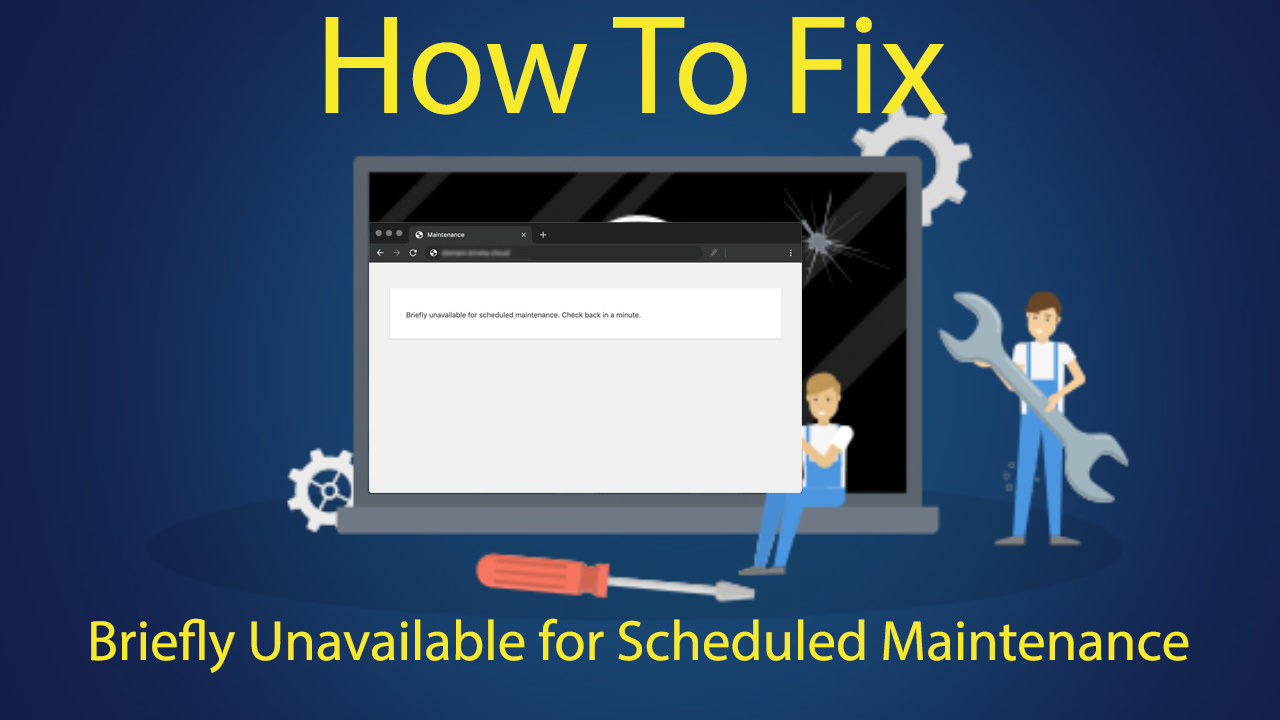
Was passiert tatsächlich? (Und warum es nicht wirklich ein Fehler ist)
WordPress drops a hidden file called .Instandhaltung into your site’s root folder every time it updates core, a plugin, or a theme. Open it in a text editor and you’ll see exactly one line of PHP: <?php $upgrading = 1714208400;. Diese Zahl ist der Unix-Zeitstempel für den Start des Updates. WordPress liest es bei jedem Laden der Seite, um zu entscheiden, ob Ihre Website oder die Wartungsmeldung bereitgestellt werden soll. Während die Datei aktiv ist, Jede Anfrage gibt HTTP zurück 503 (Dienst nicht verfügbar), Aus diesem Grund behandeln der Crawler von Google und die meisten Verfügbarkeitsmonitore den Fehler ordnungsgemäß, ohne Ihre Website als nicht verfügbar zu kennzeichnen.
Unter normalen Bedingungen, Die Datei bleibt fünf bis fünfzehn Sekunden lang bestehen. WordPress schreibt es, sobald ein Update beginnt, und löscht es, wenn das zweite Update abgeschlossen ist. Wahrscheinlich sieht man es nie.
Hier ist der Teil, den die meisten Fix-Guides überspringen: Der WordPress-Kern überprüft diesen Zeitstempel bei jedem Laden der Seite und umgeht automatisch die Wartungsmeldung, wenn er mehr als beträgt 10 Minuten alt. Die Site erholt sich nach 10 Minuten von selbst, auch wenn die Datei noch existiert. Die genaue Prüfung findet im wp_is_maintenance_mode statt() Funktion, und die Konstante ist fest codiert. Wenn Sie also innerhalb von Minuten nach Auftreten des Fehlers hier angekommen sind, Das Löschen der Datei ist der schnellste Weg zurück online. Wenn es schon eine Stunde her ist und Sie immer noch nicht weiterkommen, etwas anderes stimmt nicht: eine Caching-Schicht, CDN-Edge, oder der Browser-Cache stellt wahrscheinlich die Wartungsseite aus dem Speicher bereit. Löschen Sie diese, bevor Sie mit der Bearbeitung von Dateien beginnen.
Aber Updates schlagen fehl. Viel. Der Browser-Tab wird während des Updates geschlossen. Der Server läuft auf einem langsamen gemeinsam genutzten Host ab. Du hast getroffen “Alle aktualisieren” mit 14 Plugins in der Warteschlange, und einer von ihnen löst einen schwerwiegenden PHP-Fehler aus. Die .maintenance-Datei wird geschrieben, Das Update bricht ab, und nichts reinigt es jemals. Die Seite bleibt offline (oder teilweise offline) bis Sie die Datei selbst entfernen.
Häufige Auslöser in realen Berichten
- Massenaktualisierung mehrerer Plugins oder Themes gleichzeitig auf Shared Hosting
- Schließen Sie den Browser oder verlieren Sie Ihre Internetverbindung während des Updates
- Ein Plugin mit einem schwerwiegenden PHP-Fehler, der die Aktualisierungssequenz stoppt
- Server-Timeouts auf Hosts mit strengen Ausführungszeitlimits (oft 30 Sekunden oder weniger)
- Während des Updates ist nicht mehr genügend Speicherplatz oder PHP-Speicher verfügbar
- Automatische Updates werden ausgelöst, während bereits ein anderes Update ausgeführt wird
Wenn Sie aus einem dieser Szenarien hierher gekommen sind, Die eigentliche Reparatur dauert ca 60 Sekunden. Wählen Sie unten die Methode aus, die Ihrem Zugriff entspricht.
Methode 1: Löschen Sie die .maintenance-Datei per FTP
Die meisten Korrekturen finden hier statt. FTP funktioniert auf jedem Host, unabhängig davon, ob Sie Shell-Zugriff haben, Dashboard-Zugriff, oder keines von beiden. Sie benötigen lediglich einen FTP-Client und die Anmeldeinformationen, die Ihnen Ihr Gastgeber bei der Anmeldung per E-Mail zugesandt hat.
Was Sie brauchen
- Ein FTP-Client (FileZilla, Cyberduck, oder WinSCP funktionieren alle)
- Ihre Hosting-FTP/SFTP-Zugangsdaten (Wirt, Nutzername, Passwort, Hafen)
- Ungefähr zwei Minuten (weniger, wenn Ihr FTP-Client bereits geöffnet ist, which it should be for any WordPress site you actually run)
Die Schritte
- Open your FTP client and connect to your site. Most modern hosts use SFTP on port 22, not classic FTP on port 21. Check your hosting welcome email if you’re not sure.
- Navigate to your WordPress root directory. This is the folder containing wp-config.php, wp-admin, wp-Inhalt, und wp-enthält. On most shared hosts it’s called public_html or www.
- Look for a file named .maintenance. Files starting with a dot are hidden by default. In FileZilla, klicken Server, then Force Showing Hidden Files. In Cyberduck, press Cmd+Shift+R (Mac) or Ctrl+Shift+R (Windows).
- Right-click the .maintenance file and select Löschen.
- Refresh your site in a new browser tab. It should load normally.
Don’t see the file at all? Your site might have already cleared it but cached the maintenance page. Löschen Sie den Cache Ihres Browsers und die gespeicherten Ausgaben aller Caching-Plugins, dann aktualisieren.
Methode 2: Verwenden Sie Ihren Hosting-Dateimanager
Kein FTP-Client installiert? Bei den meisten Hosting-Kontrollfeldern können Sie Dateien direkt aus dem Browser löschen. Der genaue Pfad variiert je nach Panel, So funktioniert es also bei den vier häufigsten.
cPanel
- Melden Sie sich bei cPanel an
- Öffnen Dateimanager
- Klicken Sie auf Einstellungen (oben rechts), Tick Versteckte Dateien anzeigen (Punktdateien), dann speichern
- Navigieren Sie zu public_html
- Klicken Sie mit der rechten Maustaste auf „.maintenance“ und wählen Sie „Löschen“.
Plesk
- Melden Sie sich bei Plesk an
- Klicken Dateien in der linken Seitenleiste
- Öffnen Sie httpdocs (oder das Dokumentenstammverzeichnis für Ihre Domain)
- Klicken Sie auf das Zahnradsymbol und aktivieren Sie es Versteckte Dateien anzeigen
- Wählen Sie „.maintenance“ und klicken Sie auf „Entfernen“.
hPanel (Hostinger)
- Melden Sie sich bei hPanel an
- Öffnen Dateimanager
- Aktivieren Sie „Versteckte Dateien anzeigen“ in den Einstellungen
- Navigieren Sie zu public_html
- Klicken Sie mit der rechten Maustaste auf „.maintenance“ und wählen Sie „Löschen“.
DirectAdmin
- Melden Sie sich bei DirectAdmin an
- Öffnen Dateimanager unter Systeminfo & Dateien
- Aktivieren Sie „Versteckte Dateien anzeigen“ in der Symbolleiste
- Navigieren Sie zu public_html
- Markieren Sie „Wartung“ und klicken Sie auf „Löschen“.
Die Datei selbst ist in allen Panels identisch. Gleiches einzeiliges PHP, die gleiche Handvoll Bytes. Sie suchen einfach in vier verschiedenen Schnittstellen danach. Welches Panel Sie auch verwenden, das Ergebnis ist das gleiche: Datei weg, Seite zurück.
Methode 3: Ein WP-CLI-Befehl (Für Entwickler)
SSH-Zugriff plus WP-CLI installiert? Dies ist die schnellste Lösung auf der Seite. SSH ein, Wechseln Sie in Ihr WordPress-Verzeichnis, und laufen:
wp-Wartungsmodus deaktivieren
Du wirst sehen “Erfolg: Deaktivierter Wartungsmodus.” Das ist das gesamte Verfahren. Die .maintenance-Datei wird entfernt und Ihre Website ist wieder online.
Der wp-Wartungsmodusbefehl, der mit WP-CLI geliefert wird 2.6, Daher wird es von jeder aktuellen Installation unterstützt. Wenn Sie eine bekommen “Befehl nicht gefunden” Botschaft, Ihr Host hat WP-CLI wahrscheinlich nicht global installiert. Verwenden Sie die Methode 1 oder 2 stattdessen.
Kinsta, WP Engine, Rocket.net, und Pressable werden alle mit vorinstalliertem WP-CLI ausgeliefert und können über das Dashboard-Terminal oder das Tools-Panel angezeigt werden. Keine SSH-Schlüssel erforderlich. Weitere Anbieter in unserem verwaltetes WordPress-Hosting in den USA Roundup verhält sich genauso. Wenn Sie für verwaltetes WordPress bezahlen, Dieser 30-Sekunden-Fix ist der eigentliche Grund.
Methode 4: SSH ohne WP-CLI
Habe SSH-Zugriff, aber kein WP-CLI? Zwei Befehle erledigen das:
cd /path/to/your/wordpress
rm .Wartung
Das ist die ganze Lösung. Der Pfad sieht bei Hosts im cPanel-Stil wie folgt aus: /home/username/public_html und bei den meisten VPS-Setups /var/www/html oder /var/www/yoursite.com.
Die meisten gemeinsam genutzten Hosts deaktivieren SSH standardmäßig. Wenn Ihr Terminal zurückkehrt “Verbindung abgelehnt” oder “Zugriff verweigert,” Ihr Hosting-Plan beinhaltet keinen Shell-Zugriff. Entweder beim Support anfordern (Einige Hosts aktivieren es auf Anfrage) oder springen Sie zurück zur Methode 1 oder 2.
Wenn rm meldet, dass die Datei nicht existiert, laufen ls – sie und prüfen Sie, was tatsächlich da ist. Manchmal erscheint die Datei mit einem leicht geänderten Namen (wie .maintenance.old) aus einem halb erfolgreichen vorherigen Versuch. Löschen Sie die gefundene Variante.
Wenn die .maintenance-Datei immer wieder zurückkommt
Here’s an annoying scenario: you delete the file, auffrischen, the site loads, you celebrate, und 15 seconds later the error returns.
This means an automatic update is still running in the background, repeatedly creating the file. Or a stuck cron job is firing the same broken update every minute.
Three things to check:
- Disable WordPress auto-updates temporarily by adding this line to wp-config.php: definieren(‘AUTOMATIC_UPDATER_DISABLED’, wahr);
- Check wp-content for a .maintenance file there too. It’s less common, but it does happen.
- Laufen wp cron event list and look for anything firing every minute or every five minutes. Disable suspicious events with wp cron event delete.
Seeing PHP errors in the maintenance message itself, or in wp-content/debug.log? That’s a different problem. A plugin update probably broke something. Sie müssen das problematische Plugin deaktivieren, indem Sie seinen Ordner in wp-content/plugins umbenennen, Aktualisieren Sie es dann manuell über das Dashboard, sobald die Website geladen ist.
So verhindern Sie, dass dieser Fehler erneut auftritt
Die Reparatur selbst ist einfach. Sinnvoller ist es, die Situation von vornherein zu vermeiden.
Aktualisieren Sie jeweils nur eine Sache
Mit WordPress können Sie auswählen 30 Plugins und klicken Sie auf Aktualisieren. Nicht. Wenn einer von ihnen einen schwerwiegenden Fehler auslöst oder auf eine langsame Datenbankabfrage stößt, Der gesamte Stapel schlägt fehl und die .maintenance-Datei bleibt bestehen. Aktualisieren Sie die Plugins einzeln, zwischendurch aktualisieren, und Sie werden diesen Fehler selten wieder sehen.
Führen Sie Updates vom Desktop aus aus, nicht mobil
Zeitüberschreitung bei mobilen Browsern, Tabs wechseln, und die Verbindung öfter verlieren. Wenn WordPress den Update-Vorgang abbricht, bevor er abgeschlossen ist, Die .maintenance-Datei bleibt erhalten. Verwenden Sie einen Desktop-Browser mit einer stabilen Verbindung. Langweiliger Rat. Erspart echte Kopfschmerzen.
Sichern Sie vor dem Update
Den Fehler nicht direkt verhindern, aber es macht das nächste 20 Minuten viel ruhiger, wenn ein Update etwas kaputt macht. UpdraftPlus, BlogVault, und BackWPup laufen alle auf kostenlosen Stufen. Oder nutzen Sie die tägliche automatische Sicherung Ihres Hosts, falls vorhanden. Stellen Sie den letzten guten Snapshot wieder her, wenn ein Fix länger dauert als ein Rollback.
Wählen Sie ein Hosting, das gut mit Updates zurechtkommt
Günstige Hosts verursachen diesen Fehler häufiger als verwaltete WordPress-Hosts, und der Grund ist eine Zahl: max_execution_time. Bei Plänen mit gemeinsamem Budget wird in der Regel standardmäßig die Standardeinstellung verwendet 30 Sekunden. Mittelklasse-Gemeinschaftswohnungen 60. Verwaltete WordPress-Hosts wie Kinsta und WP Engine werden mitgeliefert 300. Der Unterschied ist wichtig, wenn Sie ein Plugin aktualisieren, das eine Datenbankmigration durchführt: 30 Sekunden scheitern regelmäßig auf halbem Weg, 300 endet gemütlich. Wenn der Fehler Woche für Woche immer wieder auftritt, Der Gastgeber ist das Problem, nicht WordPress. Unser Shared-Hosting-Vergleich kennzeichnet die Anbieter mit angemessenen PHP-Limits.
Größere Websites wachsen völlig über gemeinsame Pläne hinaus. EIN WordPress-VPS stellt Ihnen dedizierte Ressourcen zur Verfügung, Ihr eigenes PHP-Timeout, und genügend Speicher zum Aktualisieren 20 Plugins ohne kaputt zu gehen. Dieselbe Website, bei der bei einem Shared-Plan für 3 USD/Monat einmal pro Woche ein Update fehlschlägt, wird bei einem VPS für 15 USD/Monat oft einwandfrei aktualisiert.
Verwenden Sie Staging für riskante Updates
Eine Staging-Site ist ein Klon Ihrer Live-Site, auf der Sie Updates testen, bevor Sie sie in die Produktion übertragen. Die meisten verwalteten Hoster beinhalten One-Click-Staging in ihren Plänen. Testen Sie dort zunächst das Plugin-Update. Wenn die Inszenierung unterbrochen wird, Sie wissen, dass Sie das Problem beheben müssen, bevor Sie die Produktion gefährden. Viele KI-WordPress-Builder Plattformen bündeln jetzt auch Staging in ihrem kostenlosen Kontingent.
Häufig gestellte Fragen
Wie lange dauert “Für geplante Wartung kurzzeitig nicht verfügbar” eigentlich zuletzt?
Unter normalen Bedingungen, 5 zu 15 Sekunden. WordPress schreibt die .maintenance-Datei, wenn Aktualisierungen beginnen, und entfernt sie, sobald sie abgeschlossen sind. Nach genau 10 Protokoll, WordPress umgeht die Nachricht automatisch, auch wenn die Datei noch vorhanden ist, da Core alles Ältere als fehlgeschlagenes Update behandelt. Immer noch in der Vergangenheit steckengeblieben 10 Protokoll? It’s almost always a caching layer holding the old response. Clear cache first, then delete the file manually if needed.
Wo befindet sich die .maintenance-Datei??
Always in your WordPress root directory, alongside wp-config.php and the wp-admin folder. On most shared hosts that’s public_html or www. On VPS setups it’s usually /var/www/html or /var/www/yoursite.com. The file is hidden because it starts with a dot, so enable “Versteckte Dateien anzeigen” in Ihrem FTP-Client oder Dateimanager, bevor Sie mit der Suche beginnen.
Kann ich die Wartungsmeldung umgehen, ohne die Datei zu löschen??
Irgendwie. Das Hinzufügen einer Abfragezeichenfolge zu Ihrer URL wird nicht helfen, da die Wartungsprüfung serverseitig läuft. Aber wenn Sie Administratorzugriff haben, Navigieren Sie direkt zu /wp-admin/upgrade.php und führen Sie die Upgrade-Routine aus. Manchmal wird dadurch das hängengebliebene Update abgeschlossen und die Datei auf natürliche Weise entfernt. Für die meisten Menschen, Das direkte Löschen der Datei ist schneller und zuverlässiger.
Wird das Löschen von .maintenance meine Website beschädigen??
Nein. Die Datei existiert nur während Updates. Durch das Entfernen wird verhindert, dass WordPress die Wartungsseite anzeigt. Aber wenn das eigentliche Update unvollständig war, Ihr eigentliches Problem ist das defekte Plugin oder Theme, das den Timeout ausgelöst hat. Überprüfen Sie Ihre Website nach dem Löschen. Wenn Sie einen anderen Fehler sehen, z. B. einen weißen Bildschirm oder einen schwerwiegenden PHP-Fehler, Das Update wurde nie beendet. Sie müssen das fehlerhafte Plugin manuell zurücksetzen oder es erneut aus einem sauberen Zustand aktualisieren.
Warum passiert das auf manchen Websites und auf anderen nie??
Zwei Faktoren entscheiden darüber: wie viele Plugins Sie gleichzeitig aktualisieren, und wie großzügig das PHP-Timeout Ihres Hosts ist. Eine Seite mit 5 Plugins auf einem verwalteten Host mit einem Timeout von 300 Sekunden tritt dieser Fehler fast nie auf. Eine Seite mit 40 Plugins auf einem preisgünstigen Shared Host mit einem Timeout von 30 Sekunden schlagen ständig zu. Wenn Sie Hosts verschoben haben und das Problem behoben ist, Es war die ganze Zeit der alte Gastgeber.
Beeinflusst dieser Fehler die Suchmaschinenoptimierung??
Wenn es darunter hält 10 Protokoll, Nein. Der Crawler von Google versucht Seiten, die mit HTTP antworten, erneut 503 (Das ist es, was WordPress während der Wartung sendet), und ein paar Minuten Ausfallzeit werden die Rangliste nicht verändern. Wenn sich der Fehler über Stunden oder Tage erstreckt, Möglicherweise stellen Sie einen vorübergehenden Rückgang der zwischengespeicherten Seiten fest, bis der Crawler zurückkehrt. Lösen Sie das Problem schnell und die Rankings erholen sich innerhalb von ein oder zwei Tagen.
Gibt es ein Plugin, das diesen Fehler automatisch verhindert??
Mit Plugins wie WP Maintenance Mode und Maintenance können Sie den Wartungsbildschirm steuern, Sie verhindern jedoch nicht das zugrunde liegende Problem mit hängengebliebenen Dateien. Der Fehler tritt auf, bevor ein Plugin ausgeführt werden kann, da WordPress ganz oben bei jeder Anfrage nach .maintenance sucht. Bei der Prävention geht es um den Update-Workflow und die Host-Qualität, kein Plugin, das Sie installieren.
Abschließende Gedanken
“Für geplante Wartung kurzzeitig nicht verfügbar” ist die irreführendste Fehlermeldung in WordPress. Es gibt keine Terminplanung. Es gibt keine Wartung. Es gibt eine einzeilige PHP-Datei, die drei Millisekunden nach Abschluss des Updates hätte gelöscht werden sollen, und einen 10-Minuten-Timer, den der Kern ohnehin nutzt, um sich selbst auszugraben. Sobald Sie das verstanden haben, Es zu reparieren ist ein 60-Sekunden-Job.
Einmaliger Vorfall? Löschen Sie die Datei und fahren Sie mit Ihrem Tag fort. Ich sehe es jeden Dienstag nach automatischen Updates? Das Problem liegt stromaufwärts. Das Muster ist fast immer eines von drei Dingen: ein einzelnes Plugin, das immer eine Zeitüberschreitung aufweist, Ein Host mit einem 30-Sekunden-PHP-Limit wird nicht erhöht, oder ein Zeitplan für die automatische Aktualisierung, der ausgeführt wird, während Benutzer noch auf der Website sind.
Für Websites, bei denen die Betriebszeit das eigentliche Produkt ist, Ein Hoster, der Updates sicher handhabt, amortisiert die Preisdifferenz innerhalb von Monaten. Sobald dieser Fix hinter Ihnen liegt, unser kostenloser WordPress-Migrationsleitfaden führt den Umzug zu einem Host mit ordnungsgemäßen PHP-Timeouts und vorinstalliertem WP-CLI durch, ohne dabei einen einzigen Besucher zu verlieren.