
このページで: [隠れる]
いくつかのチュートリアルがまだコピーしている最近の投稿コードを実行しました。, WordPressで 7.1.3. 独自のコメントをページに印刷してリストしました 6 求められたときの投稿 5. 組み込みツールの方が優れたパフォーマンスを発揮します, but they have traps of their own, and this guide shows where each one bites.
簡単な回答: use the Latest Posts block wherever the list should go.
- Check your theme type. ダッシュボードで, open Appearance. “ウィジェット” means a classic theme; “編集者” なし “ウィジェット” means a block theme.
- Classic theme: 外観に移動, then Widgets. Open the Sidebar (or footer) 範囲, click the blue + ボタン, 探す “最新の投稿” and add it. Click Update.
- Block theme: 外観に移動, それから編集者, then Patterns, and open the Footer template part. Click a block inside the footer’s main column first. Then add Latest Posts and click Save.
- In the block’s settings, turn on Display featured image and Display post date. Pick a count under Number of items; a new block shows 5.
- Open one of your posts on the live site. If the list shows the post you’re reading, ジャンプ the duplicate fix.
Our test ran on 9 10月 2026: WordPress 7.1.3 in WordPress Playground, with Twenty Twenty-Five (ブロック) and Twenty Sixteen (クラシック). Where a tip wasn’t part of that test, 私たちはそう言います.
Which Route Fits Your Theme and the Spot You Want
The tool is nearly always the same block. What changes is where you open it, and that depends on the theme type from step 1.
| Where the list goes | Classic theme | Block theme |
|---|---|---|
| サイドバー | 外観, then Widgets, Sidebar area | No sidebar area by default; build one into a template |
| フッター | 外観, then Widgets, footer area if the theme has one | 外観, それから編集者, Patterns, フッター |
| Under every post | A widget area the theme prints under posts, or template code | テンプレート, then Single Posts (often already has a “More posts” リスト) |
| Inside one post | Latest Posts block in the post editor | 同じ |
| ホームページ | 設定, それから読書, “Your latest posts” | 同じ |
Not sure what changes when a site moves from one theme type to the other? 私たちのガイド changing your WordPress theme covers that switch, including what happens to existing widgets.
Sidebar or Footer in a Classic Theme
Classic themes still have widget areas, but the Widgets screen isn’t the drag-and-drop page older guides show. WordPress 以来 5.8, にリリースされました 20 7月 2021, widget areas are edited with blocks. In Twenty Sixteen, the screen opened with “Welcome to block Widgets” and listed three areas: サイドバー, Content Bottom 1 and Content Bottom 2.
You may find the job already done. On our fresh install, the Sidebar already held a “最近の投稿” heading with a Latest Posts block under it. WordPress adds that group to new sites, along with Search, Recent Comments, Archives and Categories. So click the existing list and change its settings before you add a second one.
- 外観に移動, then Widgets, and expand the Sidebar area.
- Click the Latest Posts list under “最近の投稿”, or add one with the + ボタン.
- In the right panel, turn on Display post date and Display featured image, and set Image alignment to Left.
- 項目数の設定, 次に「更新」をクリックします. WordPress confirms with “Widgets saved.”
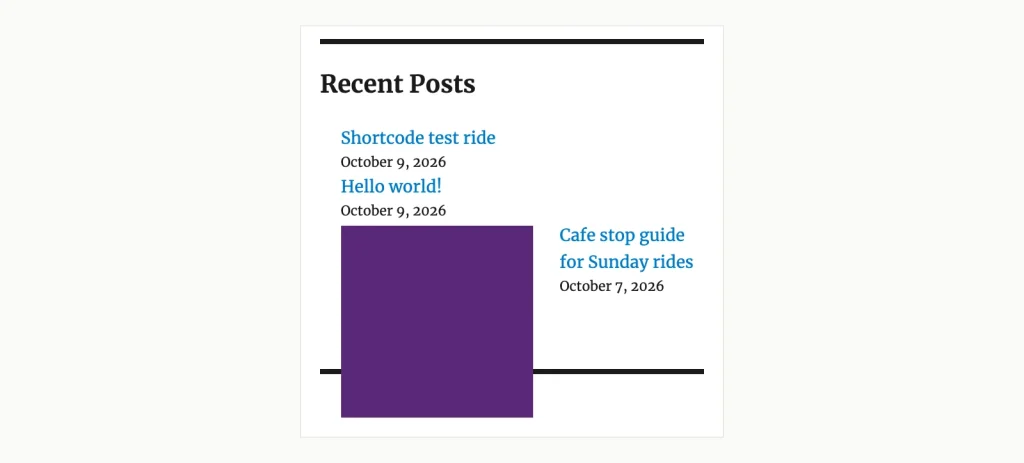
The default Recent Posts group in Twenty Sixteen, with dates and thumbnails switched on. Note how the floated thumbnail runs over the next widget’s divider line. WordPress 7.1.3, WordPress Playground でテスト済み, 9 10月 2026.
Looking for the old “最近の投稿” widget instead? It’s gone from this screen. 検索 “最近の投稿” in the block inserter returned only the Latest Posts block. WordPress’s own code hides the old widget from the Legacy Widget block, so on this screen the block is the only route.
If you really want the old screen back, the official Classic Widgets plugin restores it on classic themes (we didn’t install it for this test). Its WordPress.org page promises support “に 2024, or as long as is necessary”, and it was last updated on 8 12月 2025. それは動作します, but it’s a step backwards. The old widget offers a title, a post count and a date switch, そして他には何もありません: no thumbnails.
Footer in a Block Theme: Where You Click Decides Where It Lands
Block themes have no widget areas, so there’s no Widgets screen to open. The footer is a template part, built from blocks and edited in the Site Editor. Twenty Twenty-Five offers three: フッター, Footer Columns and Footer Newsletter. Its templates use the one called Footer.
Here’s the part that tripped us up twice. With nothing selected, the + button in the top bar adds the block at the very end of the template part. That’s outside the group that gives the footer its padding. ライブサイトで, our list sat flush against the left edge of the window.
Our second try went into the footer’s right-hand column, next to an empty Spacer. That column measured 0 ピクセル幅, because the left column takes the full width. The post titles came out one letter per line. Picking a block inside the main column first fixed it.
- 外観に移動, それから編集者, then Patterns. テンプレートパーツの下, click Footer, それから、と呼ばれるデザイン “フッター”.
- In the footer, click the line of text under your site title (the Site Tagline block). The breadcrumb at the bottom should end in Columns, 桁, Site Tagline.
- クリック + button in the top bar, 探す “最近の投稿” また “最新の投稿” and pick Latest Posts. It goes in right after the block you selected.
- Set the options in the right panel, then click Save. WordPress shows “Template part updated.”
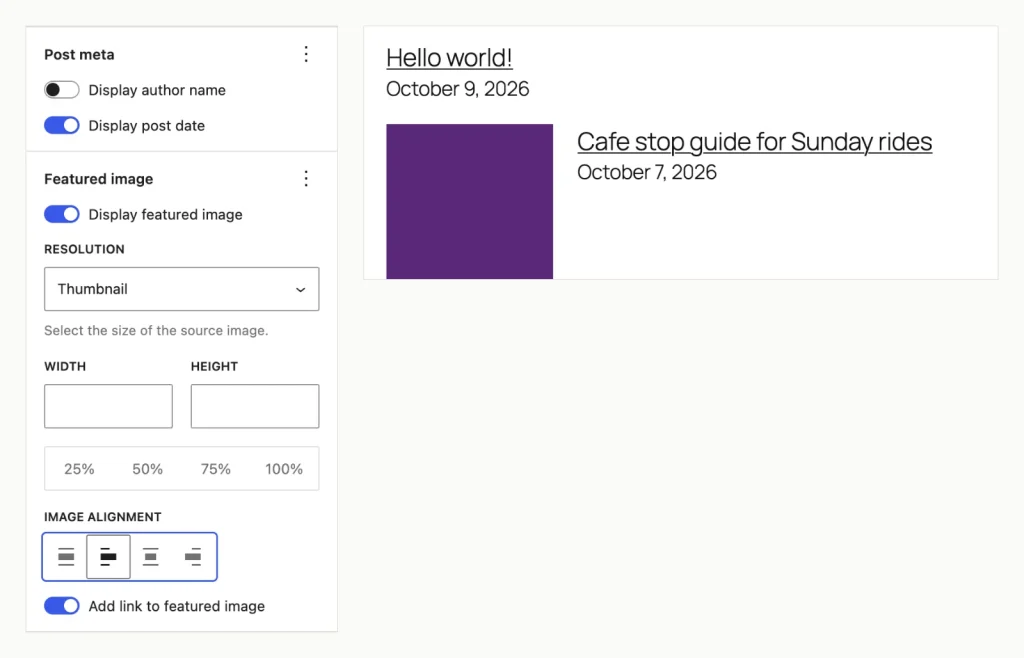
左: the image settings we used. 右: the list under the site title in the Twenty Twenty-Five footer, where Hello world! has no featured image. WordPress 7.1.3, WordPress Playground でテスト済み, 9 10月 2026.
Remember that a template part appears on every page that uses it. Our footer list showed on the homepage, on posts and on the Sample Page. That’s usually the point of a footer, but it also means the list will appear under each post, which leads to the next problem.
Want a sidebar in a block theme? There isn’t a sidebar area to fill. You’d add a Columns block to the template itself (テンプレート, then Single Posts) and put Latest Posts in the narrow column. We didn’t build one in our test. It’s a template edit, so try it on a copy of your site first.
The List That Shows the Post You’re Reading
Open your newest post and look at your recent-posts list. Is that same post in it? It will be whenever the post is one of your newest few. Older posts drop out of the list on their own.
The footer list on our “Cafe stop guide” post included the cafe stop guide itself. The Latest Posts block has no setting to leave out the current post. Its code in WordPress has no such filter either, so a list placed inside a post behaves the same way.
Twenty Twenty-Five has a second source of duplicates. Its Single Posts template ends with a “More posts” リスト, a Query Loop set to 4 アイテム. On our test post it showed 5 アイテム, いいえ 4. A sticky post from 1 October sat on top, older than everything under it, and the post being read sat third.
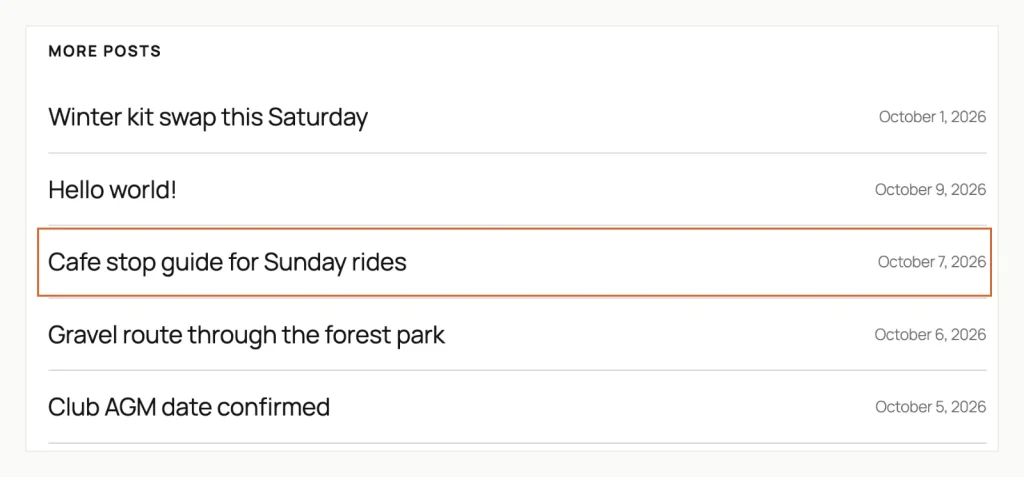
More posts on our cafe stop guide lists 5 アイテム, いいえ 4, led by a pinned post from 1 10月, with the post itself outlined. WordPress 7.1.3, WordPress Playground でテスト済み, 9 10月 2026.
どうして 5? A sticky post is one you’ve pinned to the top of the blog in the post’s settings. With Sticky posts left on “含む”, the Query Loop adds pinned posts on top of its normal count. Each pinned post that isn’t already in the list makes it one item longer.
WordPress 7.1 (out since 19 8月 2026) gave the Query Loop block an “Exclude current” スイッチ. Versions 7.0 and earlier have no such switch, so older guides send you to code for this.
- 外観に移動, それから編集者, 次にテンプレート, and open Single Posts.
- クリック “More posts” リスト. The right panel says it’s a pattern; click Edit pattern.
- Click the list again so the Query Loop is selected.
- Set Sticky posts to Ignore. Under Filters, turn on Exclude current.
- 「保存」をクリックします. WordPress shows “Template updated.”
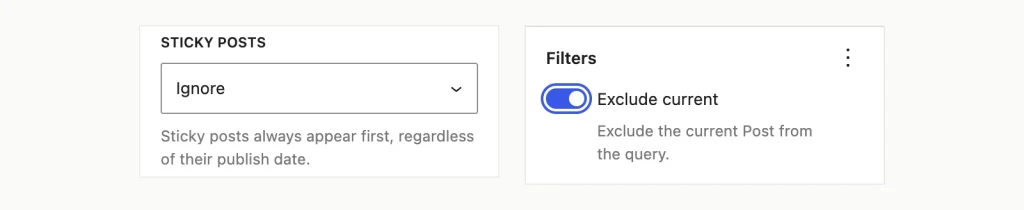
The two Query Loop settings that fixed it: Sticky posts on Ignore, and Exclude current under Filters. WordPress 7.1.3, WordPress Playground でテスト済み, 9 10月 2026.
After the change, the same post showed exactly 4 other posts, newest first. “Ignore” keeps sticky posts in their normal date order. “除外する” removes them from this list altogether, which is right if your sticky post is an announcement.
We tested Exclude current in the Single Posts template only. For a footer or sidebar list, there are two other routes. On a classic theme, the thumbnail plugin below has a “Do not show the current post?” 箱. The shortcode in the code section skipped the current post when we placed it inside a post; we didn’t try it in a footer.
On the Homepage or Inside a Post
A new WordPress site already shows recent posts on the homepage. Under Settings, それから読書, “ホームページが表示されます” starts on “Your latest posts”. The number shown follows the “アーカイブ ページに表示される最近の投稿の数” 分野, で始まる 10.
Using a static homepage instead? Add a Latest Posts block to that page, below your own content. Giving the blog its own page with page numbers is a bigger job, with its own settings and menu steps.
Inside a single post, a short “Read next” list works well near the end. Add Latest Posts from the + button and keep it to 3 アイテム. Filter it by the post’s category, so readers see related posts rather than whatever went out yesterday.
Thumbnails, Excerpts and Other Display Options
The Latest Posts block covers most display needs without a plugin. Here’s what its settings offered in 7.1.3:
- アイキャッチ画像: Thumbnail, Medium or Large source size, plus custom width and height or 25% に 100% プリセット. Alignment is None, 左, Center or Right, and a switch makes the image a link.
- Post content: an excerpt or the full post. The excerpt runs from 10 に 100 words and starts at 55.
- Post meta: author name and post date, each with its own switch.
- Sorting and filtering: newest or oldest first, A to Z or Z to A, カテゴリ, one author, と 1 に 100 アイテム.
- レイアウト: list view or grid view, from the block toolbar.
A thumbnail comes from each post’s featured image, and the default Thumbnail size gave us 150 に 150 ピクセル. A post without a featured image shows no image at all. 私たちの “こんにちは世界!” post sat bare above two posts with pictures, which looks broken in a sidebar. Set a featured image on every post, or the list will look uneven.
For a footer, keep it tight: 3 アイテム, date on, excerpt off. Every extra line pushes your footer links further down.
The Code Route for Theme Developers
The snippet this page carried until now mixes HTML with PHP like this (other guides still carry it):
<ul>
// Defines your WP Query Parameters
<?php $the_query = new WP_Query( 'posts_per_page=5' ); ?>

// Starts your WP Query
<?php while ($the_query -> have_posts()) : $the_query -> the_post(); ?>

// Displays the Post Title with Hyperlink
<li><a href="<?php the_permalink() ?>"><?php the_title(); ?></a></li>

// Displays the Post Excerpt
<li><?php the_excerpt(__('(more…)')); ?></li>

// Repeat the process and reset on limit
<?php
endwhile;
wp_reset_postdata();
?>
</ul>
We pasted it, 変わらない, into a page on our test site. Three things went wrong:
- The lines starting with
//sit outside the PHP tags, so they’re plain text. Visitors saw “// Displays the Post Title with Hyperlink” between every post. - It asked for 5 posts and printed 6. A query built this way counts as a homepage query, and WordPress adds sticky posts on top of those.
- The title and the excerpt land in separate list items, それで 6 posts became 12 bullets.
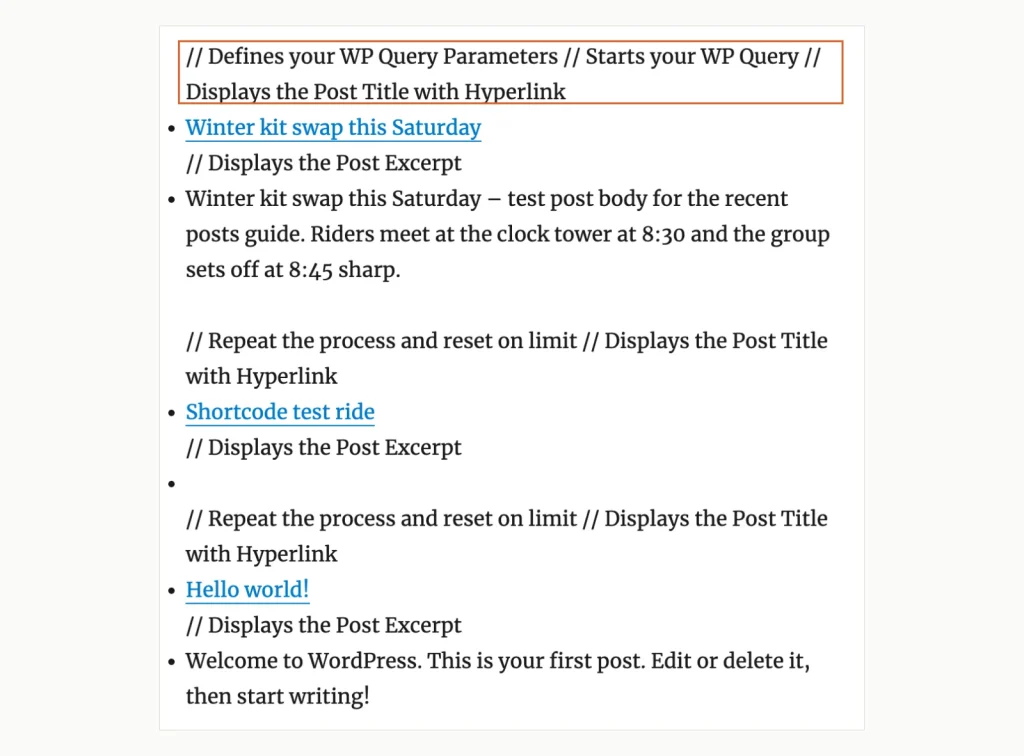
Output of the 2021 snippet: its comment lines show up as page text and the sticky post leads the list. Twenty Sixteen theme, WordPress 7.1.3, WordPress Playground でテスト済み, 9 10月 2026.
Here’s the version we tested instead. It’s a tiny plugin, so it survives a theme switch, and it adds a [my_recent_posts] shortcode you can use anywhere:
<?php
/**
 * Plugin Name: My Recent Posts
 * Description: Adds the [my_recent_posts] shortcode.
 */

function my_recent_posts_shortcode( $atts ) {
	$atts = shortcode_atts( array( 'count' => 5 ), $atts, 'my_recent_posts' );

	$query = new WP_Query(
		array(
			'posts_per_page'      => (int) $atts['count'],
			'post__not_in'        => is_singular() ? array( get_queried_object_id() ) : array(),
			'ignore_sticky_posts' => true,
			'no_found_rows'       => true,
		)
	);

	if ( ! $query->have_posts() ) {
		return '';
	}

	$html = '<ul class="my-recent-posts">';
	while ( $query->have_posts() ) {
		$query->the_post();
		$html .= sprintf(
			'<li><a href="%s">%s%s</a></li>',
			esc_url( get_permalink() ),
			get_the_post_thumbnail( null, 'thumbnail' ),
			esc_html( get_the_title() )
		);
	}
	wp_reset_postdata();

	return $html . '</ul>';
}
add_shortcode( 'my_recent_posts', 'my_recent_posts_shortcode' );
To install it, save the code as my-recent-posts.php in a folder called my-recent-posts 中身 wp-content/plugins. Then activate “My Recent Posts” under Plugins. We added [my_recent_posts count="3"] to a post with a Shortcode block. It listed 3 other posts, left out the post itself and ignored the sticky post. Posts with a featured image got a 150-pixel thumbnail.
Where does the shortcode go? ブロックテーマで, put a Shortcode block in a template or template part. クラシックなテーマで, add a Shortcode block to a widget area. In a classic theme’s PHP template, 電話 echo do_shortcode( '[my_recent_posts]' ); 代わりは. Use a child theme for template edits, or the next theme update will wipe them.
プラグイン: Two Old Favourites Are Closed
You don’t need a plugin for a basic list. One earns its place only when you want features the block lacks. The catalogue has also changed since most guides were written.
- Recent Posts Widget With Thumbnails: still maintained (バージョン 7.2.0, 更新しました 13 9月 2026, までテストされました 7.1.3). It adds what Latest Posts lacks: “Do not show the current post?”, sticky post controls and a default thumbnail for posts without one. It’s built for widget areas, so it suits classic themes only. On the block Widgets screen it appeared as “Recent Posts With Thumbnails”.
- Display Posts: the shortcode plugin this page used to recommend. Its last update was 14 10月 2024, and WordPress.org lists it as tested up to 6.6 それだけ.
- Recent Posts Widget Extended: 閉まっている, and no longer available to download (詳細は以下).
- Smart Recent Posts Widget: closed on 26 4月 2026 ガイドライン違反の場合, and the directory calls the closure permanent.
WordPress.org closed Recent Posts Widget Extended on 4 9月 2025 for a security issue, so any site still running it gets no further fixes. If a guide still points you to it, that guide predates the closure. Both closed plugins appear on pages that rank for this topic today.
Recent Posts Not Showing Right? これらをチェックしてください
- The current post appears in the list: Latest Posts can’t exclude it. Use a Query Loop with Exclude current (WordPress 7.1 以降), the thumbnail plugin, or the shortcode.
- One more post than you set: a sticky post. Set Sticky posts to Ignore or Exclude in the Query Loop.
- The list hugs the left edge of the screen: it was added outside the footer’s group. Delete it, select a block inside the footer first, and add it again.
- Titles stack one letter per line: the column is too narrow, often an empty spacer column. Move the block to a wider column.
- いいえ “最近の投稿” widget in the list: expected since block widgets. 探す “最新の投稿” 代わりは.
- Some posts have no picture: they have no featured image. Add one in the post’s sidebar.
- New post missing: it may be scheduled or a draft, or a cache is serving an older copy. キャッシュをクリアする, then check in a private browser window.
よくある質問
Why is the post I’m reading in my recent posts list?
The Latest Posts block always lists the newest posts, including the one on screen. It has no setting to skip it. Switch to a Query Loop and turn on Exclude current, which arrived in WordPress 7.1. On older versions, use Recent Posts Widget With Thumbnails or a small shortcode.
How do I add recent posts to the sidebar in a block theme?
Block themes don’t have widget areas, so there’s no sidebar to drop it into. Add a Columns block to the template under Appearance, それから編集者, 次にテンプレート. Put Latest Posts in the narrow column. Twenty Twenty-Five already lists recent posts under each post, so you may not need a sidebar at all.
Where did the Recent Posts widget go?
WordPress 以来 5.8, widget areas use blocks, and WordPress hides the old Recent Posts widget. The Latest Posts block replaces it, and searching “最近の投稿” in the inserter finds it. The Classic Widgets plugin brings the old screen back on classic themes.
Can I show recent posts with thumbnails without a plugin?
はい. Turn on Display featured image in the Latest Posts block and pick a size and alignment. Each post needs a featured image, or it shows none. Only use a plugin if you want a default image for posts without one.
What to Set Up First
Start with the Latest Posts block in your sidebar or footer; on many sites, that’s the whole job. Under a post, use a Query Loop with Exclude current. Keep the code for when you need full control of the markup. Prefer to rehearse on a throwaway site? We tested in WordPress Playground, a free copy of WordPress that runs in your browser. It’s one of the routes covered in how to blog on WordPress before buying a domain.