
Auf dieser Seite: [ausblenden]
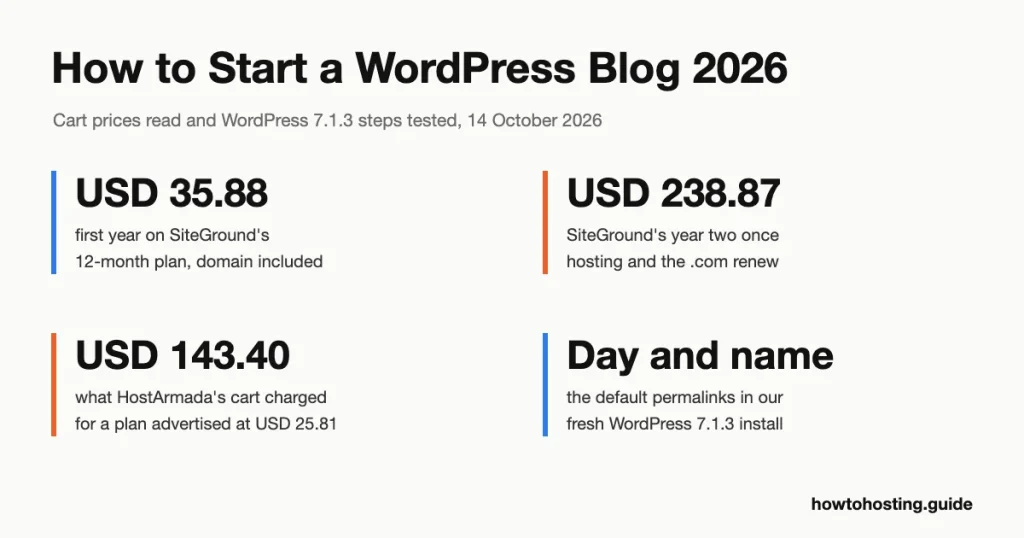
A self-hosted WordPress blog costs USD 35.88 in USD 47.88 for its first year on a 12-month hosting plan, with the domain included. Year two is where budgets break: US Dollar 151.87 in USD 238.87, once hosting and the .com renew at full price.
Schnelle Antwort: the setup fits in one sitting. Hostinger’s documentation says its WordPress installer usually finishes in under a minute, and everything after that is a few screens in the dashboard. Here are the seven steps:
- Pick a hosting plan and read the renewal line in the cart, not on the plan card.
- Claim the free domain and untick the paid extras.
- Install WordPress with your host’s installer, then log in.
- Change four settings: Titel, Zeitzone, permalinks and pingbacks.
- Keep the default theme or install a new one.
- Add an anti-spam plugin and switch on its auto-updates.
- Schreiben, categorize and publish your first post.
Zuletzt überprüft: Oktober 2026. Prices were checked in each host’s cart on 14 Oktober 2026. That same day, we ran every WordPress step in WordPress Playground, auf WordPress 7.1.3.
WordPress.org or WordPress.com: Decide Before You Pay
Two products share the name. WordPress.org is free software that runs on hosting you pay for. WordPress.com is Automattic’s hosted service, where you rent a finished site.
Self-hosting gives you any plugin, any theme and your own ads, and you can move to another host whenever prices change. On WordPress.com you trade that control for convenience. Either way you’re on the most-used website software there is: W3Techs counts WordPress on 40.0% aller Websites (lesen 14 Oktober 2026).
Hier ist der ehrliche Vergleich. WordPress.com Personal costs USD 4/month billed yearly, Das ist USD 48 ein Jahr (oder USD 9 paying monthly, excluding taxes). It includes a free domain for one year and 6 GB Speicher. That’s less than any year-two hosting bill in this guide. So if you only want to write, and you’ll never install a plugin, WordPress.com is the cheaper path.
Everyone else should self-host. The rest of this guide covers that route.
Schritt 1: Choose a Hosting Plan by Its Renewal Price
We checked the entry plan of three hosts in their carts: Hostinger Premium, SiteGround StartUp and HostArmada Start Dock. Each fits one new blog. The plan card shows the promotional price; the cart shows the term you’re committing to and what comes after it.
| Planen | Geringster Preis (Begriff) | 12-Monatslaufzeit | Erneuert sich um | Storage and sites | Geld zurück |
|---|---|---|---|---|---|
| Hostinger Premium | 2,99 USD/Monat (48 Monate, US Dollar 143.52) | US Dollar 47.88 (3,99 USD/Monat) | 10,99 USD/Monat | 20 GB SSD, 3 Websites | 30 Tage |
| SiteGround StartUp | 2,99 USD/Monat (12 Monate, US Dollar 35.88) | US Dollar 35.88 | 17,99 USD/Monat | 10 GB, 1 Seite? ˅ | 30 Tage |
| HostArmada-Startdock | USD 2.15/mo advertised (12 Monate, US Dollar 25.81) | US Dollar 25.81 beworben; the cart charged USD 143.40 | 11,95 USD/Monat (US Dollar 9.95 auf 36 Monate) | 15 GB NVMe, 1 Seite? ˅ | 45 Tage |
Prices are each host’s US-dollar storefront, excluding tax. Hostinger and SiteGround added a tax line for our location; HostArmada’s cart showed no tax line.
Hostinger Premium: the lowest cost over four years
Hostinger’s USD 2.99 isn’t a monthly bill. Es ist USD 143.52 paid upfront for 48 Monate, was auf USD hinausläuft 35.88 ein Jahr. The cart then states the renewal plainly: USD 10.99/mo for 12 Monate, oder USD 131.88 ein Jahr.
Prefer one year to test the idea? The 12-month term costs USD 47.88 und verlängert sich zum gleichen Preis 10.99, ein 2,75-facher Sprung. Year two then comes to USD 151.87 once the .com renews. That’s still USD 87.00 less than SiteGround’s year two.
For a new blog, Premium covers what you need: 3 Websites, 20 GB of SSD storage and weekly backups. The domain and two mailboxes are free for the first year. Hostinger is also one of three hosts on WordPress.org’s recommended list, next to Bluehost and Pressable. Skip the 1-month term: es kostet USD 11.99 and comes with no free domain.
SiteGround StartUp: the cheapest first year, the steepest renewal
SiteGround berechnet USD 35.88 zum ersten 12 Monate, dann 17,99 USD/Monat. That’s a 6.02x multiplier, so hosting alone costs USD 215.88 im zweiten Jahr. Fügen Sie den USD hinzu 22.99 domain renewal and you reach USD 238.87.
The 24-month term softens it. US Dollar 179.76 covers two years (7,49 USD/Monat), which saves USD 72.00 against paying 12 months and then renewing once. The renewal after that is still USD 17.99.
What you get is narrower than Hostinger’s plan: 1 Webseite und 10 GB, half Hostinger’s storage. Im Gegenzug, SiteGround keeps daily backups for up to 30 days and includes a free .com, .org or .net for the first year. Our cart came from SiteGround’s “World” storefront in US dollars; European visitors see EUR 2.99, Verlängerung um EUR 15.99, zzgl. MwSt..
HostArmada-Startdock: cheap on paper, check the cart total
HostArmada advertises Start Dock at USD 2.15/mo for 12 Monate (US Dollar 25.81). Auf 14 Oktober 2026 we opened its own “Loslegen” link three times. Each time the order summary showed the full USD 143.40. Typing the code from its pricing page returned “The promotion code entered does not exist”.

The code from HostArmada’s own pricing page fails at checkout, so the advertised USD 25.81 year becomes USD 143.40, plus pre-ticked privacy. Quelle: my.hostarmada.com cart, gefangen genommen 14 Oktober 2026.
The longer terms did work. The 36-month link applied its 74% discount automatically, für USD 93.13 upfront and a Verlängerung für 9,95 USD/Monat. The 24-month link gave USD 57.82, Verlängerung bei USD 10.95. So if you choose HostArmada, use a multi-year term and confirm the discount line before you pay.
Zwischen 28 September und 14 Oktober 2026, HostArmada raised its three-year Start Dock price from USD 1.99 in USD 2.59 ein Monat. The renewal stayed at USD 9.95, so guides quoting USD 1.99 understate the first bill by USD 21.49.
Start Dock includes 15 GB NVMe-Speicher, 1 Webseite, free SSL and 7 tägliche Backups. Its 45-day money-back window is the longest of the three, with a catch covered in Step 2.
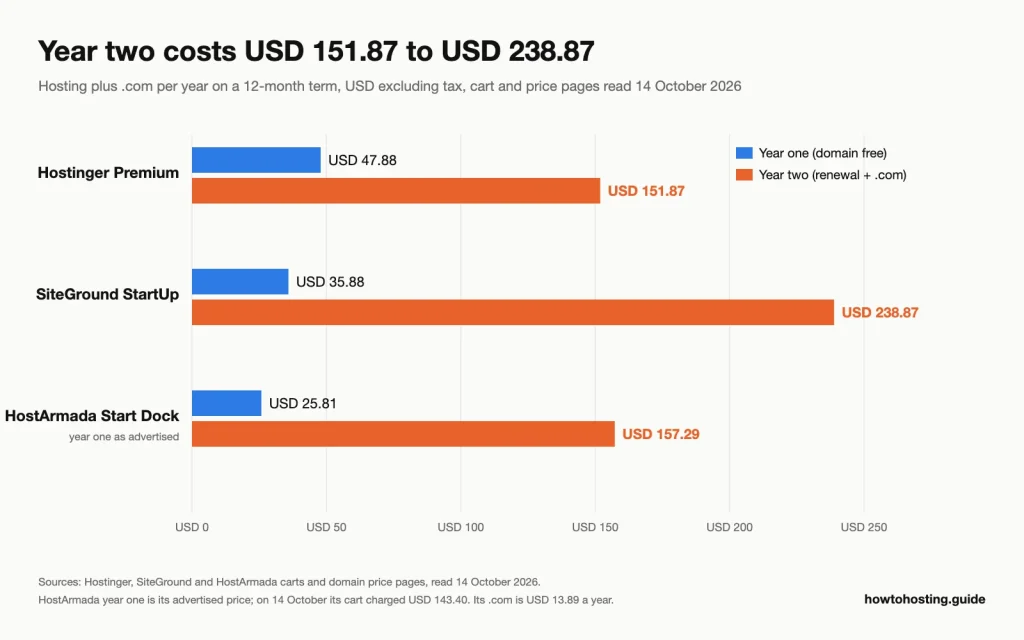
Year two includes the hosting renewal and the .com renewal. Quelle: each host’s cart and domain price page, lesen 14 Oktober 2026.
Put the 12-month terms side by side and the gap is plain. Das erste Jahr kostet USD 47.88 bei Hostinger, US Dollar 35.88 at SiteGround and USD 25.81 at HostArmada as advertised. Jahr zwei, with the .com renewal added, kostet USD 151.87, US Dollar 238.87 und USD 157.29. If none of these fits, unser cheap shared hosting comparison by renewal price covers more hosts.
Schritt 2: Register the Domain and Untick the Extras
Your domain is the address readers type, so pick it with care: changing it later means moving every link. Keep it short and easy to say aloud. Skip hyphens and numbers, and take the .com if it’s free.
All three hosts include a free .com for the first year on terms of 12 Monate oder länger. The renewal is where they differ:
- Hostinger: its domain price table lists .com renewals at 19,99 USD/Jahr. Its cart values the same free domain at USD 13.99, so budget for the table price.
- SiteGround: .com renews at USD 22.99/yr. Domain privacy is an optional USD 12.00 für das erste Jahr, dann USD 24.00, and the box isn’t ticked for you.
- HostArmada: a .com costs USD 13.89 a year when bought on its own in the cart; no separate renewal rate is printed. Its Privacy Protection add-on (US Dollar 4.65) kommt pre-ticked, so untick it if you don’t want it.
The free domain also changes the refund maths. Hostinger’s refund policy calls free domains non-refundable and lets it keep the domain’s price from your refund. SiteGround’s terms say it may deduct the domain’s standard fee. HostArmada withholds USD 13.95. Also ein “full refund” within the money-back window is really the hosting minus the domain. At Hostinger and HostArmada you keep using the domain until it expires.
Schritt 3: Install WordPress and Log In
Each host installs WordPress from its own panel. We couldn’t test these panels without buying, so the routes below come from each host’s documentation, weiterlesen 14 Oktober 2026:
- Hostinger: open the website dashboard in hPanel, klicken Auto Installer unter Webseite, und wählen WordPress. Leave the install path blank for the main domain, then set the admin username, password and email.
- SiteGround: gehe zu Websites > New Website, pick the domain, wählen Start New Website und dann WordPress, and enter your login details.
- HostArmada: open cPanel from the client area, gehe zu Software > Softaculous Apps Installer, wählen WordPress und klicken Sie auf Jetzt installieren.
Pick an admin username that isn’t “Administrator”, since that’s the default name login bots try first. Then open yourdomain.com/wp-login.php and sign in.
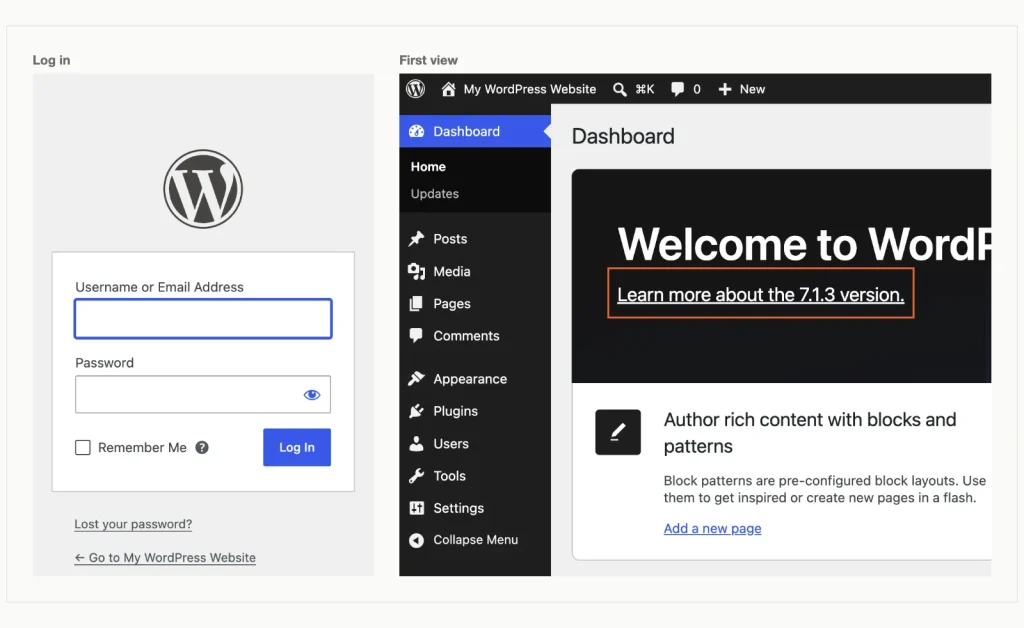
The login screen at /wp-login.php, then the first dashboard view, with the version link outlined. WordPress 7.1.3, getestet im WordPress Playground (run locally with the Playground CLI), 14 Oktober 2026.
The dashboard opens with a Welcome to WordPress! Panel. Im 7.1.3 the menus read Beitrag hinzufügen, Add Plugin und Add Theme, so older guides that say “Neue hinzufügen” no longer match the screen.
A fresh install also ships with sample content. Ours held one published post, “Hello world!”, and one published page. Delete the post before readers find it: gehe zu Beiträge > Alle Artikel, hover over the title and click Müll.
Schritt 4: Change These Settings Before Your First Post
Four settings are worth changing on day one. Each takes a minute, and one of them, Permalinks, is painful to change once posts exist.
Titel der Website, tagline and timezone
Gehe zu die Einstellungen > Allgemeines. Our install arrived with the title “My WordPress Website”, an empty tagline and the timezone set to UTC+0. Type your blog’s name and a one-line tagline.
For the timezone, pick a city rather than a UTC offset. A city follows daylight saving time, so a post scheduled for 9 morgens. still goes out at 9 morgens. in summer. Klicken Änderungen speichern and wait for “Settings saved.”
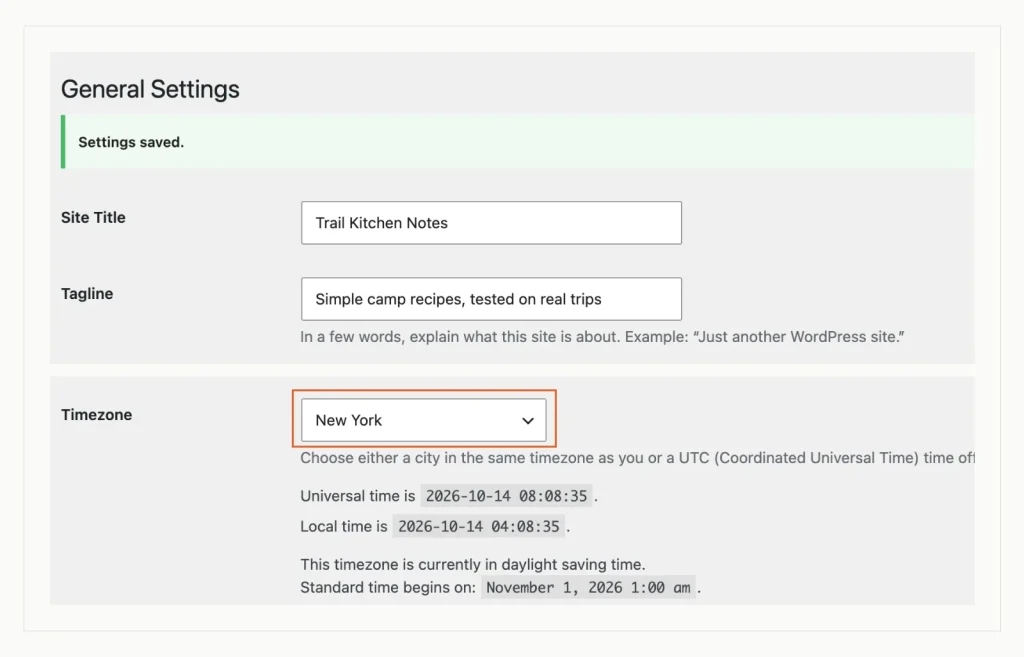
Titel, tagline and a city timezone saved under Settings, Allgemeines; the city setting tracks daylight saving time. WordPress 7.1.3, getestet im WordPress Playground (run locally with the Playground CLI), 14 Oktober 2026.
Permalinks: don’t assume they’re “Einfach”
Most guides tell you to switch from “Einfach” links to “Beitragsname”. Our fresh 7.1.3 install wasn’t on Plain at all. It used Day and name, which puts the date in every address, like /2026/10/14/sample-post/.
That’s WordPress’s own installer at work. It tries the date-based structure first and falls back to Plain only when the server can’t rewrite web addresses. Your host’s installer may choose differently, so open die Einstellungen > Permalinks and look.
Wählen Beitragsname und klicken Sie auf Änderungen speichern. The confirmation reads “Permalink structure updated.” Do this before you publish anything, because changing it later changes every post’s address.
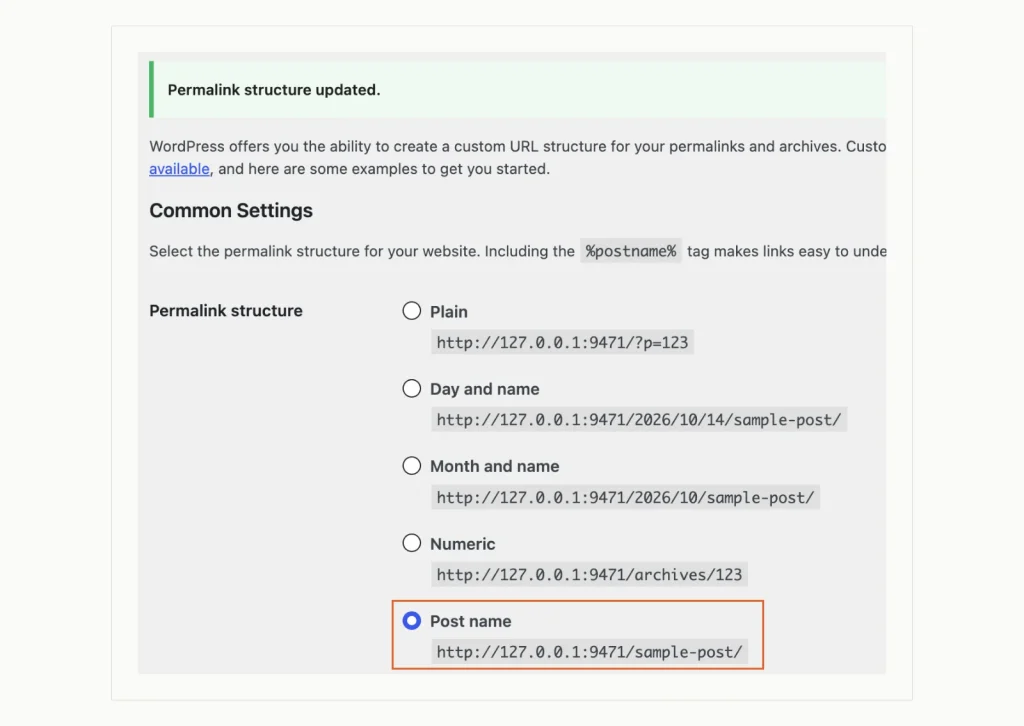
Post name selected after the install defaulted to Day and name. WordPress 7.1.3, getestet im WordPress Playground (run locally with the Playground CLI), 14 Oktober 2026.
Pingbacks off, search engines on
Pingbacks (automatic notices sent between blogs when one links to another) were switched on in our install. Today they mostly bring spam. Gehe zu die Einstellungen > Diskussion and untick the first two boxes. They read Attempt to notify any blogs linked to from the post und Linkbenachrichtigungen von anderen Blogs zulassen (Pingbacks und Trackbacks) on new posts. Then save.
Nächster, öffnen die Einstellungen > lesen. Unter Search engine visibility, make sure Discourage search engines from indexing this site is unticked. It was unticked in our test, but a ticked box asks search engines not to index the site, so check rather than assume.
You’ll also see a Connectors screen under Settings. It stores API keys for AI services and Akismet. A new blog can ignore it.
Schritt 5: Keep the Default Theme or Install One
WordPress 7.1.3 activates Twenty Twenty-Five, a block theme with more than 1,000,000 active installs on WordPress.org. Keeping it is a fine choice for a first blog. You can change colors and fonts in Aussehen > Editor.
Want a different look? Gehe zu Aussehen > Themen > Add Theme and search the free directory. We tested with Ollie, a block theme last updated on 8 Oktober 2026. Es hat 6,000+ aktive Installationen und a 5 aus 5 Durchschnitt von 36 Bewertungen.
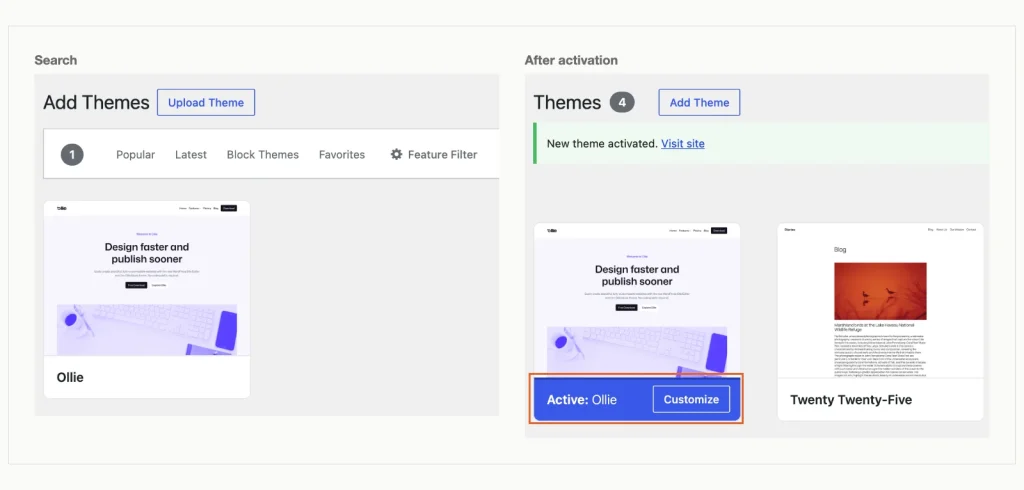
Searching the free theme directory, then the theme active after installation. WordPress 7.1.3, getestet im WordPress Playground (run locally with the Playground CLI), 14 Oktober 2026.
Klicken Installieren, dann aktivieren Sie. The screen confirms “New theme activated.” and the theme moves to the front of your Themes list.
Before choosing, check two things on the theme’s directory page: the last update date and the WordPress version it’s tested with. A free theme that’s still maintained beats a paid one you don’t need yet.
Schritt 6: Install One Plugin First: Spamschutz
Every plugin is code you’ll need to keep updated, so start with the one problem every blog with comments has: Spam. WordPress already includes Akismet, inactive. Its own description says API keys are free for personal blogs, but businesses and commercial sites need a paid subscription.
We installed Antispam Bee instead. Es ist kostenlos, and its description says it doesn’t send commenters’ personal information to third-party services. Es hat 700,000+ active installs and is tested up to WordPress 7.1.3.
Gehe zu Plugins > Add Plugin, search for the name, klicken Jetzt installieren und dann aktivieren Sie.
One detail surprised us. Nach der Aktivierung, the plugin’s row still showed Enable auto-updates, which means auto-updates were off. Click it so security fixes install without you; after a reload the link read Disable auto-updates, which confirms they’re on.
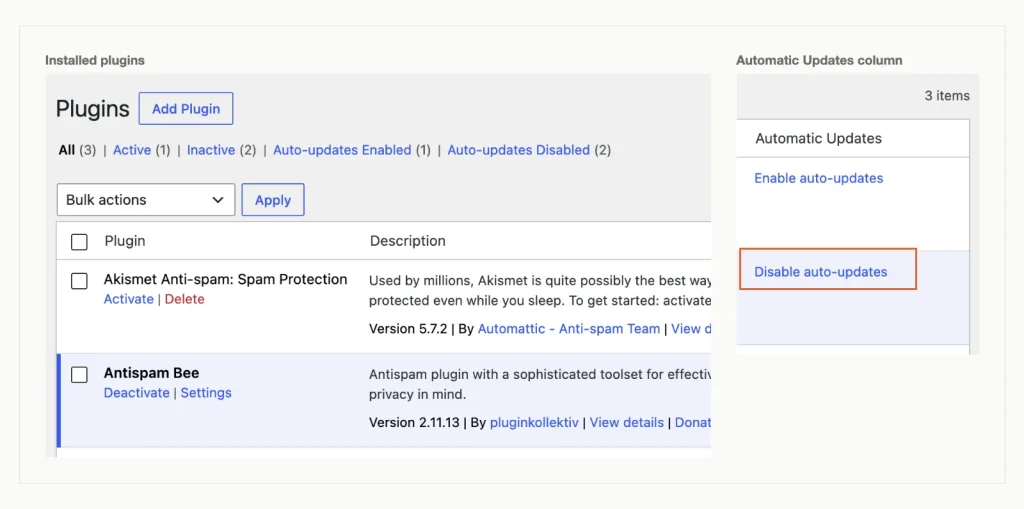
Antispam Bee active with auto-updates switched on; Akismet ships with WordPress but stays inactive. WordPress 7.1.3, getestet im WordPress Playground (run locally with the Playground CLI), 14 Oktober 2026.
Add more plugins only when a real need appears. Our list of must-have WordPress plugins with their renewal prices helps you tell which paid tiers are worth it.
Schritt 7: Schreiben und veröffentlichen Sie Ihren ersten Beitrag
Gehe zu Beiträge > Beitrag hinzufügen. The first visit opens a “Welcome to the editor” leiten; read it or close it.
- Klicken Add title and type the headline.
- Press Enter to start a paragraph and write.
- For a subheading, Art
/headingon a new line and press Enter. The slash command works for any block, sowie/imageoder/list. - Switch to the Post tab on the right. WordPress fills in the Slug from your title; shorten it if it’s long.
- Unter Kategorien, klicken Add Category, type a name and confirm. The new category is ticked for you.
Our test post got a “Recipes” Kategorie, und “Uncategorized” was unticked automatically. Das ist wichtig, because posts left in Uncategorized pile up in a category nobody chose.
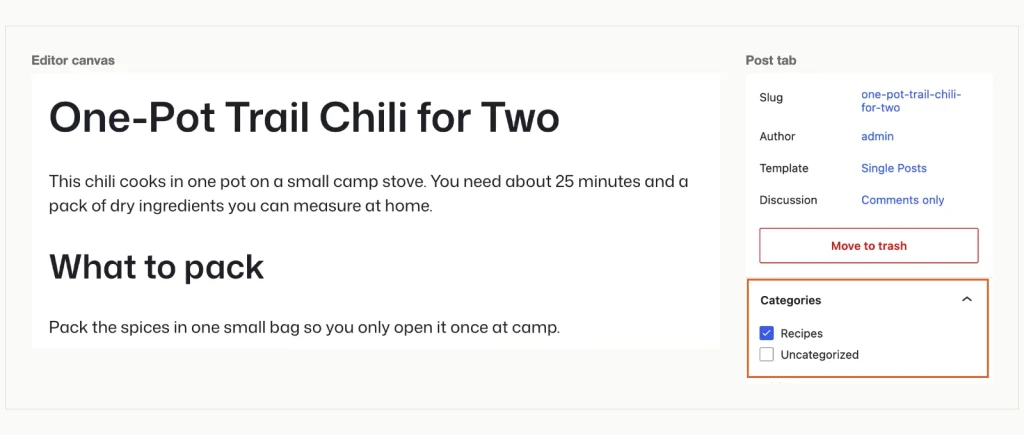
A first post with a heading added through the /heading slash command, and its new category ticked. WordPress 7.1.3, getestet im WordPress Playground (run locally with the Playground CLI), 14 Oktober 2026.
Klicken Veröffentlichen. WordPress shows a check first: Sichtweite: Öffentlich und Veröffentlichen: Immediately. Klicken Veröffentlichen again and the panel confirms the post is live, with its address ready to copy.
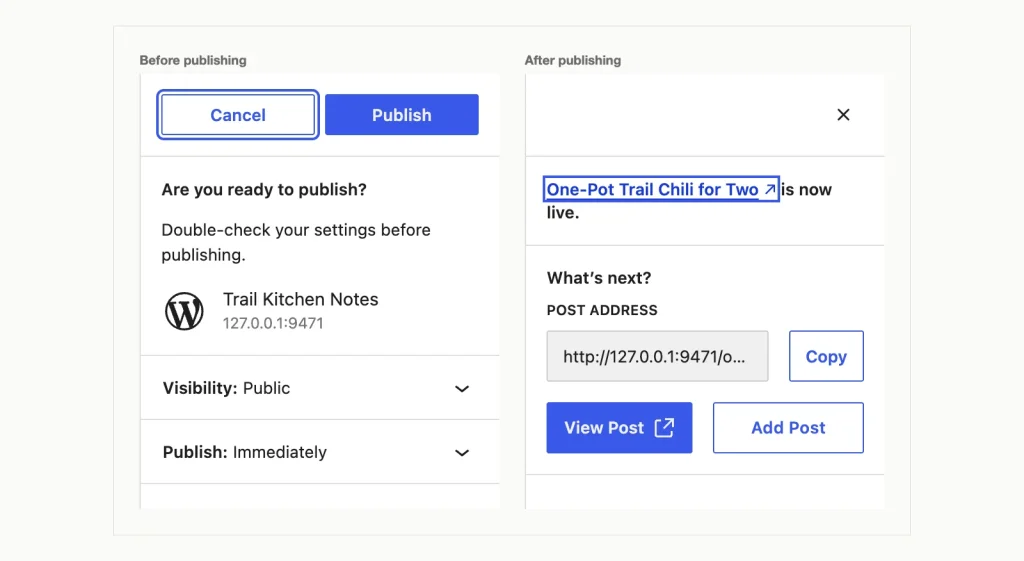
The check before publishing and the confirmation after. WordPress 7.1.3, getestet im WordPress Playground (run locally with the Playground CLI), 14 Oktober 2026.
Open that address in a new tab. Ours loaded at /one-pot-trail-chili-for-two/, which confirms the Post name setting from Step 4 worked.
Nächster, build your About and Contact pages. Those belong on pages rather than posts, und unser Leitfaden dazu WordPress posts vs pages shows which content goes where.
Häufig gestellte Fragen
Wie viel kostet es, einen WordPress-Blog zu starten??
On a 12-month plan with the free domain, the first year costs USD 35.88 at SiteGround or USD 47.88 bei Hostinger, vor Steuern. The free theme and plugin used here cost nothing. Plan for year two, obwohl: US Dollar 151.87 at Hostinger and USD 238.87 at SiteGround.
Is Hostinger or SiteGround better for a new WordPress blog?
Hostinger, for most new bloggers. SiteGround’s first year is USD 12.00 günstiger, but its year two costs USD 87.00 Mehr. Hostinger’s Premium plan also gives twice the storage and three sites instead of one.
Should I pay for one year or several years upfront?
Pay for one year if you’re unsure you’ll keep blogging. Once you’re committed, longer terms cost less. Hostinger’s 24-month term is USD 83.76, während 12 months plus one renewal costs USD 179.76. SiteGround’s 24-month term saves USD 72.00 in der gleichen Weise.
Wie lange dauert die Einrichtung eines WordPress-Blogs??
Most of the time goes on choosing a host and a name. Hostinger says its WordPress installer usually finishes in under a minute. Nachdem, the settings, Thema, plugin and first post in this guide are a handful of screens.
Fazit
For a blog you plan to keep, Hostinger Premium ist die Wahl. Its 48-month prepay costs USD 35.88 ein Jahr, and on 12-month terms its year-two bill of USD 151.87 is the lowest of the three.
Want the cheapest single test year? SiteGround StartUp kostet USD 35.88. Plan to move before the USD 17.99 Erneuerung, or year two costs USD 238.87.
Wählen HostArmada-Startdock only on its 24- oder 36 Monate Laufzeit, and only after the cart shows the discount line. Whichever host you choose, set Post name permalinks and switch off pingbacks before your first post.
Once a few posts are up, give them a home of their own. Unser Leitfaden zum Thema adding a post to a page in WordPress shows how to set up a Blog page and add it to your menu.
Vielen Dank für dieses Tutorial! Ich bin ein Neuling, und hier habe ich alle wesentlichen Details gefunden, die mir helfen, meinen persönlichen Blog richtig zu erstellen.
Gute Arbeit, Leute, mag es, weil es reine Ratschläge und Vorschläge zeigt, ohne Produkte und Dienstleistungen voranzutreiben. Ich verwende einen lokalen Hosting-Anbieter in Griechenland und habe festgestellt, dass Sie Ihre WordPress-Installationsbewertung für Papaki durchgeführt haben.
Gibt es eine Möglichkeit, ein Meeting auf der Homepage des WordPress-Blogs zu erstellen?. Ich benutze ein kostenloses Thema. Bitte beraten?
Hallo! Vielen Dank für das Tutorial. Darf ich Sie zusätzlich etwas fragen? Gibt es eine Möglichkeit, eine E-Mail-Adresse zu erstellen, die mit einem Blog verknüpft ist?? Ich möchte nicht, dass mein Blog mit einem persönlichen Google Mail-Konto verknüpft wird. Daher muss ich eine E-Mail-Adresse für das Blog erstellen. Vielen Dank :)
Hallo Howtohosting-Team,
du hast so viel inhalt geschrieben! Also vielen Dank, für Starter.
ich wusste nicht wo ich anfangen soll, aber dann habe ich immer mehr gelesen und das Wesentliche verstanden, Meiner Ansicht nach. Gut, dass du Bilder und Tutorialteile und solche Sachen hast. Besonders gut hat mir der Tipp NICHT KLICKEN auf dem “Entmutigen Sie Suchmaschinen von der Indexierung” Teil – Ich habe gelacht, wie es formuliert wurde, aber fragte mich, was genau es tun würde – du hast mich dazu gebracht, das zu überprüfen.
Sie haben dies zu einer Art Enzyklopädie gemacht, was ich mag, aber um ehrlich zu sein, Ich habe nicht alles verfolgt… zu lang, lol, aber können Sie weitere Beispiele dafür geben, was qualitativ hochwertige Inhalte sind?, abgesehen von Anleitungen und Neuigkeiten? Jetzt, Ich habe eine fast vollständig funktionierende Website, also das ist meine frage – die sache über guten inhalt. Was macht es gut? Sind Backlinks so wichtig und wenn ich dafür bezahle ist das eine schlechte Strategie?
Auf eine Antwort warten,
Dein brandneuer Fan,
Robert
Hallo, Robert!
Schön, dass wir hilfreich waren!
Zu deinen Punkten:
Hochwertige Inhalte sollten mit aussagekräftigen Sätzen geschrieben werden, die Ihrem Publikum am besten helfen. Zum Beispiel, du verkaufst autos – schreibe nicht nur die spezifikationen der autos, aber detailliertere Historie zu jedem Fahrzeug.
Was den Inhalt gut macht, ist, wenn Sie ihn ansprechend gestalten. Mach es, damit Ihre Benutzer diese Inhalte auf Ihrer Website auf jeden Fall sehen wollen und müssen und dass sie ihnen helfen. Damit, es gilt für jede Art von Website, die oben waren nur ein paar beispiele.
Backlinks, interne Links und andere nützliche Informationslinks sind wichtig, aber bezahle nicht für sie. Als Anfänger, Sie haben viel zu bauen und mit einer schnellen Site und guten Inhalten (siehst du was ich dort gemacht habe, Haha), die links kommen irgendwann.
Für Links zu bezahlen kann gut und schlecht sein. Wenn du jemanden dafür bezahlst, auf seiner Seite zu sein, das kann nützlich und ethisch sein. Aber es ist schlecht, Tausende von Links zu bezahlen, um in kurzer Zeit auf Ihre Website zu gelangen, und Sie sollten es auf keinen Fall tun.
Beste Grüße vom HowToHosting.guide-Team!
Ja, BenEC, Sie sollten ein anderes E-Mail-Konto für den Blog erstellen.
Sie können die E-Mails jederzeit ändern, also keine sorgen.
Ist die Nutzung von E-Mail-Outreach wirklich obligatorisch?, Wird es bei regelmäßig wiederkehrenden Benutzern helfen??
Es gibt etwas, worüber ich mich wundere.. ist es möglich, WordPress nur für eine Blog-Erstellung zu verwenden und den Blog dann auf meine Wix-Site zu übertragen?? Ich versuche nur, die beste Option zu finden, um WordPress und Wix zu kombinieren… Vielen Dank im Voraus!!
Vielen Dank! So ein toller Artikel!
Es ist großartig, dass es solche Anleitungen gibt, die Benutzern helfen, ihre Ziele zu erreichen, und WordPress ist definitiv die Plattform, die ich verwenden würde
Ich habe gerade eine WP-Website für mein Unternehmen eingerichtet. Der nächste Schritt besteht darin, ein SEO-Plugin hinzuzufügen. Zunaechst, Ich dachte, dass Yoast die beste Wahl sein wird, aber dann das Rank Math-Tool, das ich in einem von Ihnen verlinkten Artikel gesehen habe – die besten SEO-Tools, hat meine Aufmerksamkeit erregt. Jetzt versuche ich herauszufinden, welche besser funktioniert.
Danke! Toller Artikel, der mir geholfen hat, meine erste Blog-Site so einfach zu gestalten!