
Su questa pagina: [nascondere]
Dieci minuti sono onesti solo se il tuo VPS è già predisposto, il DNS del tuo dominio punta già a esso, e puoi copiare e incollare in modo pulito. Più vicino ai quaranta se stai imparando. Buone notizie: il 2026 l'installazione è più breve di 2018 versione perché Ubuntu 24.04 fornisce PHP 8.3 nei suoi repository predefiniti. Nessun PPA di terze parti, nessuna compilazione, nessuna versione di giocoleria.
Risposta rapida: Avvia una nuova Ubuntu 24.04 VPS, installare nginx, MariaDB 10.11, PHP 8.3-FPM con un comando apt per pacchetto, creare una banca dati, rilascia WordPress in /var/www/yoursite.com, puntare un blocco server Nginx /run/php/php8.3-fpm.sock, e terminare nel browser. SSL tramite Let's Encrypt aggiunge altri cinque minuti. La sequenza completa di seguito è approssimativamente 30 comandi.
Ultima revisione: aprile 2026. Comandi verificati su Ubuntu 24.04.2 LTS con WordPress 6.7.
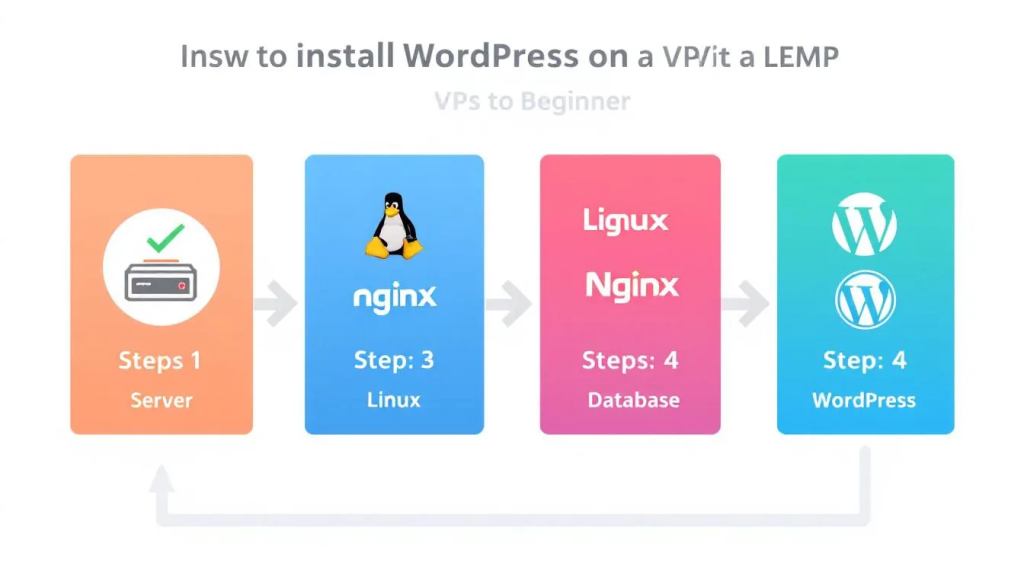
La maggior parte dei tutorial LEMP per WordPress ancora in giro per Google fanno riferimento a CentOS 7, che ha raggiunto la fine del suo ciclo di vita a giugno 2024 e ho smesso di ricevere patch di sicurezza. Alcuni utilizzano il socket TCP in stile Apache per PHP-FPM quando entrambi i servizi vengono eseguiti sulla stessa macchina, che aggiunge latenza senza motivo. Questa guida utilizza le impostazioni predefinite moderne: Ubuntu 24.04 LTS, Presa Unix, e un layout a blocchi di server che viene inserito in modo pulito nella cache FastCGI in seguito.
The LEMP Stack on Ubuntu 24.04, Component by Component
LEMP è un acronimo, non un prodotto. Ogni lettera è un pezzo separato di software che installi e connetti.
L è Linux. Ubuntu 24.04 LTS è il percorso di minor resistenza 2026. È supportato fino ad aprile 2029, il repository dei pacchetti è aggiornato, e la maggior parte dei provider VPS lo offre come immagine con un clic. Debian 12 funziona anche se preferisci; i comandi seguenti richiedono solo piccole modifiche.
E è Nginx (pronunciato “motore-x”, da qui deriva la E). Nginx è un server web basato sugli eventi. Apache genera un processo o un thread per connessione, che funziona bene finché il traffico non aumenta. Nginx gestisce migliaia di connessioni simultanee in un singolo lavoratore, ecco perché la maggior parte degli host WordPress moderni lo utilizzano per impostazione predefinita.
M è MariaDB o MySQL. A WordPress non importa quale usi purché la versione sia sufficientemente alta. WordPress 6.7 esigenze MariaDB 10.6+ o MySQL 8.0+. Ubuntu 24.04 spedisce MariaDB 10.11 LTS, che è supportato fino al 2028. Utilizzeremo MariaDB ovunque.
P è PHP. WordPress 6.7 supporta PHP 8.1 Attraverso 8.4. Ubuntu 24.04 navi PHP 8.3 come predefinito, la versione con supporto attivo fino a tardi 2026. PHP-FPM (Gestore di processo FastCGI) è il pezzo che esegue effettivamente il tuo codice PHP; Nginx gli trasmette le richieste tramite un socket Unix.
Se sei nuovo in questo intero livello dello stack, la nostra panoramica di Provider di hosting NGINX copre le differenze tra Apache e Nginx in modo più approfondito, inoltre quali host economici ti consentono di eseguire una vera configurazione Nginx rispetto a. semplicemente rinominando Apache.
Before You Run a Single Command
Hai bisogno di quattro cose a posto. Saltarne uno trasforma un'installazione di 10 minuti in una sessione di debug di 2 ore.
- Una nuova Ubuntu 24.04 VPS. Minimo 1 vCPU e 1 GB di RAM per un sito di hobby, 2 GB se esegui WooCommerce o un generatore di pagine pesante. Qualsiasi cosa, da un Hetzner CX22 da 4 USD al mese a un Hostinger KVM 2 andrà bene. I nostri Guida all'hosting VPS WordPress confronta le opzioni pratiche.
- Accesso SSH come utente root o sudo. La maggior parte dei provider ti invia tramite email le credenziali di root dopo il provisioning. Se hai acquistato VPS gestito, guarda il nostro pezzo su gestito vs. VPS non gestito prima di continuare; un piano gestito spesso esegue l'intera installazione per te.
- Un nome di dominio che punta all'IP del tuo server. Aggiungi un record A al tuo registrar, allora aspetta 5 per 15 minuti per la propagazione del DNS. SSL non verrà rilasciato finché il problema non verrà risolto.
- Porti 22, 80, e 443 Aperto. Se il tuo provider VPS offre un firewall cloud (Hetzner, Vultr, DigitalOcean lo fanno tutti), aprite quelle tre porte anche lì, non solo nell'UFW.
Ho quei quattro? Apri il tuo terminale, SSH dentro, e cominciamo.
Passo 1: Update Ubuntu and Lock Down SSH
Applicare sempre la patch prima di installare qualsiasi cosa. L'immagine Ubuntu predefinita è in genere indietro di qualche settimana sugli aggiornamenti di sicurezza.
sudo apt update && sudo apt upgrade -ysudo apt install -y ufw fail2ban unattended-upgrades
UFW (Firewall semplice) è il wrapper di Ubuntu attorno a iptables. Abilitalo prima con la porta SSH aperta, altrimenti ti chiuderai fuori.
sudo ufw allow OpenSSHsudo ufw enable
Se stai utilizzando una porta SSH non standard, sostituire OpenSSH con 2222/tcp o qualunque cosa tu abbia impostato. Non riavviare o chiudere il terminale finché non hai confermato che SSH funziona ancora in una seconda finestra.
Passo 2: Install Nginx and Open the Firewall
Nginx è nel repository Ubuntu predefinito. Un comando:
sudo apt install -y nginxsudo ufw allow 'Nginx Full'
Quella Nginx Full il profilo apre entrambi 80 e 443. Visita l'IP del tuo server in un browser e dovresti vedere l'impostazione predefinita Benvenuto in nginx! pagina. Se non si carica, controlla il firewall cloud del tuo provider VPS (uno strato diverso da UFW).
Assicurati che Nginx sia attivo adesso e rimanga attivo dopo il riavvio:
sudo systemctl status nginxsudo systemctl enable nginx
Passo 3: Install MariaDB and Secure It
MariaDB 10.11 LTS è in Ubuntu 24.04 repository. Il minimo di WordPress 6.7 è 10.6, quindi siamo ben al di sopra del limite.
sudo apt install -y mariadb-serversudo mysql_secure_installation
L'interattivo mysql_secure_installation lo script pone una serie di domande. Le risposte giuste per una nuova installazione:
- Inserisci la password di root corrente: basta premere Invio (non ce n'è ancora uno).
- Passa all'autenticazione unix_socket: E.
- Cambia la password di root: E, e scegline uno forte.
- Rimuovi utenti anonimi: E.
- Non consentire il login di root da remoto: E.
- Rimuovere il database di prova: E.
- Ricarica le tabelle dei privilegi: E.
Saltare uno qualsiasi di questi lascia aperti i veri vettori di attacco. L'accesso root remoto è quello più importante: se la tua porta MariaDB viene scoperta per sbaglio, un accesso root aperto diventa il database di qualcun altro in pochi minuti.
Passo 4: Installa PHP 8.3 e PHP-FPM
WordPress ha bisogno di PHP più una manciata di estensioni. Installali in un colpo solo:
sudo apt install -y php8.3-fpm php8.3-mysql php8.3-curl php8.3-gd php8.3-mbstring php8.3-xml php8.3-zip php8.3-imagick php8.3-intl php8.3-bcmath php8.3-opcache
Questo pacchetto copre il core di WordPress, elaborazione delle immagini per la libreria multimediale (imagick + gd), le funzionalità i18n per i siti non inglesi (internazionale + mbstring), e OPcache per la memorizzazione nella cache del bytecode compilato. Saltare php8.3-imagick solo se sei sicuro che non caricherai mai un'immagine.
Controllo di integrità PHP-FPM:
sudo systemctl status php8.3-fpm
Per impostazione predefinita è in ascolto /run/php/php8.3-fpm.sock. Questo è il percorso a cui Nginx farà riferimento nel passaggio 7. Non sono necessarie modifiche a meno che tu non stia eseguendo più versioni PHP affiancate.
Passo 5: Create the WordPress Database
WordPress ha bisogno di un proprio database e di un utente dedicato. Non utilizzare l'account root MariaDB; un plugin compromesso non dovrebbe corrispondere alla root completa del database.
sudo mariadb
Ora sei nella shell MariaDB. Esegui queste righe, sostituendo strongpasswordhere con qualcosa generato da un gestore di password:
CREATE DATABASE wordpress DEFAULT CHARACTER SET utf8mb4 COLLATE utf8mb4_unicode_ci;CREATE USER 'wpuser'@'localhost' IDENTIFIED BY 'strongpasswordhere';GRANT ALL ON wordpress.* TO 'wpuser'@'localhost';FLUSH PRIVILEGES;EXIT;
Il utf8mb4 il carattere è importante. Supporto per emoji WordPress, caratteri completi della lingua asiatica, e qualsiasi moderna gestione del testo presuppone utf8mb4. Il più vecchio utf8 il set di caratteri in MySQL è una trappola da 3 byte che rompe silenziosamente le emoji.
Passo 6: Scarica WordPress
Due opzioni qui. Scegli quello che ti sembra più facile.
Opzione A: arricciare + catrame. Il più veloce, nessun software aggiuntivo:
cd /tmp && curl -O https://wordpress.org/latest.tar.gztar -xzf latest.tar.gzsudo mv wordpress /var/www/yoursite.comsudo chown -R www-data:www-data /var/www/yoursite.comsudo find /var/www/yoursite.com -type d -exec chmod 755 {} \;sudo find /var/www/yoursite.com -type f -exec chmod 644 {} \;
Opzione B: WP-CLI. Un po' più di configurazione, ma ogni attività di WordPress diventa più veloce in seguito (installazioni di temi, Aggiornamenti del plugin, rotazioni del sale, ricerca e sostituzione del database).
curl -O https://raw.githubusercontent.com/wp-cli/builds/gh-pages/phar/wp-cli.pharchmod +x wp-cli.phar && sudo mv wp-cli.phar /usr/local/bin/wpsudo -u www-data wp core download --path=/var/www/yoursite.com
Perché www-data? È ciò che Nginx e PHP-FPM eseguono su Ubuntu per impostazione predefinita. File di proprietà di quell'utente, con le directory in 755 e file in 644, è il modello sicuro standard. Evitare 777, sempre, ovunque; è una classica abitudine di hosting condiviso che non trova posto su un VPS.
Passo 7: Configure the Nginx Server Block
Crea un nuovo file di blocco del server:
sudo nano /etc/nginx/sites-available/yoursite.com
Incolla questo, sostituendo yoursite.com con il tuo dominio reale:
server {listen 80;server_name yoursite.com www.yoursite.com;root /var/www/yoursite.com;index index.php index.html;location / { try_files $uri $uri/ /index.php?$args; }location ~ \.php$ {include snippets/fastcgi-php.conf;fastcgi_pass unix:/run/php/php8.3-fpm.sock;}location ~ /\.ht { deny all; }location = /xmlrpc.php { deny all; }}
Due pezzi meritano attenzione. Il try_files direttiva è ciò che fa funzionare i permalink di WordPress; senza di esso, qualsiasi cosa diversa dalla home page restituisce a 404. Il xmlrpc.php deny all line blocca un noto vettore di attacco di forza bruta che quasi nessun sito WordPress utilizza più (Jetpack e alcune app mobili legacy ne hanno ancora bisogno; se dipendi da entrambi, commenta quella frase).
Abilita il sito, disabilitare l'impostazione predefinita, e ricaricare:
sudo ln -s /etc/nginx/sites-available/yoursite.com /etc/nginx/sites-enabled/sudo rm /etc/nginx/sites-enabled/defaultsudo nginx -tsudo systemctl reload nginx
Il nginx -t il passo conta. Convalida la configurazione prima di ricaricarla, che ti impedisce di danneggiare il server in esecuzione con un errore di battitura.
Passo 8: Edit wp-config.php
WordPress fornisce un file di configurazione di esempio che copi e modifichi:
cd /var/www/yoursite.comsudo cp wp-config-sample.php wp-config.phpsudo nano wp-config.php
Trova la sezione del database nella parte superiore e inserisci ciò che hai impostato nel passaggio 5:
define( 'DB_NAME', 'wordpress' );define( 'DB_USER', 'wpuser' );define( 'DB_PASSWORD', 'strongpasswordhere' );define( 'DB_HOST', 'localhost' );
Ora i sali. Visita https://api.wordpress.org/secret-key/1.1/salt/ in un browser. La pagina restituisce otto righe generate casualmente (AUTH_KEY, SECURE_AUTH_KEY, LOGGED_IN_KEY, NONCE_KEY, più sali corrispondenti). Sostituisci il blocco segnaposto wp-config.php con ciò che la pagina ha generato. Nuovi valori casuali ad ogni installazione, nessuna eccezione.
Salva il file. Se hai utilizzato WP-CLI nel passaggio 6, puoi saltare completamente la modifica manuale con sudo -u www-data wp config create --dbname=wordpress --dbuser=wpuser --dbpass=strongpasswordhere; estrae automaticamente i sali freschi.
Passo 9: Run the Browser Installer
Apri il tuo dominio in un browser. WordPress rileva un'installazione non configurata e mostra il selettore della lingua. Da li:
- Scegli la tua lingua. Fare clic su Continua.
- Titolo del sito, nome utente amministratore (non scegliere “Admin”; i robot lo prendono di mira), password complessa, la tua email.
- Tic tac Scoraggiare i motori di ricerca se il sito non è ancora pronto per il traffico.
- Fai clic su Installa WordPress.
Dovresti vedere a “Successo!” schermo dentro 5 per 10 secondi. Accesso. Stai utilizzando un'installazione WordPress self-hosted sul tuo stack LEMP. L'intero processo rivolto all'utente da questo punto è identico a qualsiasi altra installazione di WordPress.
Add HTTPS with Let’s Encrypt (Five More Minutes)
WordPress solo HTTP in 2026 è rotto. I browser avvisano i visitatori, il modulo di accesso di WordPress perde le credenziali in testo normale, e Google declassa il sito. Certbot risolve tutti e tre gratuitamente.
sudo apt install -y certbot python3-certbot-nginxsudo certbot --nginx -d yoursite.com -d www.yoursite.com
Certbot riscrive il blocco del tuo server Nginx sul posto, aggiungendo il 443 ascoltatore e i percorsi del certificato. Offre inoltre il reindirizzamento di tutto il traffico HTTP su HTTPS; dì sì. I rinnovi vengono eseguiti automaticamente due volte al giorno tramite un timer di sistema. Riceverai un'email se qualcosa fallisce.
Conferma con:
sudo certbot renew --dry-run
Speed Tier: FastCGI Cache, OPcache, Rosso
Un'installazione LEMP vanilla è già più veloce di 90% di hosting condiviso. Se vuoi i tempi di risposta di cui si vantano gli host WordPress gestiti (tempo inferiore a 100 ms per il primo byte), altri tre strati ti portano lì.
OPcache compila i tuoi file PHP in bytecode e mantiene il risultato in memoria. È già installato (abbiamo aggiunto php8.3-opcache al passo 4). Le impostazioni predefinite funzionano bene; innalzamento opcache.memory_consumption per 256 in /etc/php/8.3/fpm/php.ini aiuta se esegui molti plugin.
Cache Nginx FastCGI memorizza l'intera pagina HTML renderizzata nella memoria di Nginx e serve richieste ripetute senza mai toccare PHP o MariaDB. Benchmark indipendenti mostrano tempi di risposta in calo 200 per 500 ms sul plugin viene memorizzato nella cache fino a circa 40 ms sulla cache FastCGI. Il compromesso è la complessità della configurazione e la necessità di ignorare la cache per gli utenti che hanno effettuato l'accesso, wp-admin, e qualsiasi pagina del carrello/pagamento. Abbinalo a quello gratuito Assistente Nginx plugin da WordPress.org in modo che la pulizia della cache avvenga automaticamente quando pubblichi un post.
Cache degli oggetti Redis gestisce il livello di query del database. Ripeti le domande (ricerche di opzioni, transitori, metadati dell'utente) vengono memorizzati nella cache della RAM invece di colpire MariaDB. Questo è il livello che conta di più per WooCommerce, BuddyPress, and any membership site where pages can’t be statically cached.
If managing all three feels like too much, la nostra carrellata di hosting WordPress sul cloud options covers managed providers that ship these layers preconfigured.
Hardening Beyond the Defaults
Your install is now safer than most shared hosting, but it isn’t done. A short list of high-impact additions:
- Configure fail2ban for WordPress. You installed fail2ban back in Step 1. Add a jail that watches Nginx access logs for repeated 401s on
wp-login.phpand bans the offending IP for 24 ore. - Disable file editing in admin. Inserisci
define( 'DISALLOW_FILE_EDIT', true );perwp-config.php. This stops a compromised admin account from editing PHP files through the dashboard. - Move wp-config.php one level up. WordPress automatically looks one directory above the install root for
wp-config.php. Moving it to/var/www/invece di/var/www/yoursite.com/puts the database credentials outside the document root entirely. - Limit the admin login surface. Modifica l'URL con un plug-in come WPS Hide Login, o limitare
wp-adminall'IP del tuo ufficio tramite Nginx (allow x.x.x.x; deny all;all'interno di unlocation /wp-adminbloccare). - Autenticazione a due fattori per ogni amministratore. Il plugin Wordfence o Two-Factor funzionano entrambi. Gli attacchi di forza bruta diventano irrilevanti contro un codice TOTP.
Automate Backups Before You Forget
Il tuo stack LEMP è esattamente due cose in senso di backup: il /var/www/yoursite.com directory e il wordpress Banca dati. Esegui il backup di entrambi, secondo un programma, da qualche parte non su questo server.
Percorso più semplice: il libero UpdraftPlus plugin puntato su S3, Google Drive, o Backblaze B2. Imposta la pianificazione su giornaliera per il database e settimanale per i file, conservare 14 per 30 giorni, Fatto.
Se preferisci rimanere nativo della riga di comando, un lavoro cron di cinque righe utilizzando mysqldump + tar + rclone è più o meno equivalente e non utilizza plug-in. In entrambi i casi, ripristinare e testare il backup una volta al trimestre; un backup non verificato è solo ottimismo.
Troubleshooting Common Errors
502 Bad Gateway
Nginx non riesce a raggiungere PHP-FPM. Di solito significa che PHP-FPM non è in esecuzione, il percorso del socket nel blocco del server è sbagliato, oppure le autorizzazioni sul file socket sono disattivate. Controlla con sudo systemctl status php8.3-fpm primo. Se è in funzione, verificare che il percorso del socket corrisponda a quanto previsto da Nginx (l'impostazione predefinita è /run/php/php8.3-fpm.sock).
errore nello stabilire una connessione col database
Il tuo wp-config.php le credenziali non corrispondono a quelle impostate in MariaDB. Ricontrolla DB_NAME, DB_USER, DB_PASSWORD. Testare direttamente le credenziali: mariadb -u wpuser -p wordpress. Se fallisce con un errore di autenticazione, la password dentro wp-config.php è sbagliato, oppure all'utente non sono stati concessi i privilegi su quel database.
WordPress permalinks return 404
Mancante try_files $uri $uri/ /index.php?$args; nel tuo Nginx location / bloccare. Aggiungilo, correre sudo nginx -t, quindi ricarica Nginx. I permalink funzionano immediatamente dopo; non è necessario reimpostare il plugin.
Schermata bianca della morte dopo l'installazione di un plug-in
Viene registrato un errore fatale PHP ma non visualizzato. Coda /var/log/nginx/error.log e /var/log/php8.3-fpm.log. Se non riesci ad accedere alla dashboard, rinominare la cartella del plugin incriminato tramite SSH (mv plugin-name plugin-name-disabled) e il sito ritorna. Da li, controlla i requisiti della versione PHP del plugin; molti plugin più vecchi si interrompono su PHP 8.3.
Autorizzazione negata durante il caricamento dei contenuti multimediali
Il wp-content/uploads la directory non è scrivibile da www-data. Correre sudo chown -R www-data:www-data /var/www/yoursite.com/wp-content e la questione si risolve. Se utilizzi un hosting condiviso che richiede un utente diverso, controlla i documenti del tuo provider; l'utente differisce in base all'host.
Domande frequenti
Perché utilizzare Nginx invece di Apache per WordPress?
Nginx gestisce le connessioni simultanee in modo più efficiente e serve file statici (CSS, JS, immagini) più veloce con meno RAM. Su un 1 GB VPS, Apache in genere satura 50 utenti simultanei; Nginx ne gestisce diverse centinaia sullo stesso hardware. Apache ha ancora il suo posto quando dipendi da .htaccess override o moduli Apache specifici. Per la maggior parte delle installazioni WordPress moderne, Nginx è l'impostazione predefinita corretta.
Posso installare WordPress su uno stack LEMP senza accesso root?
No. Installazione di Nginx, PHP-FPM, e MariaDB richiede sudo al minimo. Se il tuo piano di hosting ti offre solo cPanel e FTP, sei su un hosting condiviso e l'installazione LEMP non è tua da eseguire. Avresti bisogno di un VPS o di un server cloud con accesso root, oppure passare a un host WordPress gestito che esegue già Nginx.
Il timing di 10 minuti regge davvero??
Realisticamente, dieci minuti sono la parola fine, non la media. Con una nuova Ubuntu 24.04 Immagine, un dominio già puntato, e i comandi pre-copiati in un editor di testo, viene eseguita l'installazione 8 per 12 minuti. I principianti che leggono e verificano ogni passaggio sono più vicini 30 per 45 minuti. Il più grande spreco di tempo è la propagazione DNS e la richiesta di certificato SSL, a cui insieme possiamo allungarci 20 minuti in una brutta giornata.
MariaDB o MySQL sono migliori per WordPress?
Entrambi funzionano bene; WordPress non se ne accorge. MariaDB è in vantaggio nella comunità open source, viene fornito nel repository predefinito di Ubuntu, e non ha mai avuto i punti interrogativi sulla proprietà di Oracle. MySQL 8.0 è più veloce per alcuni carichi di lavoro specifici con uso intensivo di JSON, che raramente contano per WordPress. Scegli MariaDB a meno che tu non abbia un vero motivo per utilizzare MySQL.
Ho bisogno di un CDN se eseguo la cache FastCGI?
Diversi strati, lavori diversi. La cache FastCGI accelera il tuo server di origine; una CDN inserisce copie memorizzate nella cache 200+ città in modo che i visitatori di Sydney non vengano recuperati dal tuo server di Francoforte. Esegui entrambi su qualsiasi sito con visitatori internazionali. Il piano gratuito di Cloudflare più le coperture della cache FastCGI 95% di piccoli siti WordPress senza costi mensili.
Posso ospitare più siti WordPress sullo stesso stack LEMP?
sì. Ogni sito ottiene il proprio blocco server Nginx (un file per dominio in /etc/nginx/sites-available/), il proprio database in MariaDB, e la propria cartella sotto /var/www/. PHP-FPM li serve tutti attraverso lo stesso socket. L'unico limite pratico è la RAM; bilancio 200 per 400 MB per sito per traffico moderato, di più per WooCommerce.
Parola finale
L'installazione LEMP è la parte facile. Mantenerlo in funzione è il gioco più lungo: aggiornamenti mensili di Ubuntu, controlli trimestrali della versione PHP, rotazione del log che non riempie il disco, rinnovi dei certificati effettivamente verificati. Niente di tutto ciò è difficile, ma non è nemmeno gratuito. Se il lato della manutenzione ti sembra un lavoro che non vuoi fare, la nostra panoramica di fornitori di servizi di cloud hosting copre le opzioni gestite in cui qualcun altro si occupa interamente del livello del sistema operativo. WordPress con hosting autonomo su LEMP è una scelta di controllo, non una scelta di costo. Se il controllo vale la manutenzione dipende da cosa stai costruendo e da quanto ti senti a tuo agio alla riga di comando.