
Sur cette page: [cacher]
Ten minutes is honest only if your VPS is already provisioned, votre DNS de domaine pointe déjà vers lui, et tu peux copier-coller proprement. Plus proche de quarante si tu apprends. Bonnes nouvelles: le 2026 l'installation est plus courte que la 2018 version car Ubuntu 24.04 expédie PHP 8.3 dans ses dépôts par défaut. Aucun PPA tiers, pas de compilation, pas de jonglerie entre les versions.
Réponse rapide: Lancez un nouvel Ubuntu 24.04 VPS, installer Nginx, MariaDB 10.11, PHP 8.3-FPM avec une commande apt par package, créer une base de données, déposez WordPress dans /var/www/yoursite.com, pointez un bloc de serveur Nginx vers /run/php/php8.3-fpm.sock, et terminer dans le navigateur. SSL via Let's Encrypt ajoute cinq minutes supplémentaires. La séquence complète ci-dessous est à peu près 30 commandes.
Dernière révision: avril 2026. Commandes vérifiées sur Ubuntu 24.04.2 LTS avec WordPress 6.7.
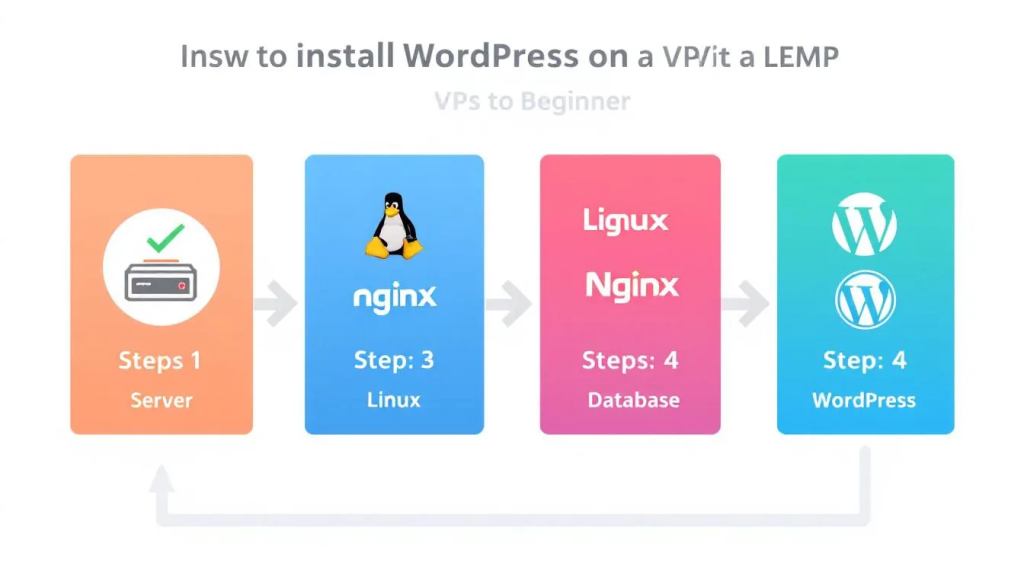
La plupart des didacticiels LEMP pour WordPress circulent encore autour de la référence Google CentOS 7, qui est arrivé en fin de vie en juin 2024 et j'ai arrêté de recevoir des correctifs de sécurité. Quelques-uns utilisent le socket TCP de style Apache pour PHP-FPM lorsque les deux services s'exécutent sur la même machine., ce qui ajoute de la latence sans raison. Ce guide utilise les valeurs par défaut modernes: Ubuntu 24.04 LTS, Prise Unix, et une disposition de bloc serveur qui tombe proprement dans le cache FastCGI plus tard.
The LEMP Stack on Ubuntu 24.04, Component by Component
LEMP est un acronyme, pas un produit. Chaque lettre est un logiciel distinct que vous installez et connectez.
L est Linux. Ubuntu 24.04 LTS est le chemin de moindre résistance dans 2026. Il est soutenu jusqu'en avril 2029, le référentiel de packages est à jour, et la plupart des fournisseurs de VPS le proposent sous forme d'image en un clic. Debian 12 ça marche aussi si tu préfères; les commandes ci-dessous ne nécessitent que des ajustements mineurs.
E est Nginx (prononcé “moteur-x”, d'où vient le E). Nginx est un serveur Web piloté par événements. Apache génère un processus ou un thread par connexion, qui fonctionne bien jusqu'à ce que le trafic augmente. Nginx gère des milliers de connexions simultanées dans un seul travailleur, c'est pourquoi la plupart des hébergeurs WordPress modernes l'utilisent par défaut.
M est MariaDB ou MySQL. WordPress ne se soucie pas de celui que vous utilisez tant que la version est suffisamment élevée. WordPress 6.7 Besoins MariaDB 10.6+ ou MySQL 8.0+. Ubuntu 24.04 navires MariaDB 10.11 LTS, qui est pris en charge jusqu'à 2028. Nous utiliserons MariaDB tout au long.
P est PHP. WordPress 6.7 prend en charge PHP 8.1 à travers 8.4. Ubuntu 24.04 navires PHP 8.3 comme valeur par défaut, la version à support actif jusqu'à tard 2026. PHP-FPM (Gestionnaire de processus FastCGI) est la pièce qui exécute réellement votre code PHP; Nginx lui transmet les requêtes via un socket Unix.
Si vous êtes nouveau dans toute cette couche de la pile, notre aperçu de Fournisseurs d'hébergement NGINX couvre les différences entre Apache et Nginx plus en profondeur, et quels hôtes budgétaires vous permettent d'exécuter une véritable configuration Nginx par rapport à. il suffit de renommer Apache.
Before You Run a Single Command
Vous avez besoin de quatre choses en place. Ignorer l'un d'entre eux transforme une installation de 10 minutes en une session de débogage de 2 heures.
- Un nouvel Ubuntu 24.04 VPS. Le minimum 1 processeur virtuel et 1 Go de RAM pour un site de loisirs, 2 Go si vous utilisez WooCommerce ou un constructeur de pages lourd. Qu'il s'agisse d'un Hetzner CX22 à 4 USD/mois ou d'un KVM Hostinger 2 ça ira. Notre Guide d'hébergement WordPress VPS compare les options pratiques.
- Accès SSH en tant qu'utilisateur root ou sudo. La plupart des fournisseurs vous envoient par e-mail les informations d'identification root après le provisionnement. Si vous avez acheté un VPS géré, voir notre article sur géré vs. VPS non géré avant de continuer; un plan géré effectue souvent toute cette installation pour vous.
- Un nom de domaine pointant vers l’IP de votre serveur. Ajouter un enregistrement A chez votre registraire, alors attends 5 à 15 minutes pour que le DNS se propage. SSL n'émettra pas tant que le problème n'est pas résolu.
- Ports 22, 80, et 443 ouvert. Si votre fournisseur VPS propose un pare-feu cloud (Hetzner, Vultr, DigitalOcean le fait tous), ouvre ces trois ports là aussi, pas seulement à UFW.
J'ai ces quatre? Ouvrez votre terminal, SSH dans, et commençons.
Étape 1: Update Ubuntu and Lock Down SSH
Toujours patcher avant d'installer quoi que ce soit. L'image Ubuntu par défaut a généralement quelques semaines de retard sur les mises à jour de sécurité.
sudo apt update && sudo apt upgrade -ysudo apt install -y ufw fail2ban unattended-upgrades
UFW (Pare-feu simple) est le wrapper d'Ubuntu autour d'iptables. Activez-le avec le port SSH ouvert en premier, sinon tu vas t'enfermer.
sudo ufw allow OpenSSHsudo ufw enable
Si vous utilisez un port SSH non standard, remplacer OpenSSH avec 2222/tcp ou tout ce que vous définissez. Ne redémarrez pas et ne fermez pas votre terminal tant que vous n'avez pas confirmé que SSH fonctionne toujours dans une deuxième fenêtre..
Étape 2: Install Nginx and Open the Firewall
Nginx est dans le dépôt Ubuntu par défaut. Une commande:
sudo apt install -y nginxsudo ufw allow 'Nginx Full'
Cette Nginx Full le profil ouvre les deux 80 et 443. Visitez l'adresse IP de votre serveur dans un navigateur et vous devriez voir la valeur par défaut Bienvenue sur nginx! page. S'il ne se charge pas, vérifiez le pare-feu cloud de votre fournisseur VPS (une couche différente de celle d'UFW).
Assurez-vous que Nginx est opérationnel maintenant et reste actif après un redémarrage:
sudo systemctl status nginxsudo systemctl enable nginx
Étape 3: Install MariaDB and Secure It
MariaDB 10.11 LTS est dans Ubuntu 24.04 pensions. Le minimum de WordPress 6.7 est 10.6, donc nous sommes bien au-dessus du sol.
sudo apt install -y mariadb-serversudo mysql_secure_installation
L'interactif mysql_secure_installation le script pose une série de questions. Les bonnes réponses pour une nouvelle installation:
- Entrez le mot de passe root actuel: appuyez simplement sur Entrée (il n'y en a pas encore).
- Passer à l'authentification unix_socket: ET.
- Changer le mot de passe root: ET, et choisis-en un fort.
- Supprimer les utilisateurs anonymes: ET.
- Interdire la connexion root à distance: ET.
- Supprimer la base de données de test: ET.
- Recharger les tables de privilèges: ET.
Sauter l’un d’entre eux laisse de vrais vecteurs d’attaque ouverts. La connexion root à distance est la plus importante: si votre port MariaDB est exposé par accident, une connexion root ouverte devient la base de données de quelqu'un d'autre en quelques minutes.
Étape 4: Installer PHP 8.3 et PHP-FPM
WordPress a besoin de PHP et d'une poignée d'extensions. Installez-les d'un seul coup:
sudo apt install -y php8.3-fpm php8.3-mysql php8.3-curl php8.3-gd php8.3-mbstring php8.3-xml php8.3-zip php8.3-imagick php8.3-intl php8.3-bcmath php8.3-opcache
Ce bundle couvre le noyau de WordPress, traitement d'images pour la médiathèque (imagick + Dieu), les fonctionnalités i18n pour les sites non anglais (international + mbstring), et OPcache pour la mise en cache du bytecode compilé. Sauter php8.3-imagick seulement si vous êtes certain de ne jamais télécharger d'image.
Contrôle d'intégrité PHP-FPM:
sudo systemctl status php8.3-fpm
Par défaut, il écoute /run/php/php8.3-fpm.sock. C'est le chemin que Nginx fera référence à l'étape 7. Aucune modification n'est nécessaire, sauf si vous exécutez plusieurs versions de PHP côte à côte.
Étape 5: Create the WordPress Database
WordPress a besoin de sa propre base de données et d'un utilisateur dédié. N'utilisez pas le compte root MariaDB; un plugin compromis ne devrait pas égaler la racine complète de la base de données.
sudo mariadb
Vous êtes maintenant dans le shell MariaDB. Exécutez ces lignes, remplacer strongpasswordhere avec quelque chose généré par un gestionnaire de mots de passe:
CREATE DATABASE wordpress DEFAULT CHARACTER SET utf8mb4 COLLATE utf8mb4_unicode_ci;CREATE USER 'wpuser'@'localhost' IDENTIFIED BY 'strongpasswordhere';GRANT ALL ON wordpress.* TO 'wpuser'@'localhost';FLUSH PRIVILEGES;EXIT;
le utf8mb4 le jeu de caractères est important. Prise en charge des emojis WordPress, caractères complets en langue asiatique, et toute gestion de texte moderne suppose toutes utf8mb4. Le plus âgé utf8 charset dans MySQL est un piège de 3 octets qui brise les emoji en silence.
Étape 6: Téléchargez WordPress
Deux options ici. Choisissez ce qui vous semble le plus facile.
Option A: boucle + goudron. Le plus rapide, pas de logiciel supplémentaire:
cd /tmp && curl -O https://wordpress.org/latest.tar.gztar -xzf latest.tar.gzsudo mv wordpress /var/www/yoursite.comsudo chown -R www-data:www-data /var/www/yoursite.comsudo find /var/www/yoursite.com -type d -exec chmod 755 {} \;sudo find /var/www/yoursite.com -type f -exec chmod 644 {} \;
Option B: WP-CLI. Un peu plus de configuration, mais chaque tâche WordPress devient plus rapide par la suite (installations de thèmes, mises à jour des plugins, rotations de sel, recherche et remplacement dans la base de données).
curl -O https://raw.githubusercontent.com/wp-cli/builds/gh-pages/phar/wp-cli.pharchmod +x wp-cli.phar && sudo mv wp-cli.phar /usr/local/bin/wpsudo -u www-data wp core download --path=/var/www/yoursite.com
Pourquoi www-data? C'est comme cela que Nginx et PHP-FPM fonctionnent par défaut sur Ubuntu. Fichiers appartenant à cet utilisateur, avec des répertoires sur 755 et les fichiers à 644, est le modèle sécurisé standard. Éviter 777, jamais, n'importe où; c'est une habitude classique d'hébergement mutualisé qui n'a pas sa place sur un VPS.
Étape 7: Configure the Nginx Server Block
Créer un nouveau fichier de blocage de serveur:
sudo nano /etc/nginx/sites-available/yoursite.com
Collez ceci dans, remplacer yoursite.com avec votre vrai domaine:
server {listen 80;server_name yoursite.com www.yoursite.com;root /var/www/yoursite.com;index index.php index.html;location / { try_files $uri $uri/ /index.php?$args; }location ~ \.php$ {include snippets/fastcgi-php.conf;fastcgi_pass unix:/run/php/php8.3-fpm.sock;}location ~ /\.ht { deny all; }location = /xmlrpc.php { deny all; }}
Deux pièces méritent attention. le try_files La directive est ce qui fait fonctionner les permaliens WordPress; sans ça, tout autre chose que la page d'accueil renvoie un 404. le xmlrpc.php deny all La ligne bloque un vecteur d'attaque par force brute notoire que presque aucun site WordPress n'utilise plus (Jetpack et quelques applications mobiles existantes en ont encore besoin; si vous dépendez de l'un ou l'autre, commente cette ligne).
Activer le site, désactiver la valeur par défaut, et recharger:
sudo ln -s /etc/nginx/sites-available/yoursite.com /etc/nginx/sites-enabled/sudo rm /etc/nginx/sites-enabled/defaultsudo nginx -tsudo systemctl reload nginx
le nginx -t l'étape compte. Il valide votre config avant de recharger, which prevents you from breaking the running server with a typo.
Étape 8: Edit wp-config.php
WordPress ships a sample config file you copy and edit:
cd /var/www/yoursite.comsudo cp wp-config-sample.php wp-config.phpsudo nano wp-config.php
Find the database section near the top and fill in what you set in Step 5:
define( 'DB_NAME', 'wordpress' );define( 'DB_USER', 'wpuser' );define( 'DB_PASSWORD', 'strongpasswordhere' );define( 'DB_HOST', 'localhost' );
Now the salts. Visite https://api.wordpress.org/secret-key/1.1/salt/ dans un navigateur. La page renvoie huit lignes générées aléatoirement (AUTH_KEY, SECURE_AUTH_KEY, LOGGED_IN_KEY, NONCE_KEY, plus les sels assortis). Remplacez le bloc d'espace réservé dans wp-config.php avec ce que la page a généré. Nouvelles valeurs aléatoires à chaque installation, aucune exception.
Enregistrez le fichier. Si vous avez utilisé WP-CLI à l'étape 6, vous pouvez ignorer complètement l'édition manuelle avec sudo -u www-data wp config create --dbname=wordpress --dbuser=wpuser --dbpass=strongpasswordhere; il extrait automatiquement les sels frais.
Étape 9: Run the Browser Installer
Ouvrez votre domaine dans un navigateur. WordPress détecte une installation non configurée et affiche le sélecteur de langue. De là:
- Choisissez votre langue. Cliquez sur Continuer.
- Titre du site, nom d'utilisateur administrateur (ne choisis pas “administrateur”; les robots le ciblent), mot de passe fort, votre email.
- Cocher Décourager les moteurs de recherche si le site n'est pas encore prêt pour le trafic.
- Cliquez sur Installer WordPress.
Tu devrais voir un “Succès!” écran dans 5 à 10 secondes. S'identifier. Vous utilisez une installation WordPress auto-hébergée sur votre propre pile LEMP. À partir de ce point, l’ensemble du processus destiné à l’utilisateur est identique à toute autre installation WordPress..
Add HTTPS with Let’s Encrypt (Five More Minutes)
WordPress uniquement HTTP dans 2026 est cassé. Les navigateurs avertissent les visiteurs, le formulaire de connexion WordPress divulgue les informations d'identification en texte clair, et Google déclasse le site. Certbot corrige les trois gratuitement.
sudo apt install -y certbot python3-certbot-nginxsudo certbot --nginx -d yoursite.com -d www.yoursite.com
Certbot réécrit votre bloc de serveur Nginx en place, en ajoutant le 443 écouteur et les chemins de certificat. Il propose également de rediriger tout le trafic HTTP vers HTTPS; dis oui. Les renouvellements s'exécutent automatiquement deux fois par jour via une minuterie systemd. Vous recevrez un e-mail en cas d'échec.
Confirmez avec:
sudo certbot renew --dry-run
Speed Tier: FastCGI Cache, OPcache, Redis
Une installation Vanilla LEMP est déjà plus rapide que 90% d'hébergement mutualisé. Si vous voulez les temps de réponse dont se vantent les hébergeurs WordPress gérés (temps inférieur à 100 ms jusqu'au premier octet), trois couches supplémentaires vous y amènent.
OPcache compile vos fichiers PHP en bytecode et garde le résultat en mémoire. Il est déjà installé (nous avons ajouté php8.3-opcache en étape 4). Les paramètres par défaut fonctionnent bien; élevage opcache.memory_consumption à 256 dans /etc/php/8.3/fpm/php.ini aide si vous exécutez beaucoup de plugins.
Cache Nginx FastCGI stocke l'intégralité de la page HTML rendue dans la mémoire de Nginx et sert des requêtes répétées sans jamais toucher PHP ou MariaDB. Des benchmarks indépendants montrent que les temps de réponse chutent de 200 à 500 ms sur les caches du plugin jusqu'à environ 40 ms sur le cache FastCGI. Le compromis est la complexité de la configuration et la nécessité de contourner le cache pour les utilisateurs connectés, wp-admin, et toutes les pages de panier/paiement. Associez-le au logiciel gratuit Assistant Nginx plugin de WordPress.org pour que les purges de cache se produisent automatiquement lorsque vous publiez un article.
Cache d'objets Redis gère la couche de requête de base de données. Répéter les requêtes (recherches d'options, transitoires, métadonnées utilisateur) être mis en cache dans la RAM au lieu d'appuyer sur MariaDB. C'est la couche qui compte le plus pour WooCommerce, Presse copain, et tout site d'adhésion où les pages ne peuvent pas être mises en cache statiquement.
Si gérer les trois vous semble trop, notre tour d'horizon de hébergement WordPress en nuage les options couvrent les fournisseurs gérés qui expédient ces couches préconfigurées.
Hardening Beyond the Defaults
Your install is now safer than most shared hosting, but it isn’t done. A short list of high-impact additions:
- Configure fail2ban for WordPress. You installed fail2ban back in Step 1. Add a jail that watches Nginx access logs for repeated 401s on
wp-login.phpand bans the offending IP for 24 heures. - Disable file editing in admin. Ajouter
define( 'DISALLOW_FILE_EDIT', true );àwp-config.php. This stops a compromised admin account from editing PHP files through the dashboard. - Move wp-config.php one level up. WordPress automatically looks one directory above the install root for
wp-config.php. Moving it to/var/www/au lieu de/var/www/yoursite.com/puts the database credentials outside the document root entirely. - Limit the admin login surface. Soit changez l'URL avec un plugin comme WPS Hide Login, ou restreindre
wp-adminà l'adresse IP de votre bureau via Nginx (allow x.x.x.x; deny all;à l'intérieur d'unlocation /wp-adminbloquer). - Authentification à deux facteurs pour chaque administrateur. Le plugin Wordfence ou Two-Factor fonctionne tous les deux. Les attaques par force brute deviennent inutiles contre un code TOTP.
Automate Backups Before You Forget
Votre pile LEMP est exactement deux choses dans le sens d'une sauvegarde: le /var/www/yoursite.com répertoire et le wordpress base de données. Sauvegardez les deux, selon un horaire, vers un endroit pas sur ce serveur.
Chemin le plus simple: le libre UpdraftPlus plugin pointé vers S3, Google Drive, ou Backblaze B2. Définissez le calendrier sur quotidiennement pour la base de données et hebdomadaire pour les fichiers., retenir 14 à 30 journées, fait.
Si vous préférez rester natif en ligne de commande, une tâche cron de cinq lignes utilisant mysqldump + tar + rclone est à peu près équivalent et n'utilise aucun plugin. D'une manière ou d'une autre, restaurer-tester la sauvegarde une fois par trimestre; une sauvegarde non vérifiée n'est que de l'optimisme.
Troubleshooting Common Errors
502 Bad Gateway
Nginx ne peut pas atteindre PHP-FPM. Cela signifie généralement que PHP-FPM ne fonctionne pas, the socket path in your server block is wrong, or permissions on the socket file are off. Check with sudo systemctl status php8.3-fpm première. If it’s running, verify the socket path matches what Nginx expects (default is /run/php/php8.3-fpm.sock).
Erreur de connexion à la base de données
Votre wp-config.php les informations d'identification ne correspondent pas à ce que vous avez défini dans MariaDB. Revérifier DB_NAME, DB_USER, DB_PASSWORD. Testez directement les identifiants: mariadb -u wpuser -p wordpress. Si cela échoue avec une erreur d'authentification, le mot de passe dans wp-config.php c'est faux, ou l'utilisateur n'a pas obtenu de privilèges sur cette base de données.
WordPress permalinks return 404
Disparu try_files $uri $uri/ /index.php?$args; dans votre Nginx location / bloquer. Ajoutez-le, courir sudo nginx -t, puis rechargez Nginx. Les permaliens fonctionnent immédiatement après; aucune réinitialisation du plugin n'est nécessaire.
Écran blanc de la mort après l'installation d'un plugin
Une erreur fatale PHP est enregistrée mais n'est pas affichée. Queue /var/log/nginx/error.log et /var/log/php8.3-fpm.log. Si vous ne pouvez pas accéder au tableau de bord, renommer le dossier du plugin incriminé via SSH (mv plugin-name plugin-name-disabled) et le site revient. De là, vérifiez la version PHP requise du plugin; de nombreux plugins plus anciens tombent en panne sur PHP 8.3.
Autorisation refusée lors du téléchargement de médias
le wp-content/uploads le répertoire n'est pas accessible en écriture par www-data. Courir sudo chown -R www-data:www-data /var/www/yoursite.com/wp-content et le problème est résolu. Si vous utilisez un hébergement partagé qui nécessite un utilisateur différent, vérifiez les documents de votre fournisseur; l'utilisateur diffère selon l'hôte.
Questions fréquemment posées
Pourquoi utiliser Nginx au lieu d'Apache pour WordPress?
Nginx gère plus efficacement les connexions simultanées et sert les fichiers statiques (CSS, JS, images) plus rapide avec moins de RAM. Sur un 1 GB VPS, Apache sature généralement autour 50 utilisateurs concurrents; Nginx en gère plusieurs centaines sur le même matériel. Apache a toujours sa place quand on dépend de .htaccess remplacements ou modules Apache spécifiques. Pour la plupart des installations WordPress modernes, Nginx est la bonne valeur par défaut.
Puis-je installer WordPress sur une pile LEMP sans accès root?
Non. Installation de Nginx, PHP-FPM, et MariaDB nécessite sudo Au minimum. Si votre plan d'hébergement ne vous offre que cPanel et FTP, vous êtes sur un hébergement mutualisé et l'installation LEMP ne vous appartient pas. Vous auriez besoin d'un serveur VPS ou cloud avec accès root, ou passez à un hébergeur WordPress géré qui exécute déjà Nginx en dessous.
Le timing de 10 minutes tient-il réellement?
De façon réaliste, dix minutes c'est la parole, pas la moyenne. Avec un nouvel Ubuntu 24.04 image, un domaine déjà pointé, et les commandes pré-copiées dans un éditeur de texte, l'installation s'exécute dans 8 à 12 minutes. Les débutants qui lisent et vérifient chaque étape sont plus proches de 30 à 45 minutes. Le plus gros puits de temps est la propagation DNS et la demande de certificat SSL., qui, ensemble, peuvent s'étendre jusqu'à 20 minutes lors d'une mauvaise journée.
MariaDB ou MySQL sont-ils meilleurs pour WordPress?
L'un ou l'autre fonctionne bien; WordPress ne le remarque pas. MariaDB a l'avantage dans la communauté open source, livré dans le dépôt par défaut d'Ubuntu, et je n'ai jamais eu de points d'interrogation sur la propriété Oracle. MySQL 8.0 est plus rapide pour certaines charges de travail spécifiques lourdes en JSON, ce qui compte rarement pour WordPress. Choisissez MariaDB sauf si vous avez une vraie raison d'utiliser MySQL.
Ai-je besoin d'un CDN si j'exécute le cache FastCGI?
Différentes couches, différents métiers. Le cache FastCGI accélère votre serveur d'origine; un CDN place des copies en cache dans 200+ villes afin que les visiteurs de Sydney ne récupèrent pas depuis votre serveur de Francfort. Exécutez les deux sur n’importe quel site avec des visiteurs internationaux. Plan gratuit de Cloudflare et couvertures de cache FastCGI 95% de petits sites WordPress sans frais mensuels.
Puis-je héberger plusieurs sites WordPress sur la même pile LEMP?
Oui. Chaque site dispose de son propre bloc de serveur Nginx (un fichier par domaine dans /etc/nginx/sites-available/), sa propre base de données dans MariaDB, et son propre dossier sous /var/www/. PHP-FPM les sert tous via le même socket. La seule limite pratique est la RAM; budget 200 à 400 Mo par site pour un trafic modéré, plus pour WooCommerce.
Dernier mot
L'installation de LEMP est la partie la plus facile. Le faire fonctionner est le jeu le plus long: mises à jour mensuelles d'Ubuntu, vérifications trimestrielles de la version PHP, rotation du journal qui ne remplit pas le disque, les renouvellements de certificats que vous vérifiez réellement. Rien de tout cela n'est difficile, mais ce n'est pas gratuit non plus. Si le côté maintenance vous semble être un travail que vous ne voulez pas faire, notre aperçu de fournisseurs d'hébergement cloud couvre les options gérées où quelqu'un d'autre s'occupe entièrement de la couche du système d'exploitation. L'auto-hébergement WordPress sur LEMP est un choix de contrôle, ce n'est pas un choix de coût. La pertinence du contrôle dépend de ce que vous construisez et de votre aisance en ligne de commande..